Tablesyour lists, with a say over who touches them.
Tables are the spreadsheets of a Wakato space, where you keep leads, orders, inventory or any list your team works from. You choose who can use each table and how far, and your agents can read and fill them too. Tables are part of every space.
A table is a list with columns, like a spreadsheet, that lives inside a space. Use one for leads, stock, a content calendar, client records or anything your business tracks. Everyone in the space can work from the same table, and you decide who may only look, who may edit, and who may change how the table is built.
How it works
Each table has columns of a type you pick (text, number, date, email, phone, a person in the space and more) and rows you add by hand, import or let an agent or automation fill.
Views. The same rows can be seen as a Grid (spreadsheet), a Kanban board or a Calendar. Add a view from the view tabs with Add a view. If you want something else, such as cards with photos, a chart or a map, Build your own asks an agent to build an app that reads and writes the table live. Nothing is copied.
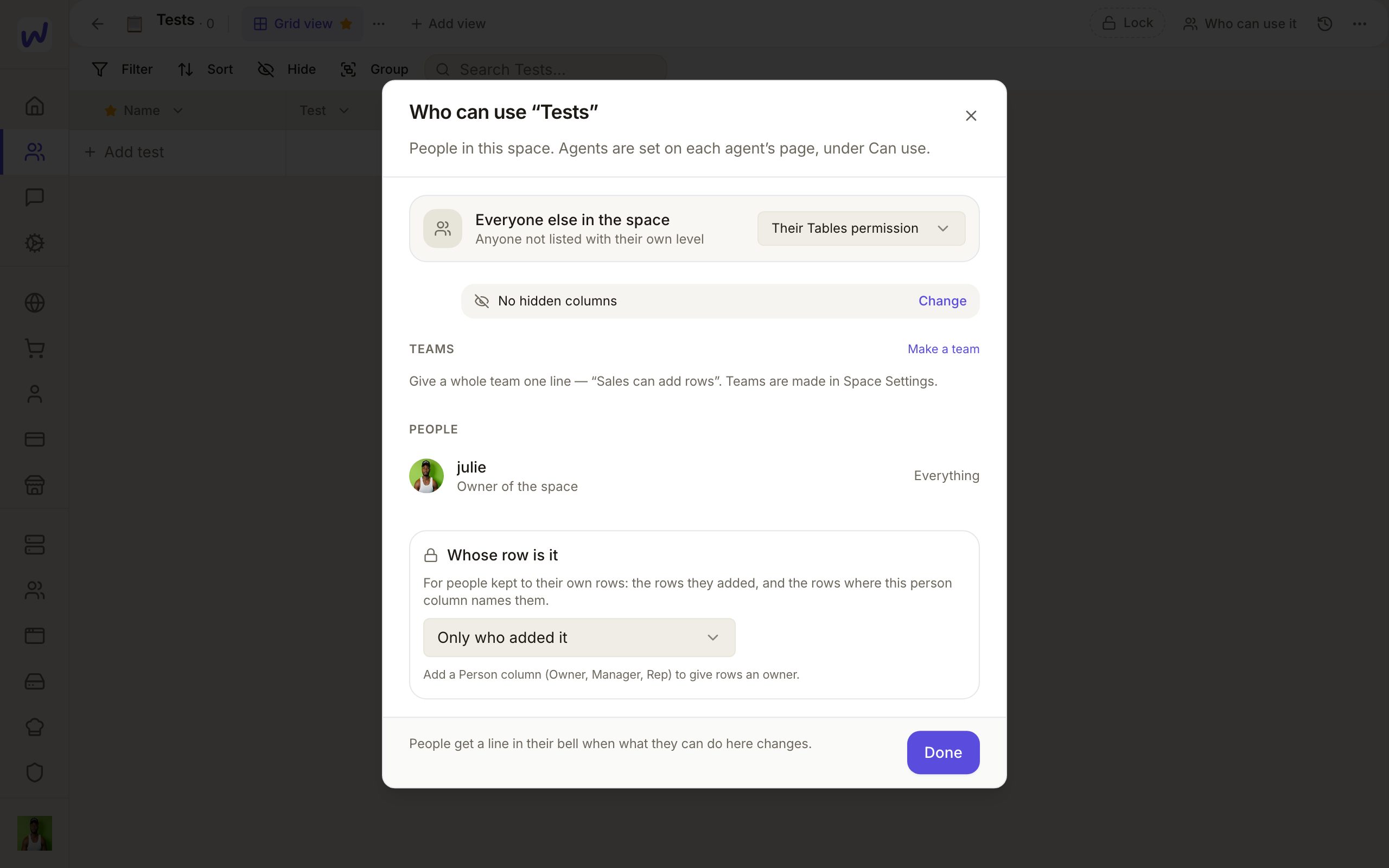
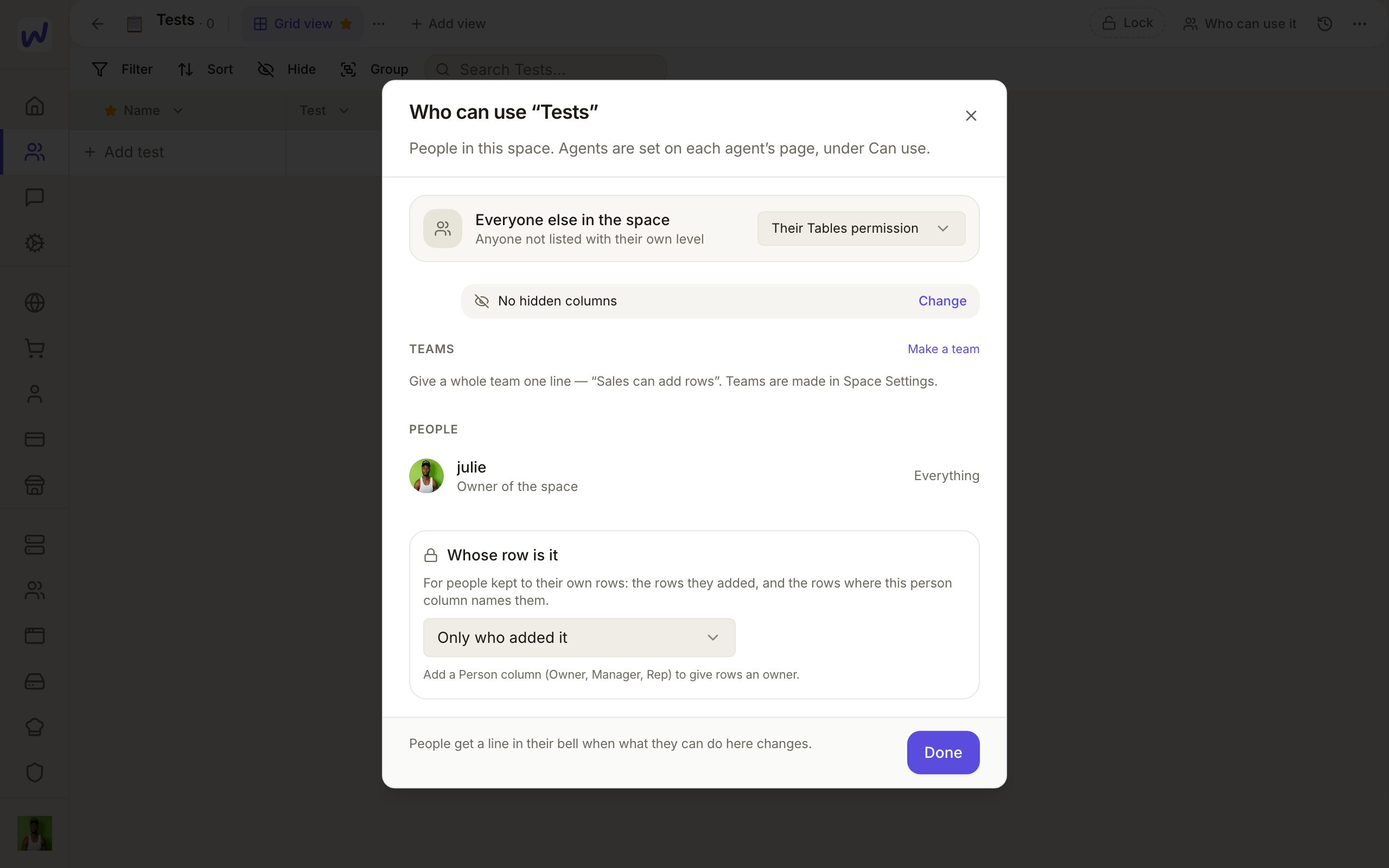
Who can use it. Every table has a Who can use it button. Each person sits on one level for that table:
- No access: the table is hidden from them.
- Read: look at it, never write.
- Edit what's in it: change what existing rows say and add comments.
- Add & remove rows: also add or delete rows.
- Change the table: also columns, views, settings, sharing and who can use it.
You set a level for Everyone else in the space, then give a person or a team their own line. Space owners and admins can always change the table. A table you never touch keeps working the way it did: people follow their Tables permission in the space.
Only their own rows. On a person's or team's line you can switch on Only their own rows. They then see and work on the rows they added, plus, if you pick a person column under Whose row is it, the rows where that column names them. Useful for sales reps who should only see their own leads.
Hidden columns. A line can also hide columns, for example a cost or commission column. Hidden columns are never shown to that person and never written by them. The line reads "Hidden from them:" followed by the column names.
Teams. Owners and admins make teams in Space Settings → Teams. A team gets a line on a table like a person does. When someone belongs to several teams, the most generous line wins, and their own personal line always comes first.
No duplicates. In a column's menu, switch on No duplicates for text, email, phone, URL or number columns. The database then refuses a second row with the same value, whoever adds it. Matching ignores capital letters and spaces, and phone numbers compare by digits. Blank cells never count.
History. The History button lists every change: who made it, when, and the value before and after. You can restore the table to an earlier point, and Save a restore point before a big edit.
Large tables. A table loads up to 20,000 rows in the page. Past that, filters and sorting run on the server, and the page tells you when more rows match than it shows.
Do it
Make the table
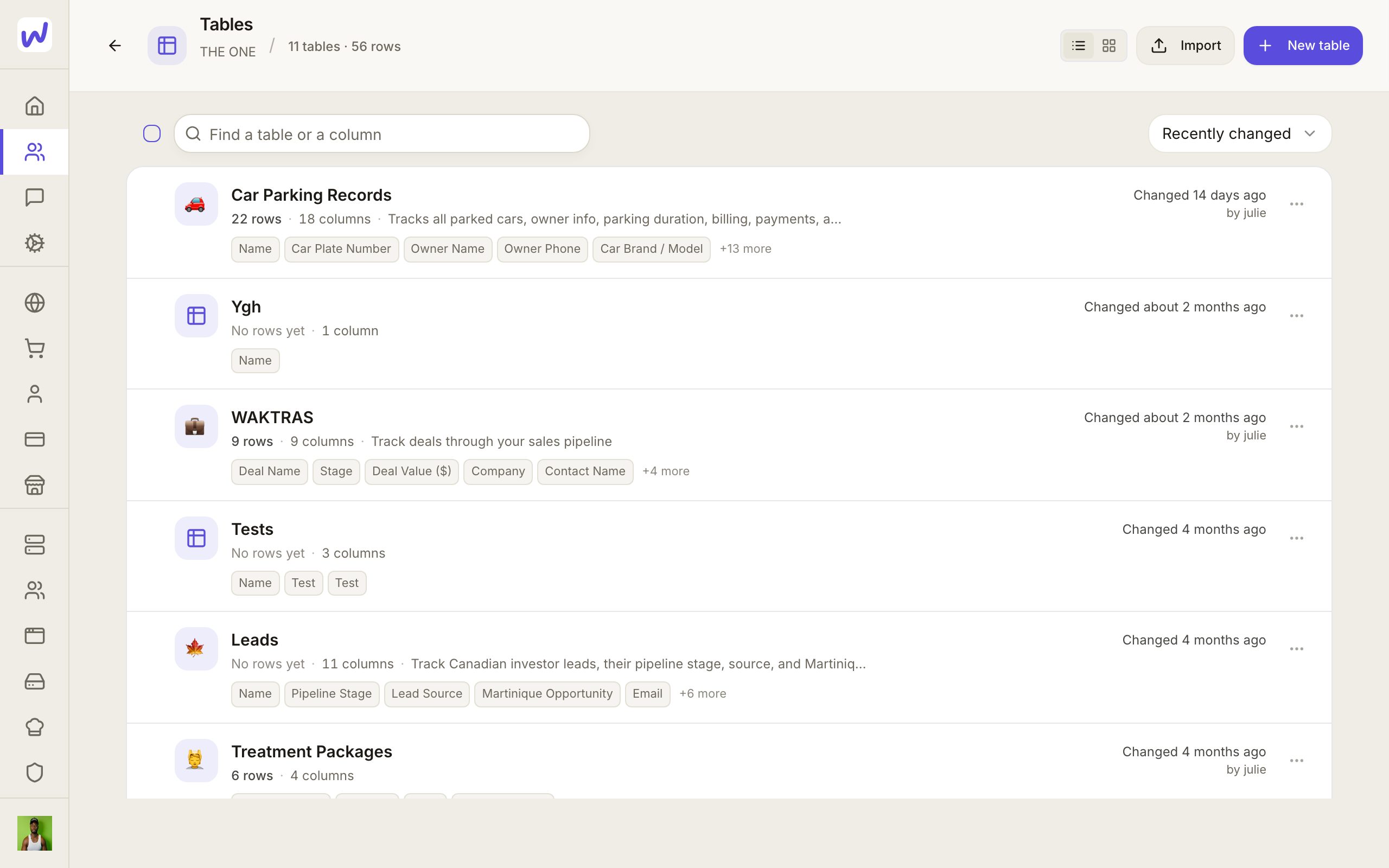
Add a column
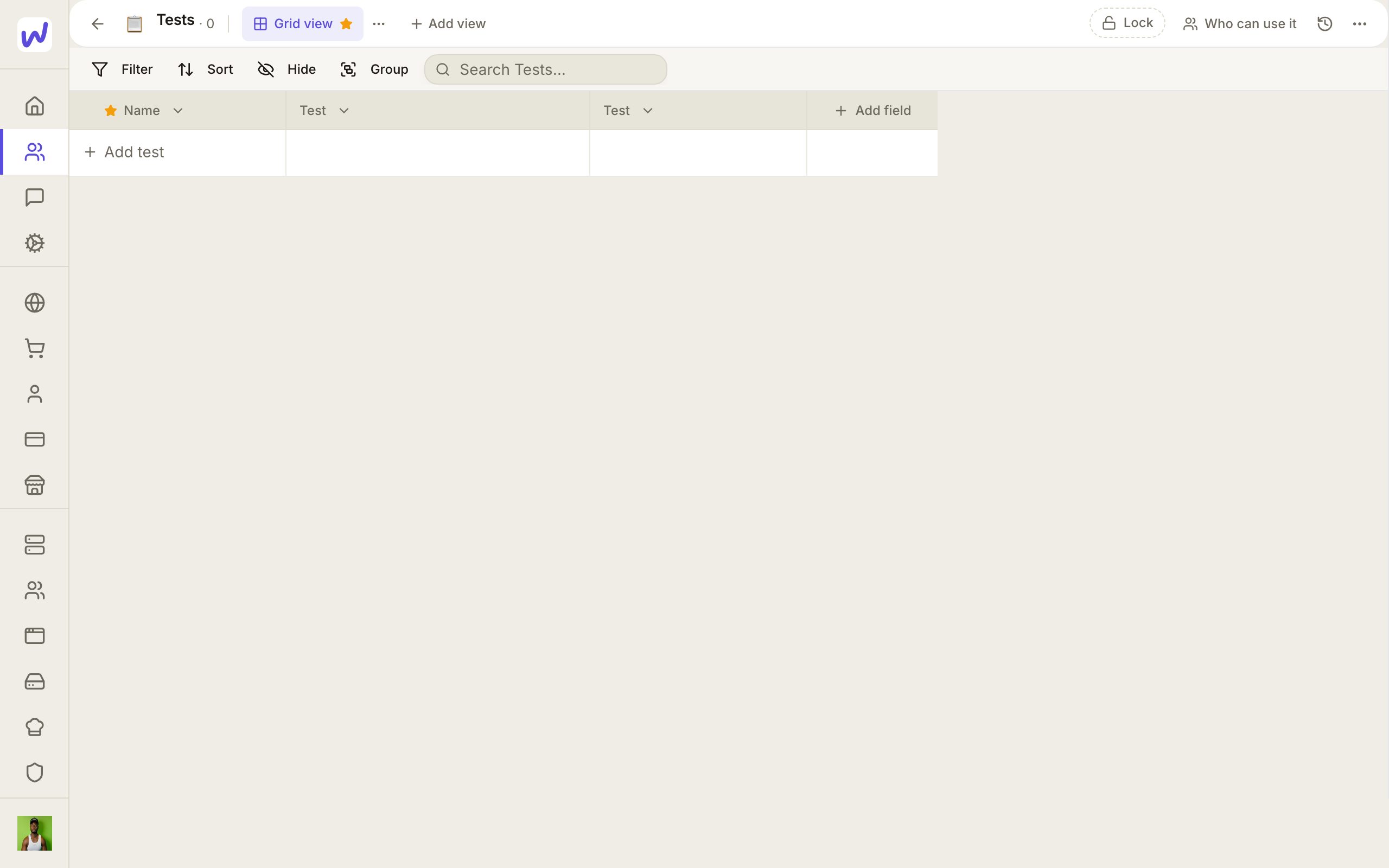
Name it and pick its type
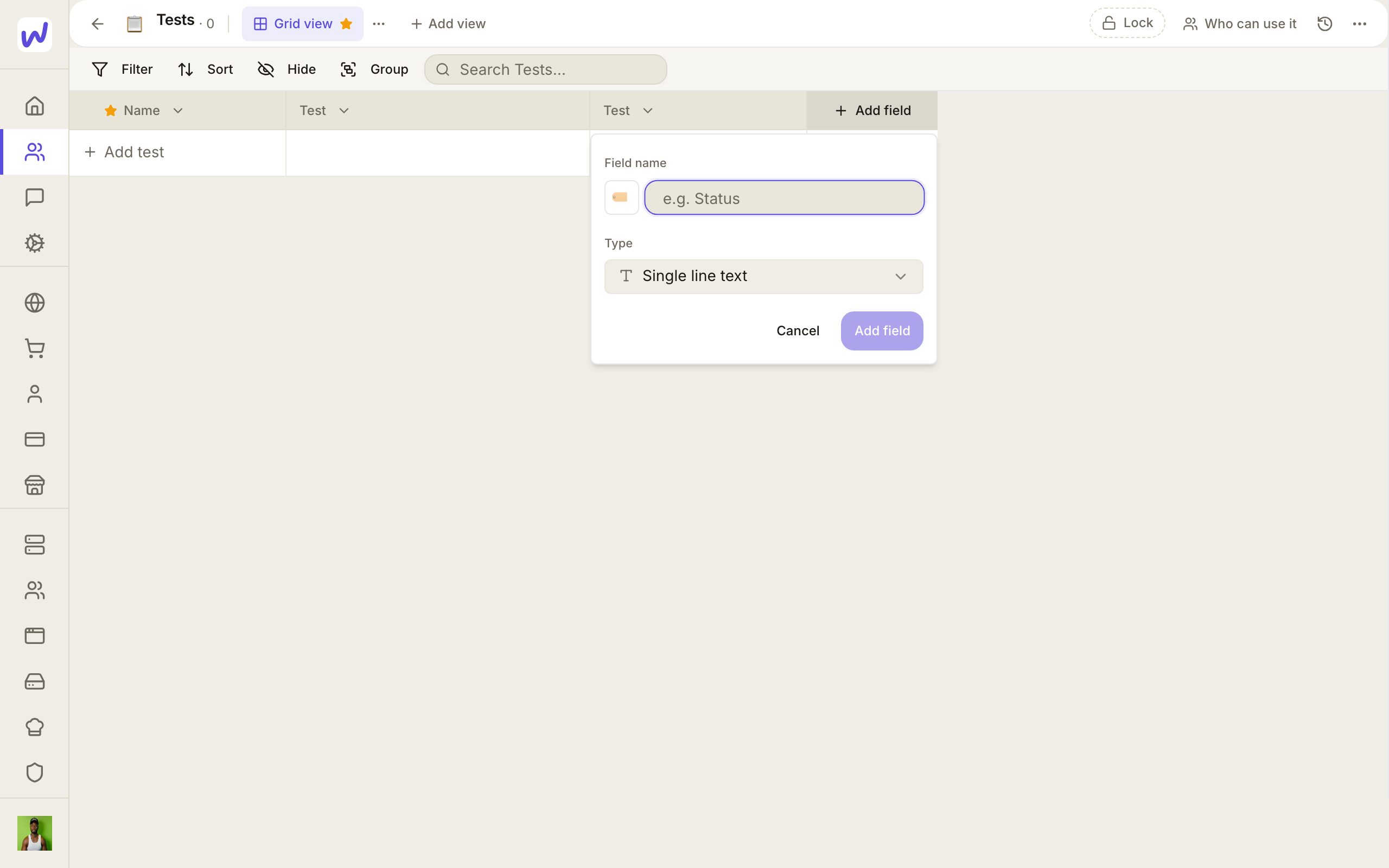
Open Who can use it
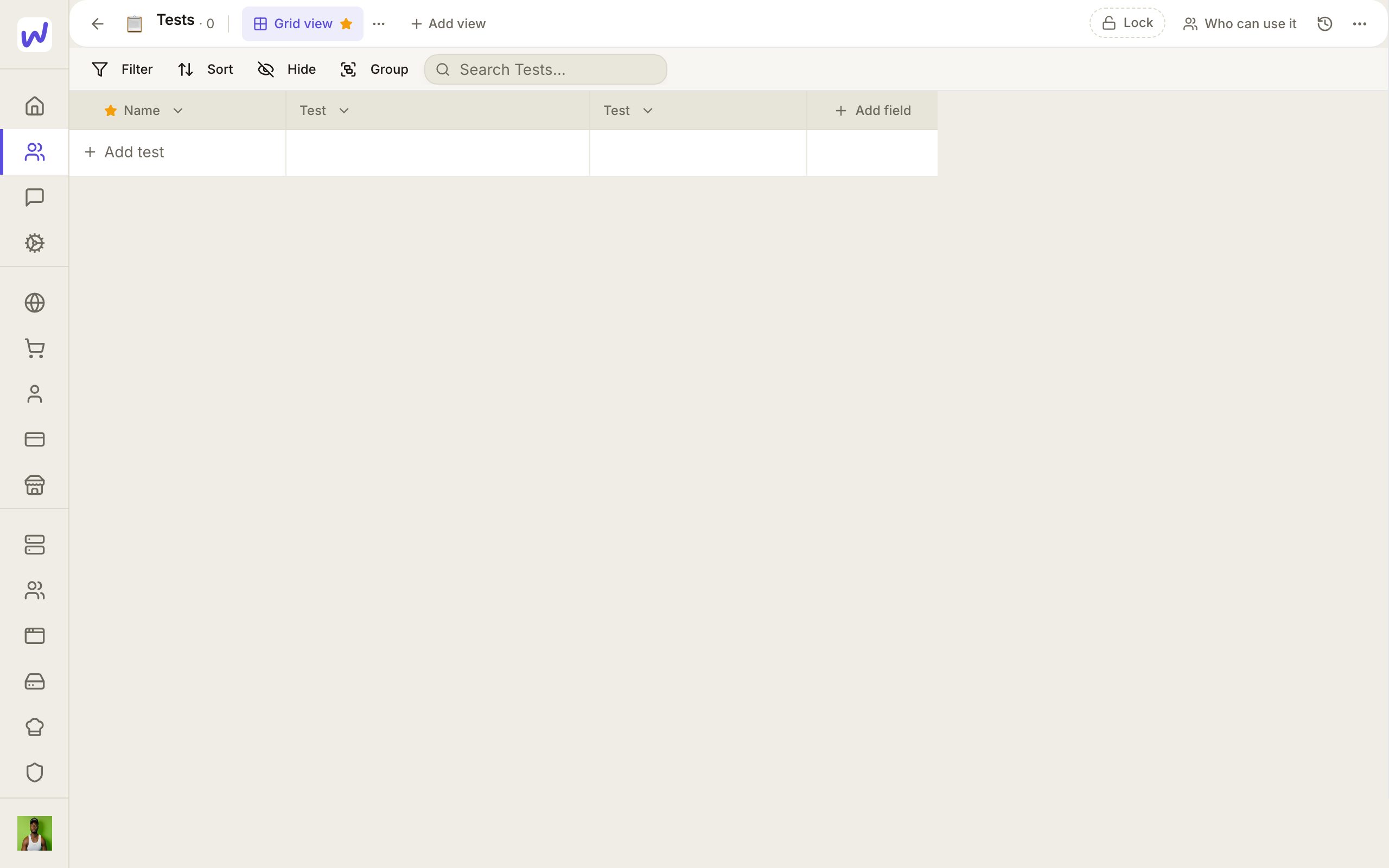
Set the levels
Save
Putting a table on a website
A table only shows on a public web page once you publish it from Share table and pick which columns visitors may see. Until then, a page bound to the table shows nothing to visitors. See Websites and pages.
What your agents can do here
Agents work in tables with their own permissions, set on the agent's page under what it may do. For each table you can give an agent a level too: read, edit, fill, or change. An agent can add and update rows, add columns, read the table's History, and switch No duplicates on a column.
Some steps always ask you first in the agent's chat: publishing a table to the web, changing who can use a table, and making or editing teams. You approve or refuse on the card.
Questions
Related
Meet
Meet is the video meeting tool inside each space, for instant calls, scheduled meetings with invitations, and rooms that are always open, with recording, a transcript and a written recap after each meeting. It also runs live webinars that people sign up for.
Tasks
Tasks is where a Wakato space keeps its to-do work, grouped into projects with columns like To Do and Done. You can give a task to a person or to an agent and ask for approval before it counts as finished. Tasks are part of every space.