Invite peoplethe right people, with the right reach.
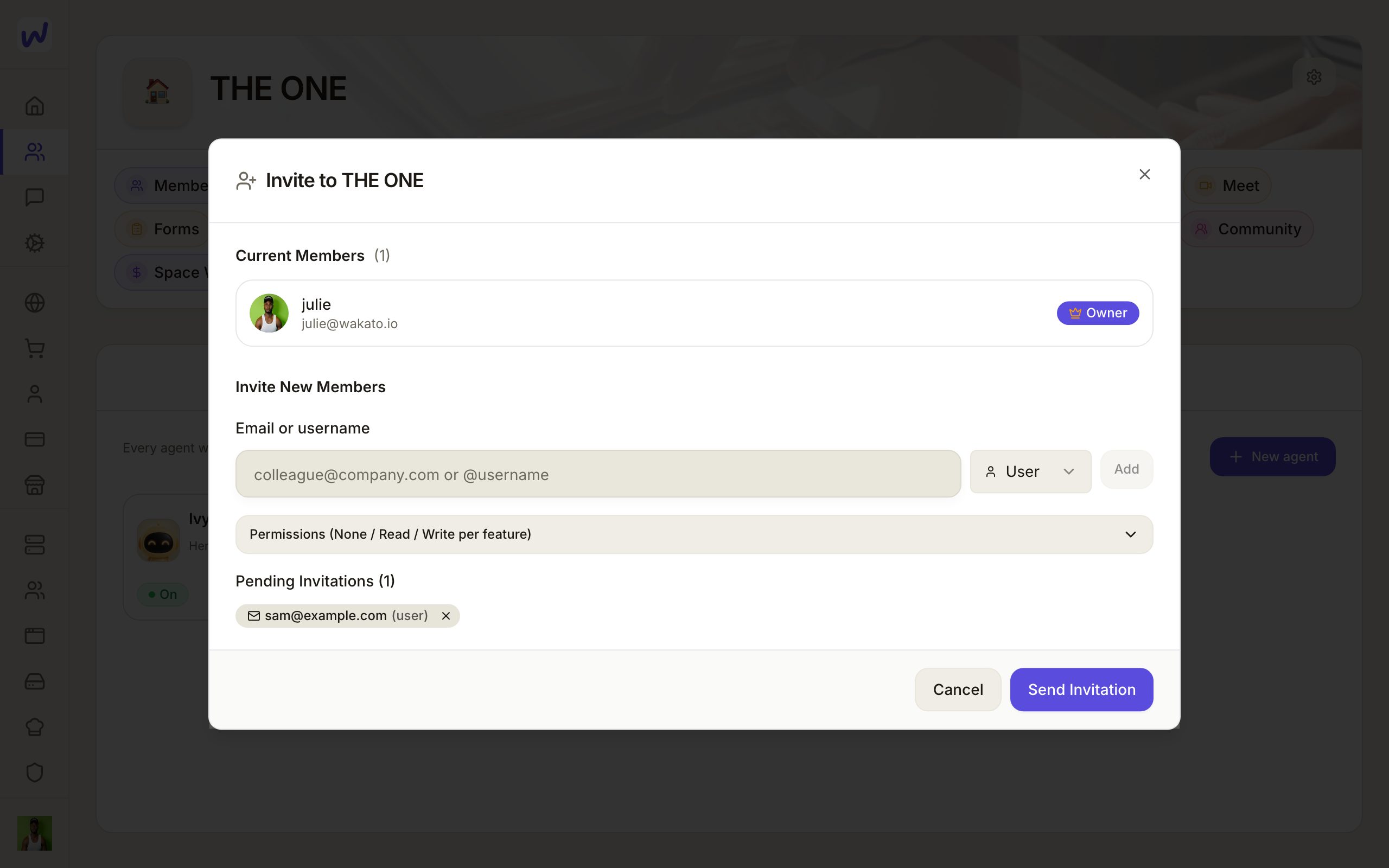
Invite your team to a space by email or Wakato username, give each person the User or Admin role, and choose None, Read or Write for each part of the space. Teams group people for table access. Inviting is free; Pro allows 5 members per space and Business has no limit.
You invite people into a space so they can work in it with you. Each person gets a role, and a User can be given exactly the parts of the space they need: read the calendar, write in tables, no access to finance, and so on. Teams let you group people so you can give a whole group access to a table at once.
The Free plan is one space for you alone. Pro allows 5 members in each space, and Business has no limit on members.
How it works
Roles
| Role | What they can do |
|---|---|
| Owner | The person who made the space. Runs everything, including the wallet and who may make agents. A space has one owner. |
| Admin | Runs the space beside the owner: invites people, changes permissions, runs the space's agents. |
| User | Works in the parts of the space you allow, at the level you choose. |
Permissions for a User
For a User, every part of the space (tables, documents, contacts, mail, finance and the others, plus each app installed in the space) has three levels:
- None: they do not see it.
- Read: they can look but not change anything.
- Write: they can add and change things.
You choose these when you invite someone, and you can change them later from Members.
Teams
A team is a named group of people in a space, like "Sales" or "Front desk". The owner and admins make teams in Space Settings → Teams with New team. Anyone in the space can see the teams. A table can then give a team its own level (for example Sales can add rows to the Leads table), and the table's access window shows where each person's access comes from. If someone leaves the space, they leave its teams too.
Do it
Prefer to watch?“Invite someone to your space”: watch it, or click through the steps yourself.Open Members
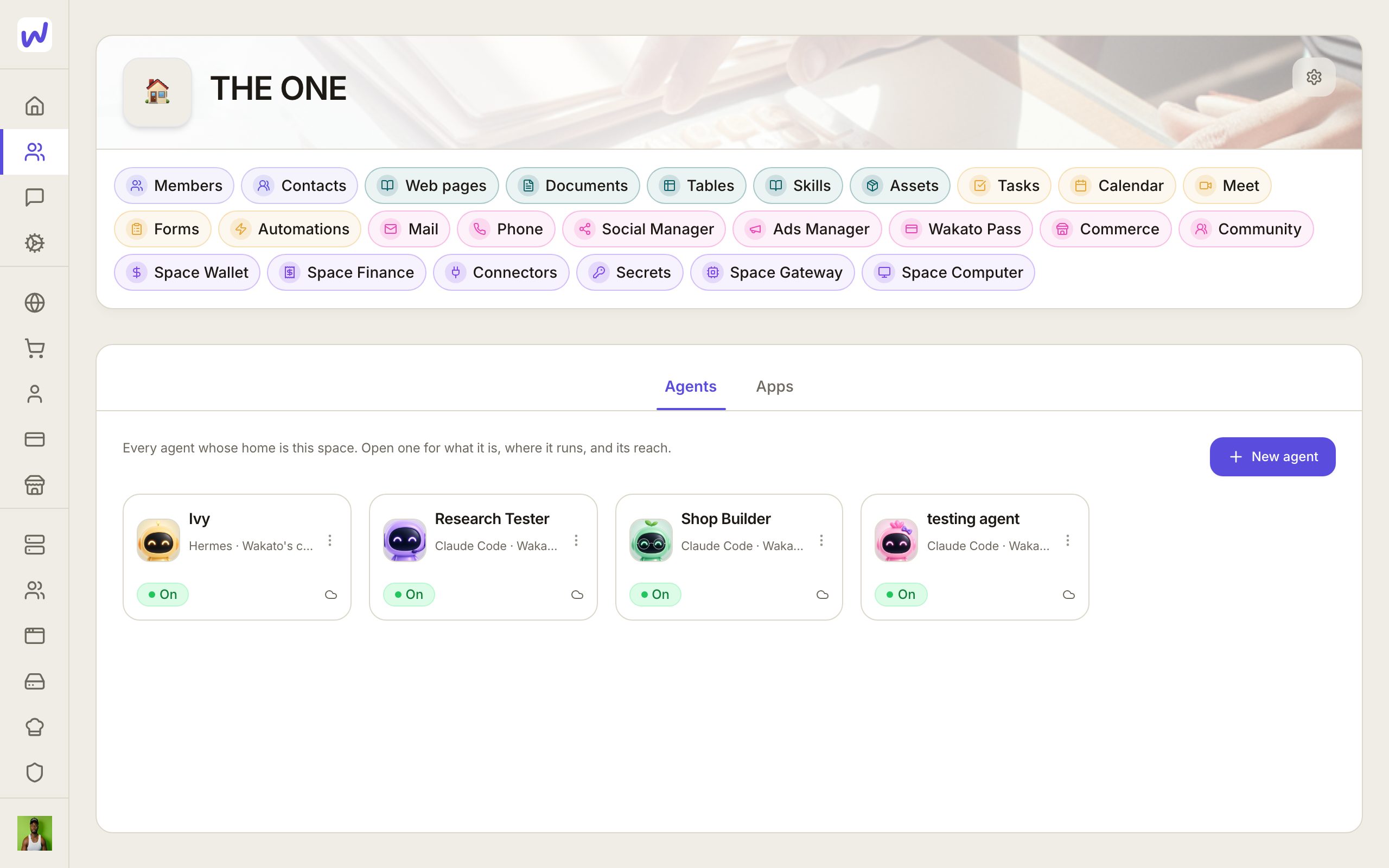
Type who to invite
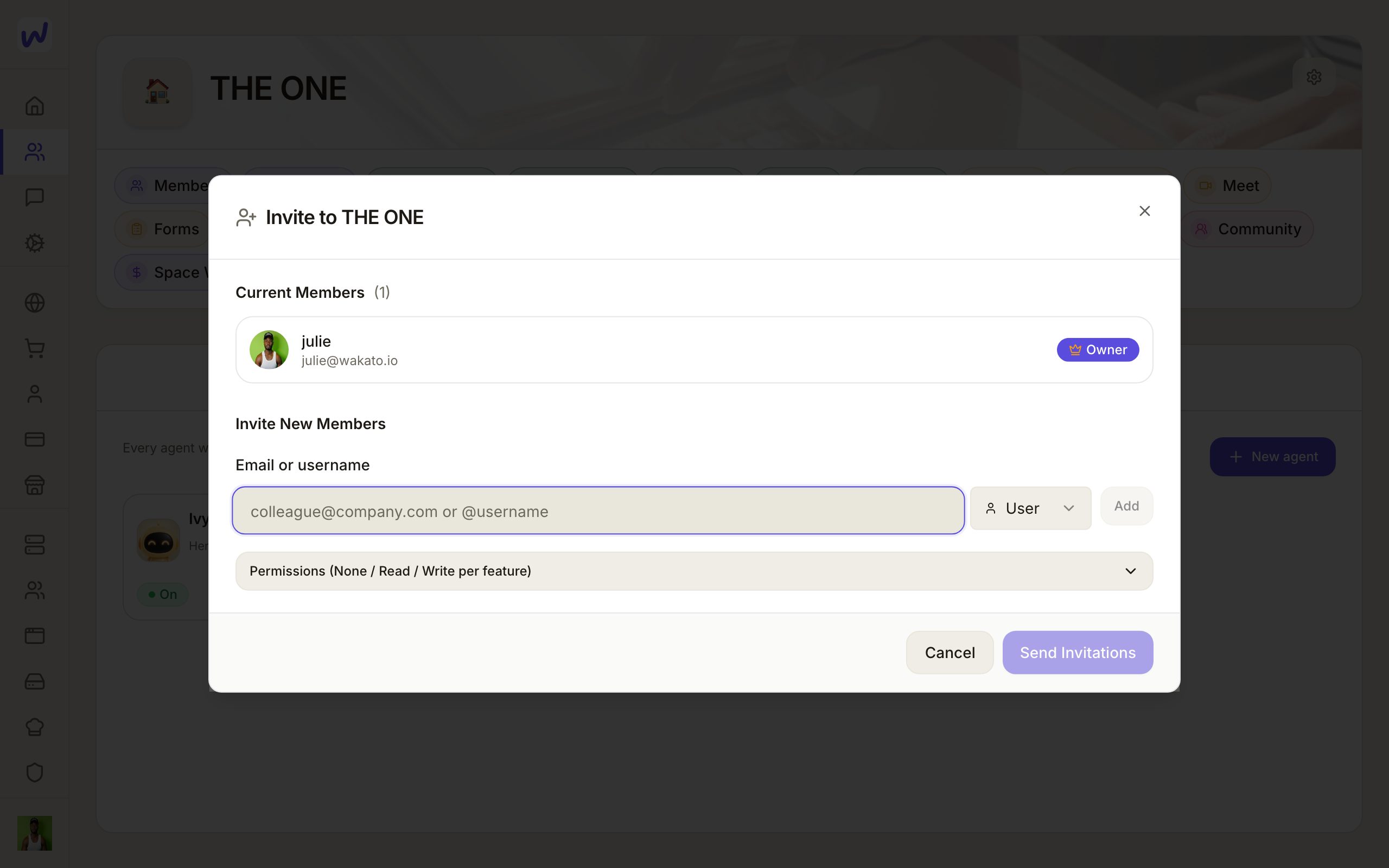
Choose their role
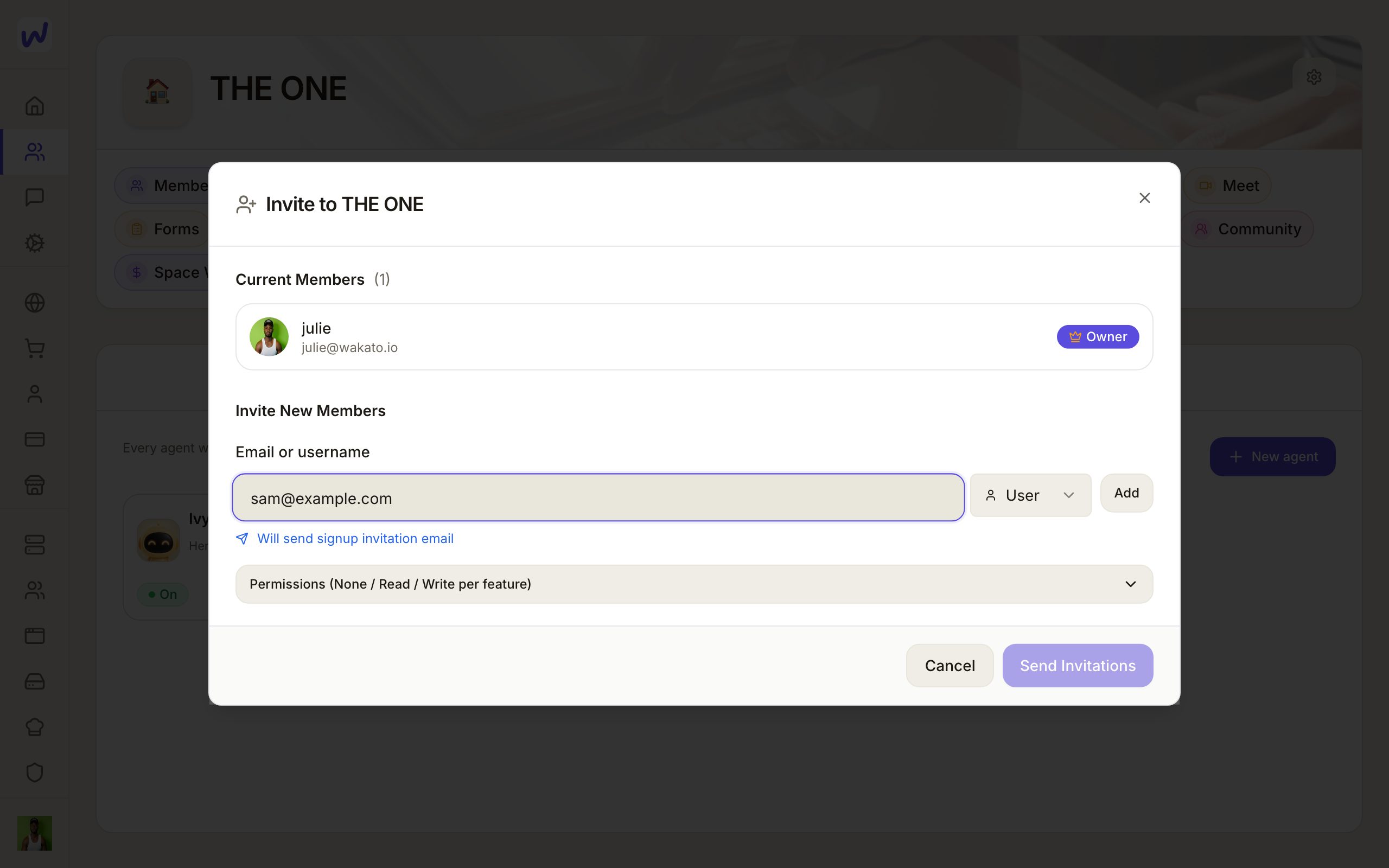
Add them
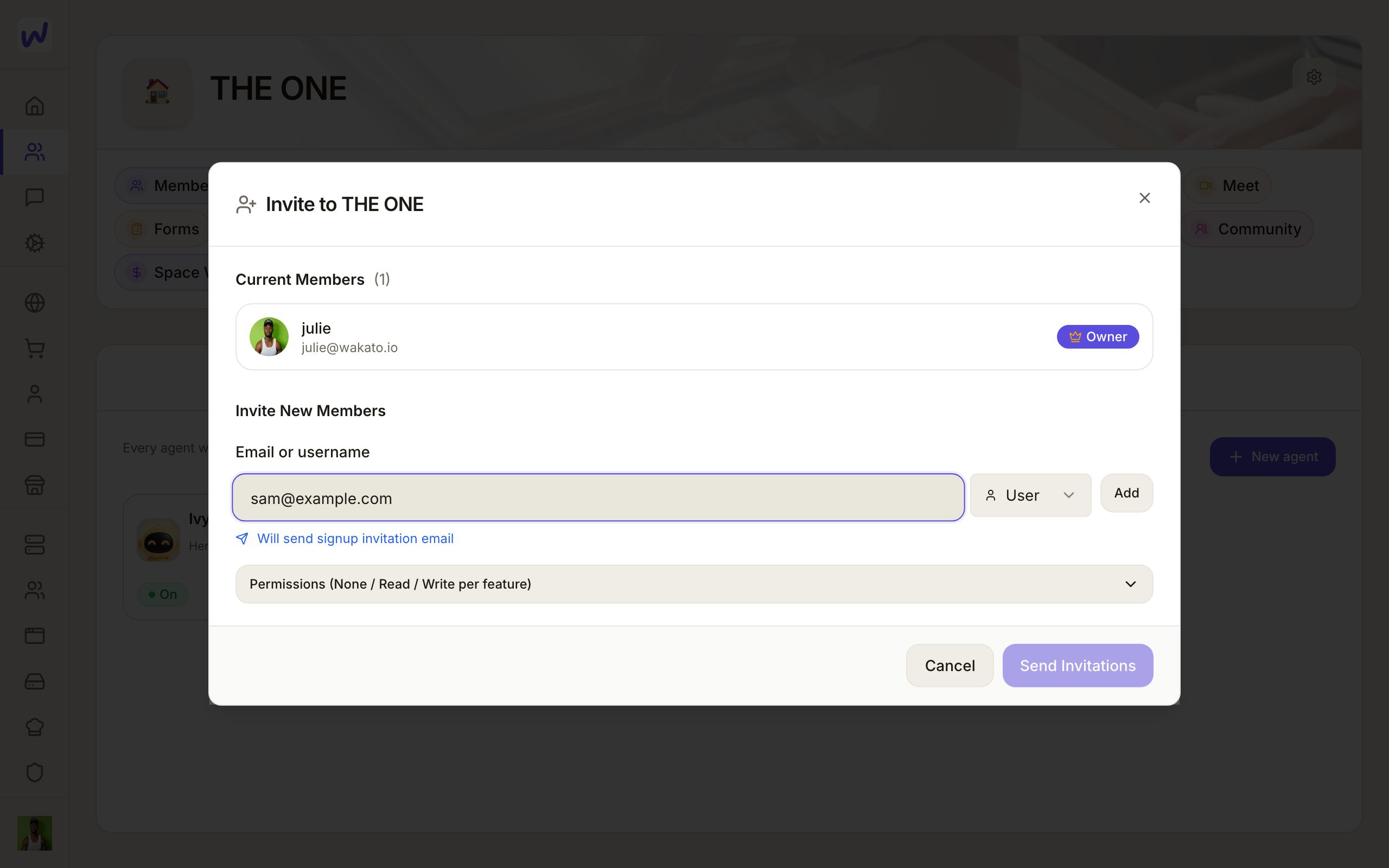
Choose what they may do
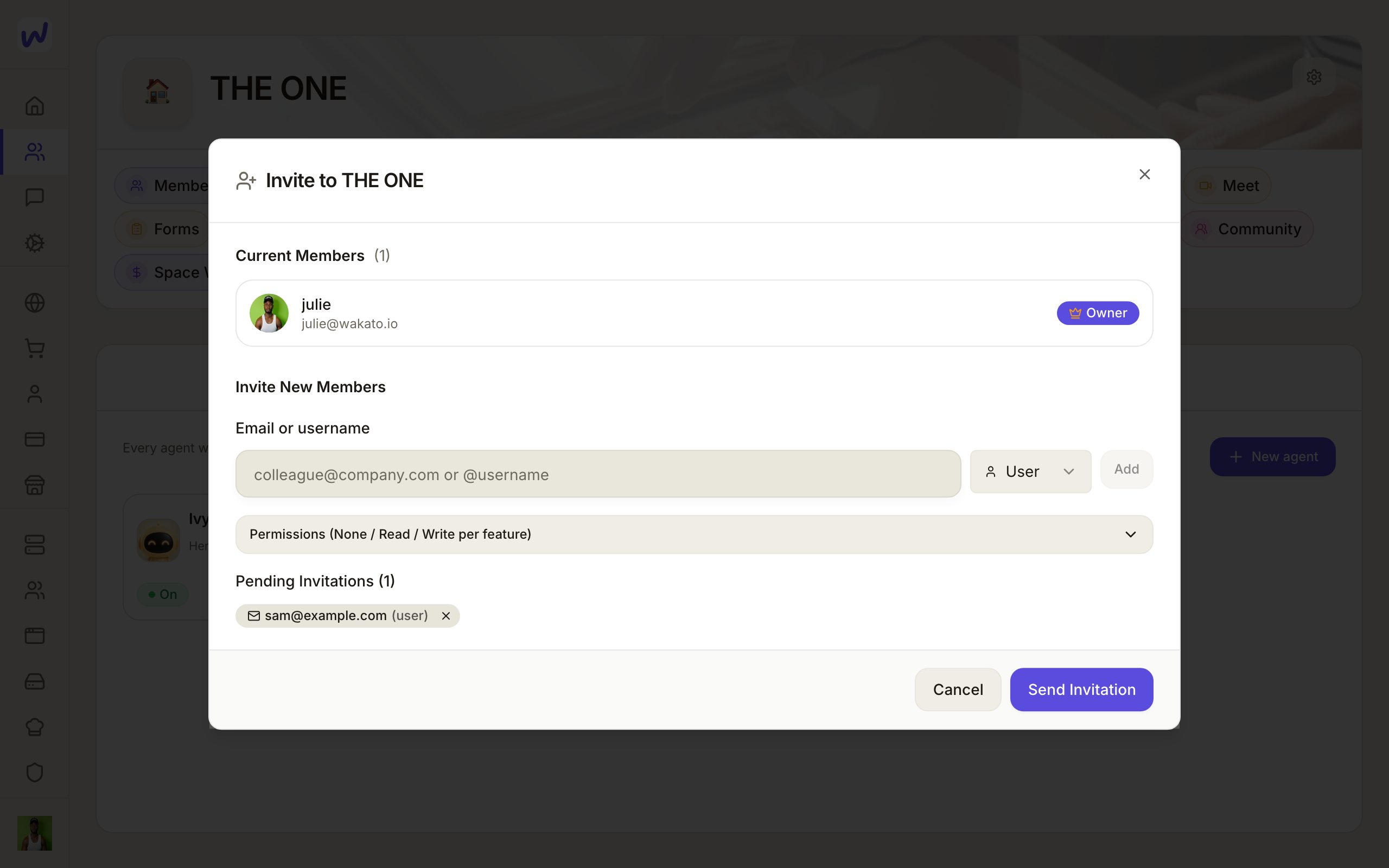
Send it
People and agents
Members and agents work side by side, but they are set up in different places:
- Who may make agents. The owner, admins, and Users who hold the Agents permission at Write can make agents in the space.
- Agents made by others. In Space Settings → Agents, the owner chooses Wait for my approval (the default) or Wake up right away. With approval on, an agent someone else makes exists at once, with its chat, but does nothing and costs nothing until the owner lets it wake up.
- Who runs an agent. An agent belongs to its space. The space's owner and admins run it, whoever pressed Create.
A person can never give more than they have
When an agent asks for a permission it does not have, only someone who could do that thing themselves in the space can allow it. Everyone else sees "Waiting for someone who can allow this."
Questions
Related
Your assistant
Every Wakato account comes with its own AI assistant that you talk to on Home or in Messages, by typing or by voice. Its use is paid from your own wallet, under a monthly spend ceiling you set.
Agents
An agent is an AI teammate that belongs to one of your spaces, has its own name, face and chat, and does real work with the space's tools. Its thinking is paid from that space's wallet; agents on Wakato's cloud need the Pro or Business plan.