Formsevery answer lands as a contact.
Make forms in your Wakato space to collect leads, signups, requests and survey answers. Every person who sends one becomes a contact automatically, and you can share the form by link, embed it on any website, or put it on your Wakato pages.
A form asks people questions and keeps their answers. In Wakato, forms live in each space under Forms. Anyone with the link can fill one in without an account. When someone sends a form, Wakato adds them to your Contacts (or updates the contact you already have for that email), so a form is also how new leads come in.
How it works
A form has three tabs:
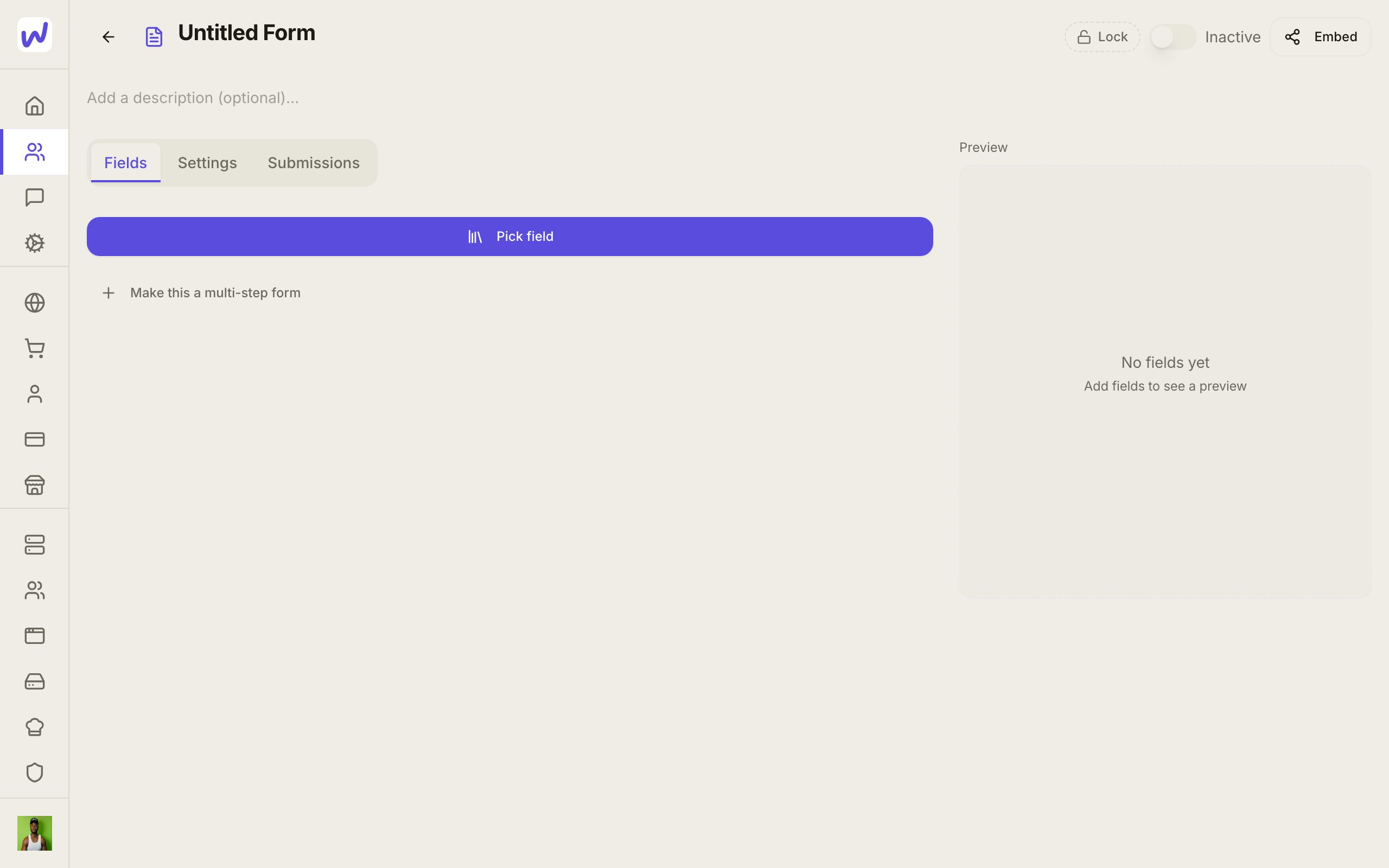
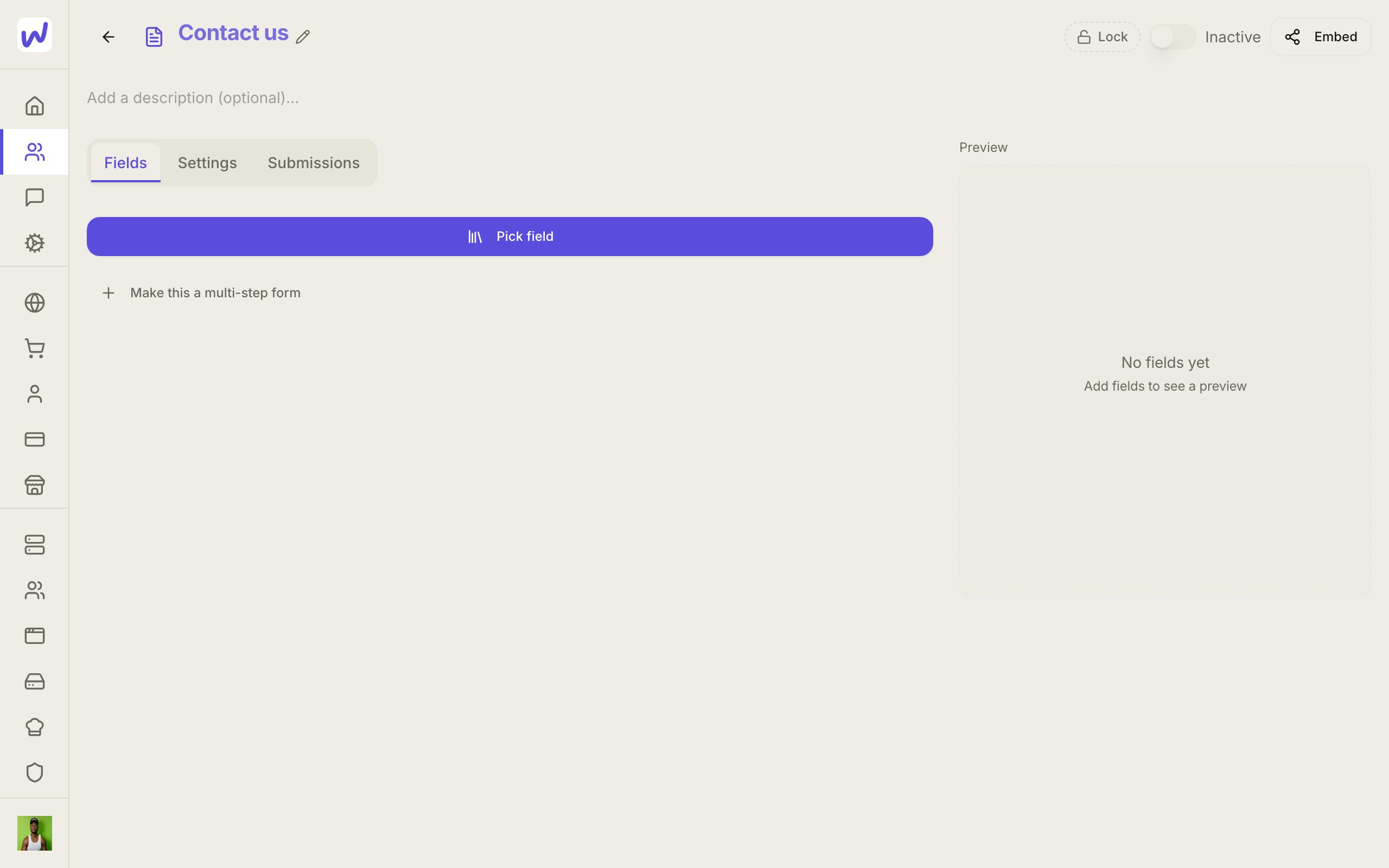
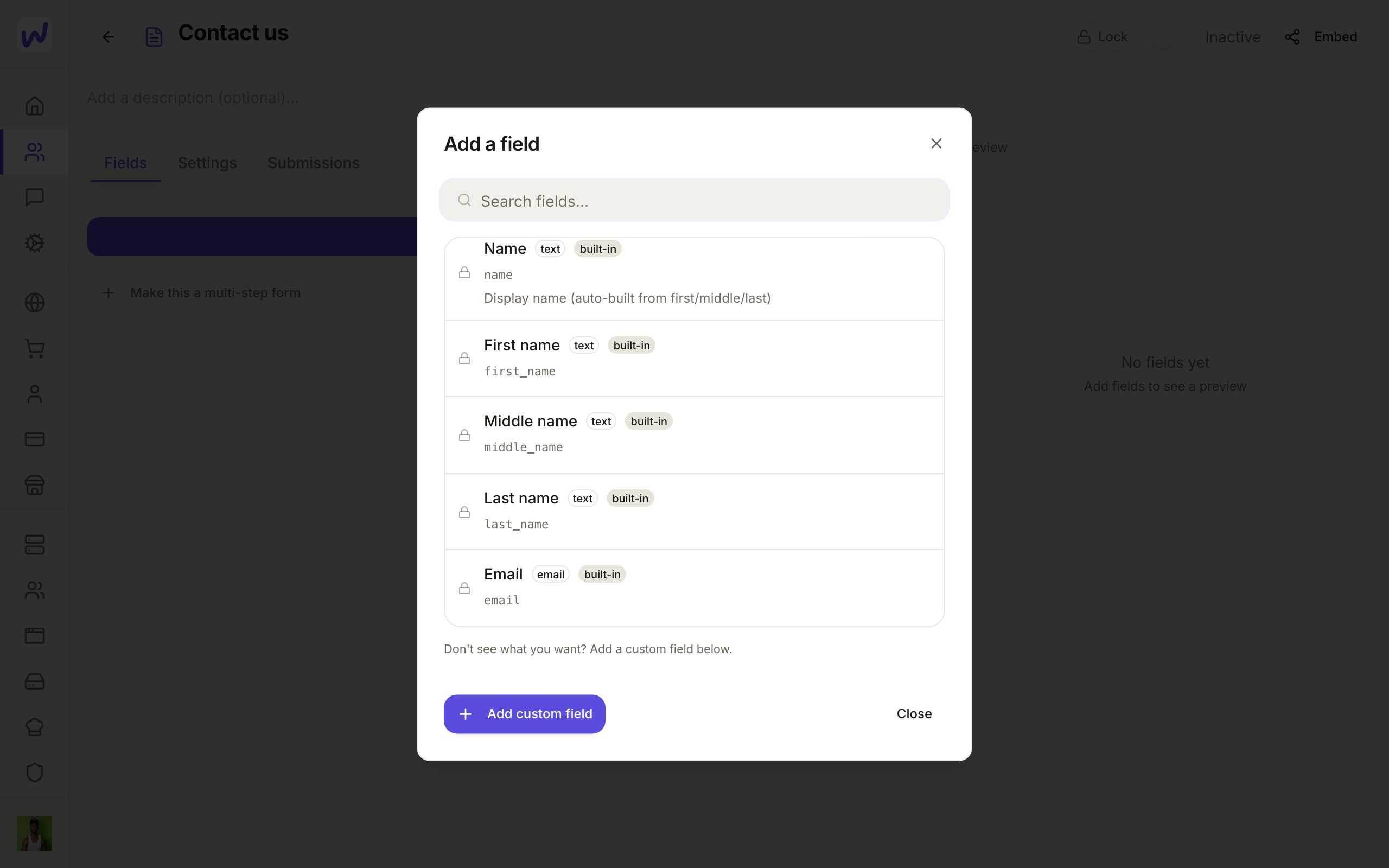
- Fields: the questions. Press Pick field to add one, like Email, Phone or a question of your own. Questions can be required or optional, and a form can be split into steps.
- Settings: what happens after someone sends it, how it looks, and where it can be embedded.
- Submissions: every answer received, newest first.
In Settings you will find:
- After someone sends it: a Thank-you message, or Or send them to a page to send them to an address of your own instead.
- Ask them to confirm their email: Wakato emails a link first, and the answers count only once they click it. The email goes out from one of the space's mailboxes, picked under Send it from.
- How it looks: logo, main colour, background and what the button says.
- Where it can be embedded: the websites allowed to show the form.
Sharing a form
Switch the form on, then press Embed. You get a Direct link to send to people and code to put the form on any website.
Forms on your Wakato pages
A page your agent designs can hold the form in its own design, with the page's own fonts and boxes. The answers still go to the same form and its Submissions. Because the page keeps its own copy of the boxes, the two can drift apart. If you later make a question required that a page has no box for, the form editor shows a warning naming the page and the missing question, with Open page. Add the box to the page (or ask the agent that built it), or make the question optional again.
Required questions and designed pages
A page that has no box for a required question cannot send the form, so every visitor there is refused. Watch for the warning at the top of the form editor after you change a question.
Signup forms for your emails
A form can sign people up to an email list or an email campaign, so whoever sends it starts receiving those emails. Ask an agent to set this up on the form. A campaign's settings show which forms add people to it. Only a confirmed signup brings back someone who unsubscribed before, so switch on Ask them to confirm their email for a newsletter signup.
Do it: make a form
Create the form
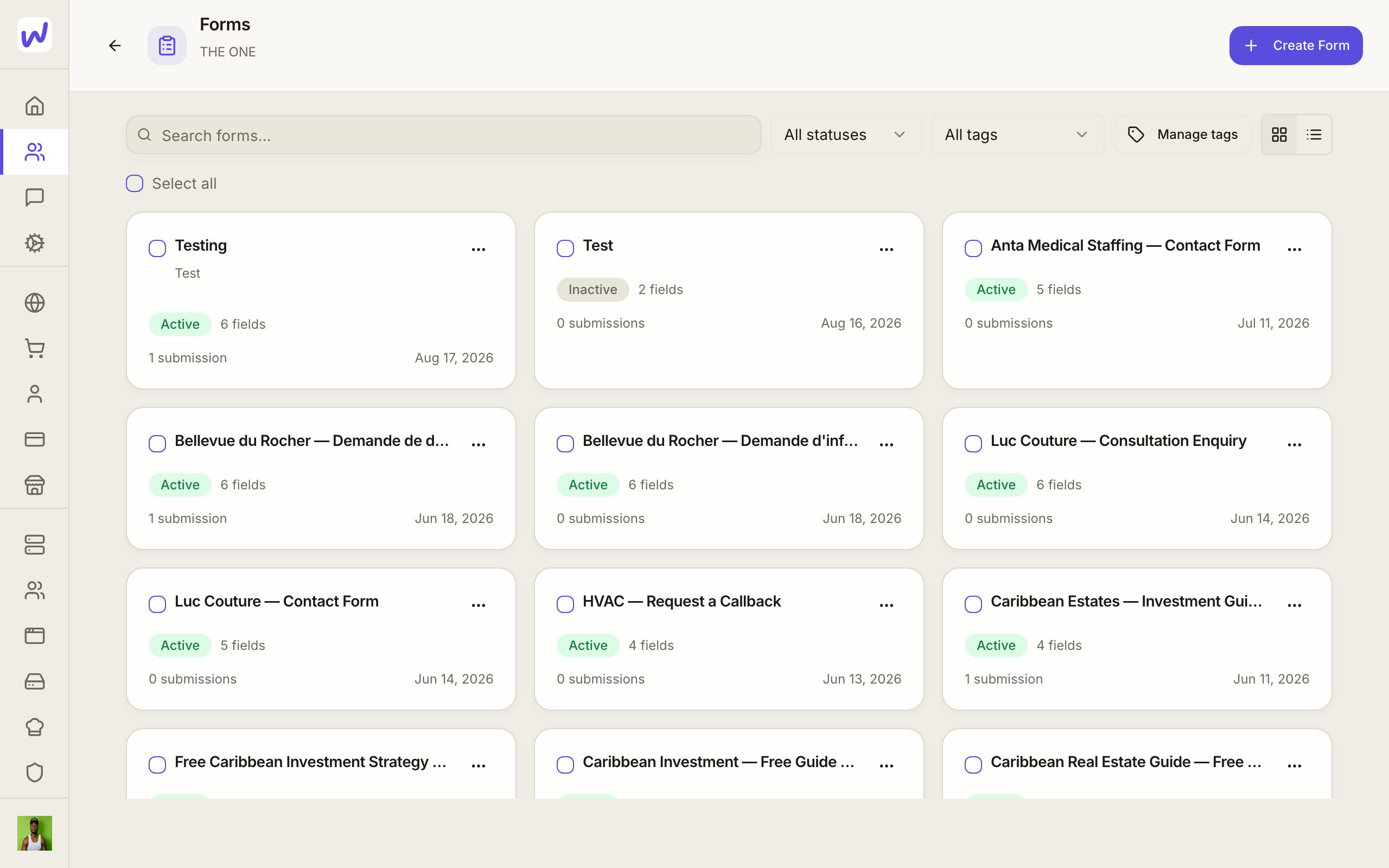
Name it
Add a question
Choose what to ask
Save
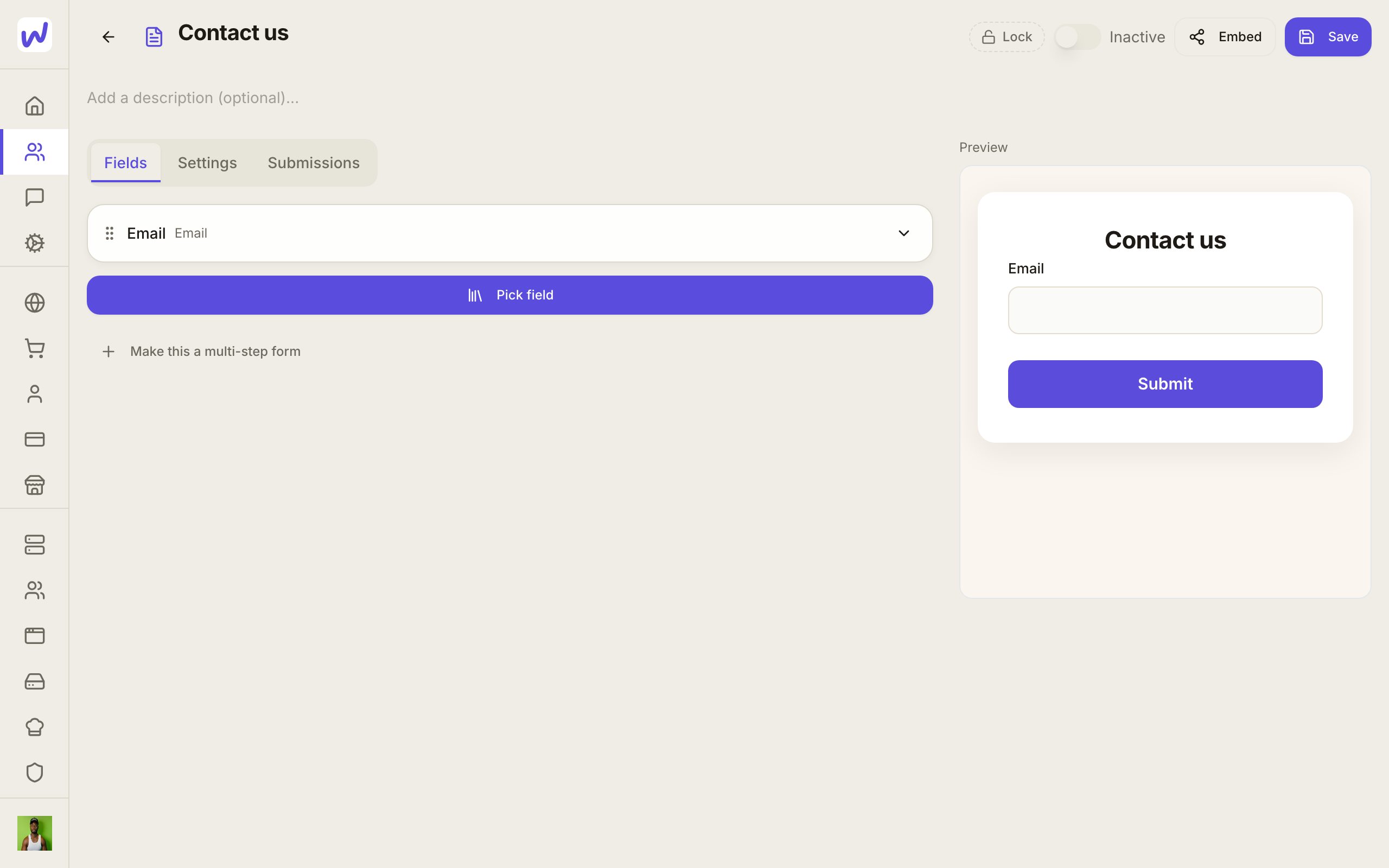
Switch it on
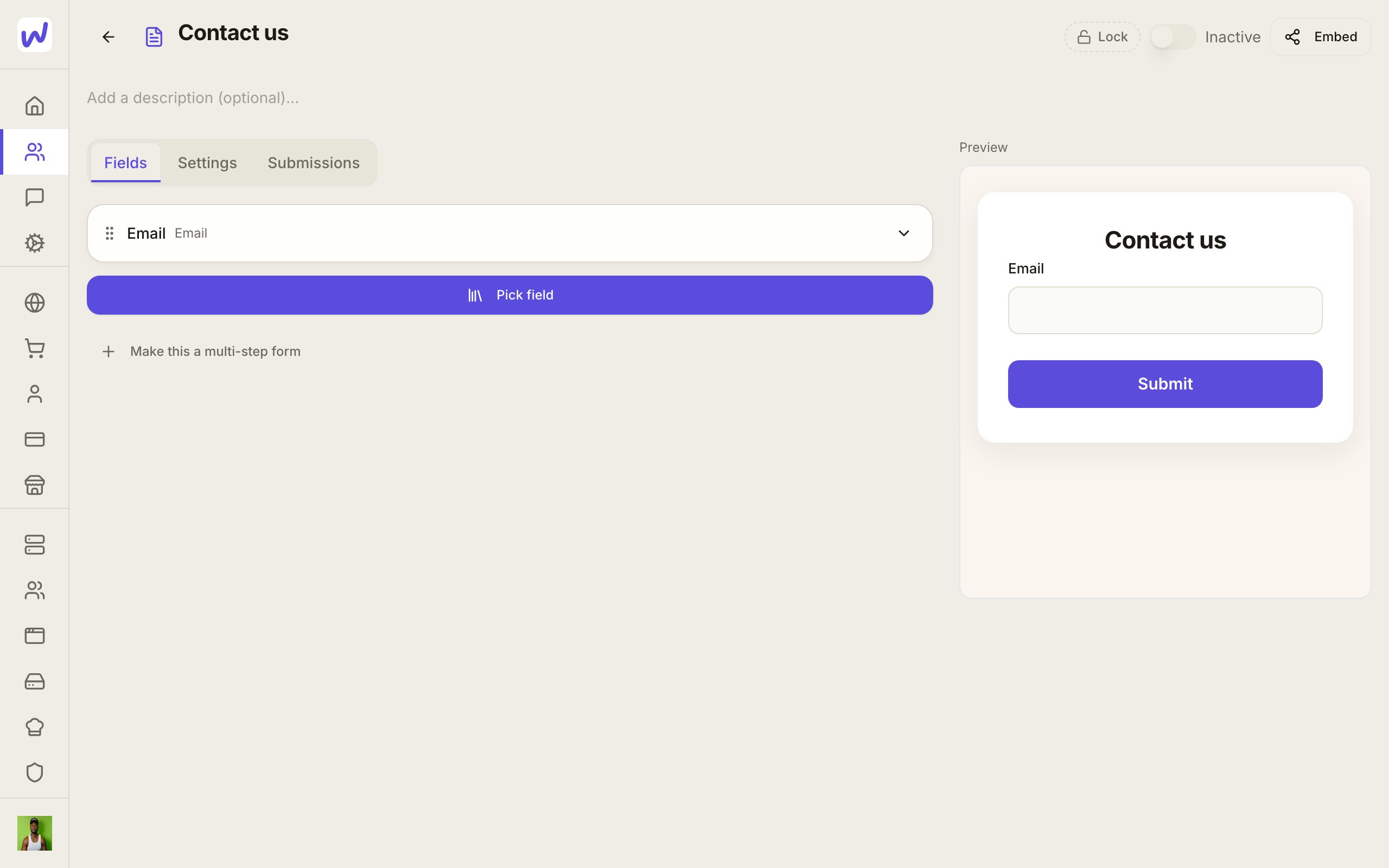
Share it
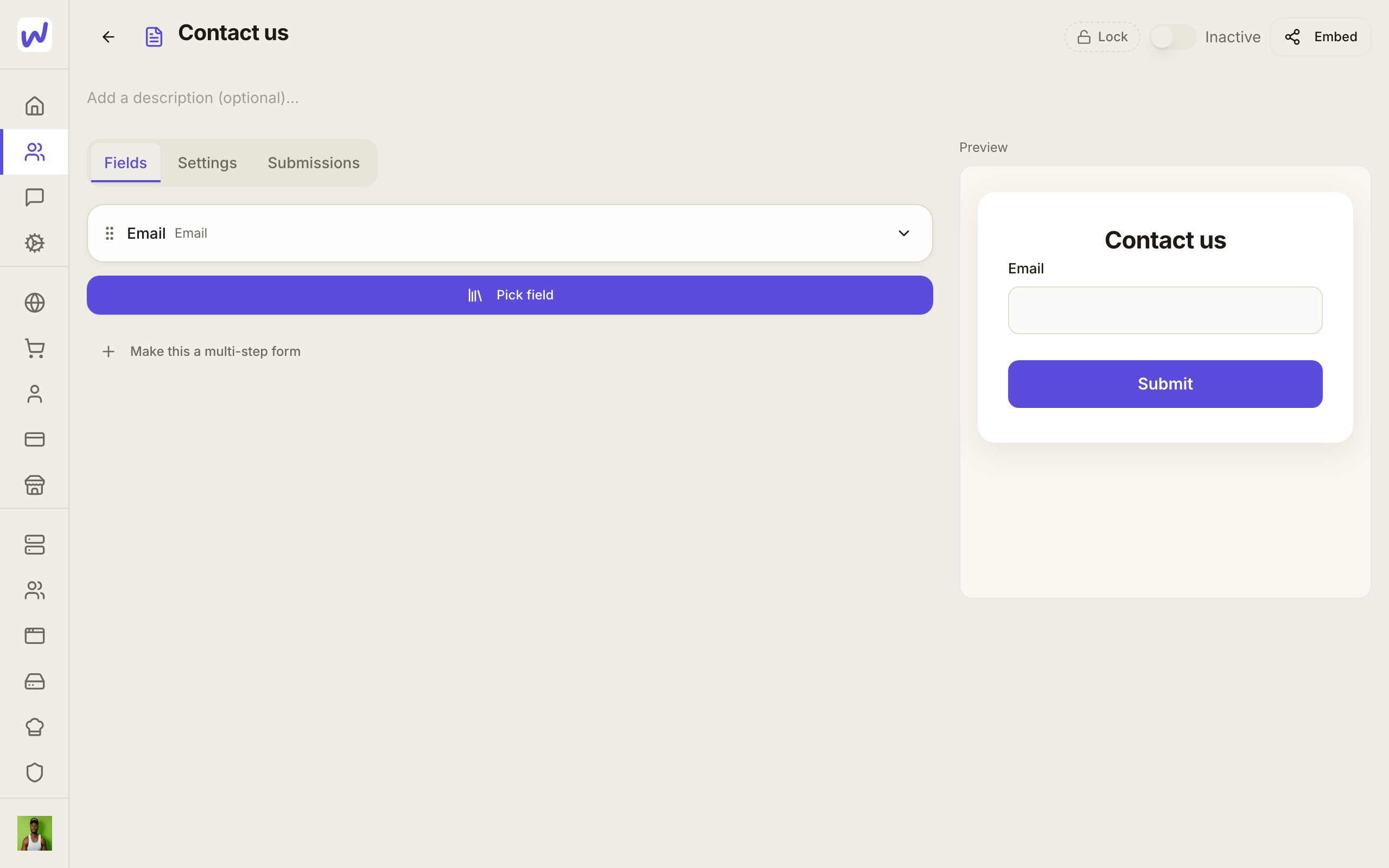
Do something when a form is sent
An automation can act on every new answer: make a task, tag the contact, send an email or tell an agent. Use the trigger Form submitted and pick the form, or leave it on any form.
Prefer to watch?“When a form is sent, make a task”: watch it, or click through the steps yourself.What your agents can do here
Agents can make, change and delete forms, read the submissions, and send a form on someone's behalf. They can make a form a signup form for a list or a campaign, and design a page that holds it. An agent sees only the forms you allow it under What it may do, and you can let it read submissions without letting it change the form.
Questions
Related
Websites and pages
Build landing pages, full websites and a blog inside your Wakato space, publish them on a Wakato link or your own domain, and let your agents design and update them for you.
Apps
Space Apps are small custom tools that run inside your Wakato space, such as a booking tracker, a check-in screen or a quote calculator. Your agents build them, you add ready-made ones from Wakato's library, and you can share them with people outside the space.