Meetevery meeting written up for you.
Meet is the video meeting tool inside each space, for instant calls, scheduled meetings with invitations, and rooms that are always open, with recording, a transcript and a written recap after each meeting. It also runs live webinars that people sign up for.
Meet is where a space holds its video meetings. Start one now, put one on the calendar and send the link, or keep a room that is always there for the team. When a meeting ends, it lands in your list with a recap, the to-dos and the full transcript, so you can find what was said later. The same place runs webinars: live sessions people sign up for.
How it works
Open Meet in your space. There are three kinds of meeting:
- Right now: press Start now to open a meeting and share its link.
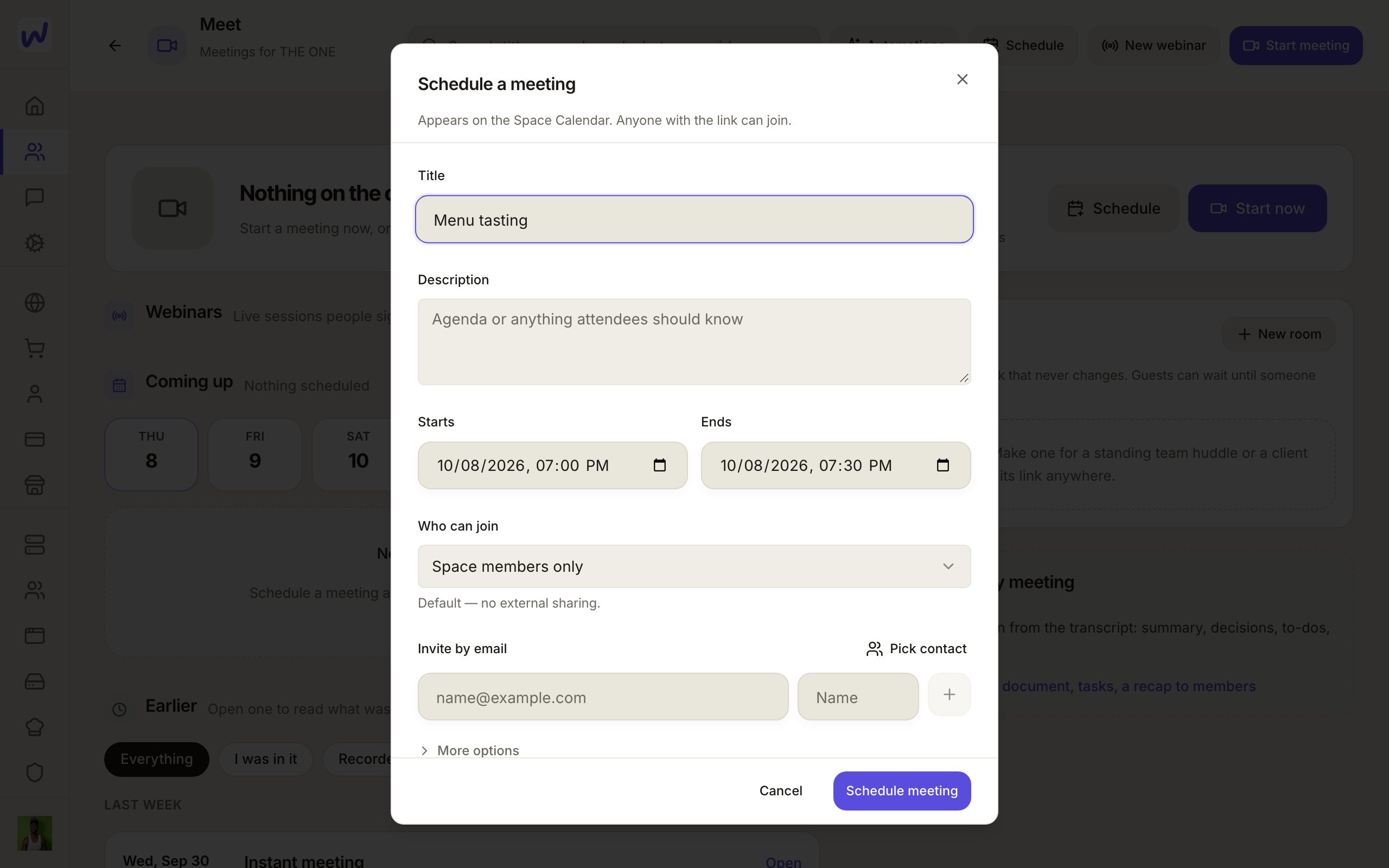
- Scheduled: press Schedule, pick a time and invite people. They get an email with the link, and the meeting goes on the space's calendar.
- Rooms: a room has a name and a link that stays the same, like "Standup" or "Office hours". Make one with Create a meeting room.
People outside your space can join from the link as guests. You choose who can join each meeting, and a waiting room can hold guests from outside until you let them in.
Recording, transcript and recap
The transcript is on by default. You can also record a meeting. After it ends, Wakato writes the recap once, from the transcript: what was discussed, what was agreed and the to-dos, with who said what. The recap is paid from the space's wallet.
Past meetings are listed under Earlier. Search looks through titles, the people who came, recaps and what was said. Filters show the meetings with a recap, the recorded ones, or the ones you were in. A scheduled meeting nobody opened shows as never started.
After every meeting
What happens after every meeting lets you pick the space's automations to run when a meeting ends. You can keep the space's defaults or choose different ones for a single meeting.
Webinars
A webinar is a live session people sign up for. Press New webinar and give it a title, a start time, a length and who can come. Its page has three tabs:
- Plan: the basics, your slides, the sign-up page and its questions, what people can buy during it, what happens during the webinar (questions, raised hands, polls), the reminder emails and the replay.
- Signed up: everyone who signed up and where they came from. With Approve each sign-up on, you let each person in.
- Report: questions answered, polls, sales and the coach's notes.
Share the sign-up link with Copy sign-up link. Each person gets their own seat link by email.
In the studio, Practice run lets you rehearse: nobody who signed up can get in and no email goes out, and you can Watch as a viewer to see what they will see. When you are ready, press Go live. Only you end the webinar. Afterwards, a coach writes notes on your pace, filler words, silences and time per slide, with the moment in the recording for each.
Webinars are live only. How many viewers can join depends on your plan: up to 100 on Pro and 1,000 on Business. The Free plan does not include webinar viewers.
Do it
Prefer to watch?“Schedule a meeting”: watch it, or click through the steps yourself.Press Schedule
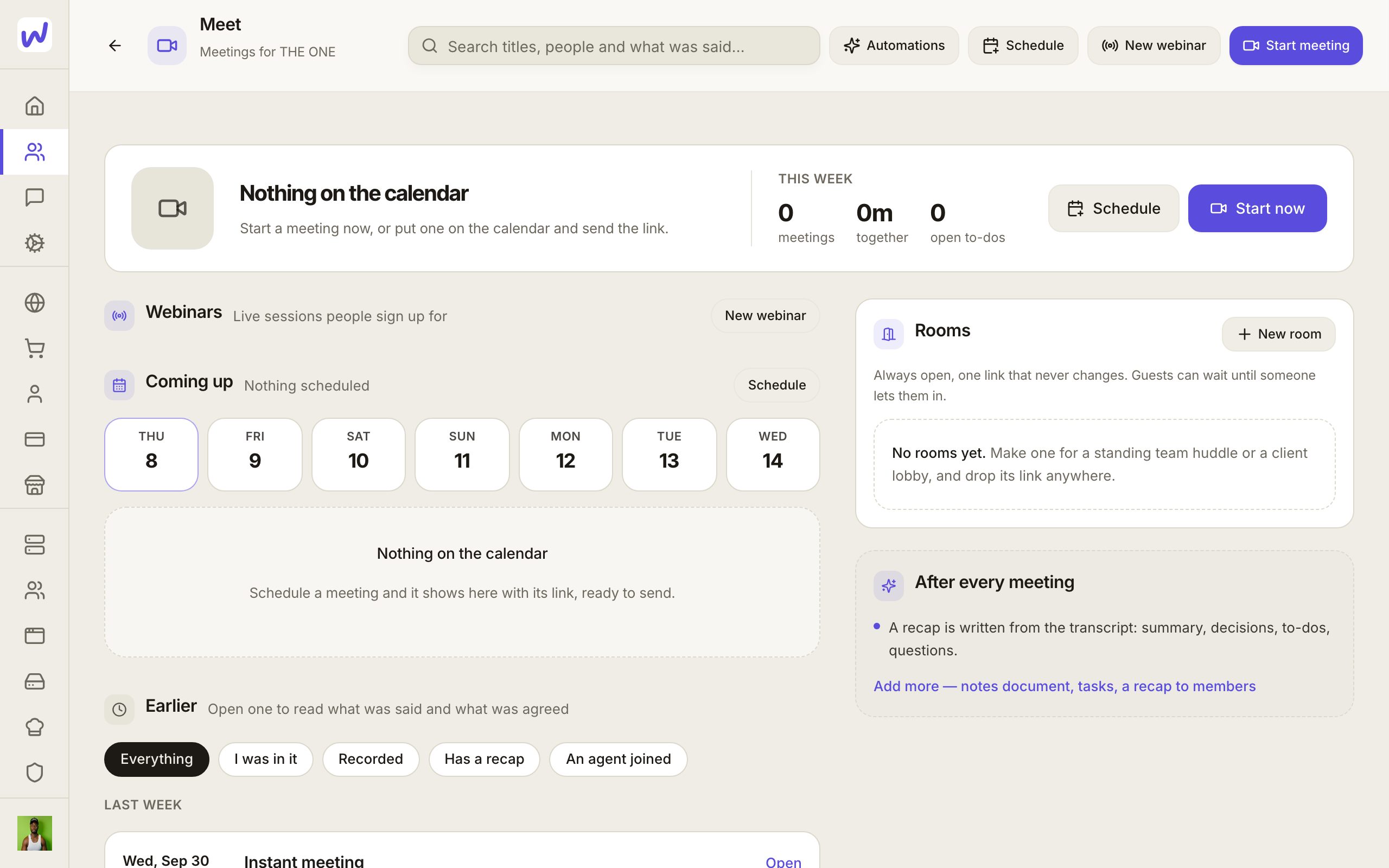
Give it a title
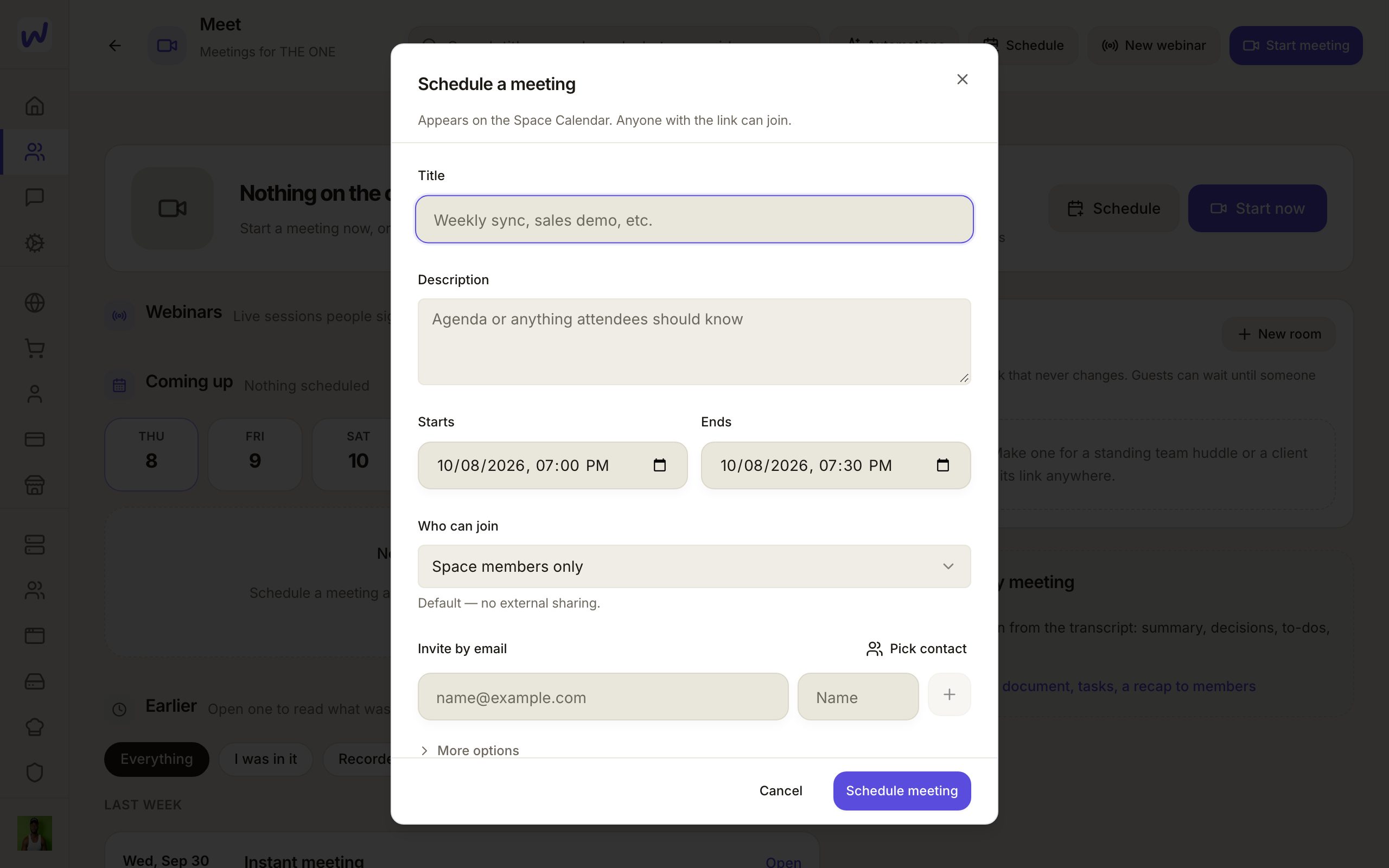
Pick the time
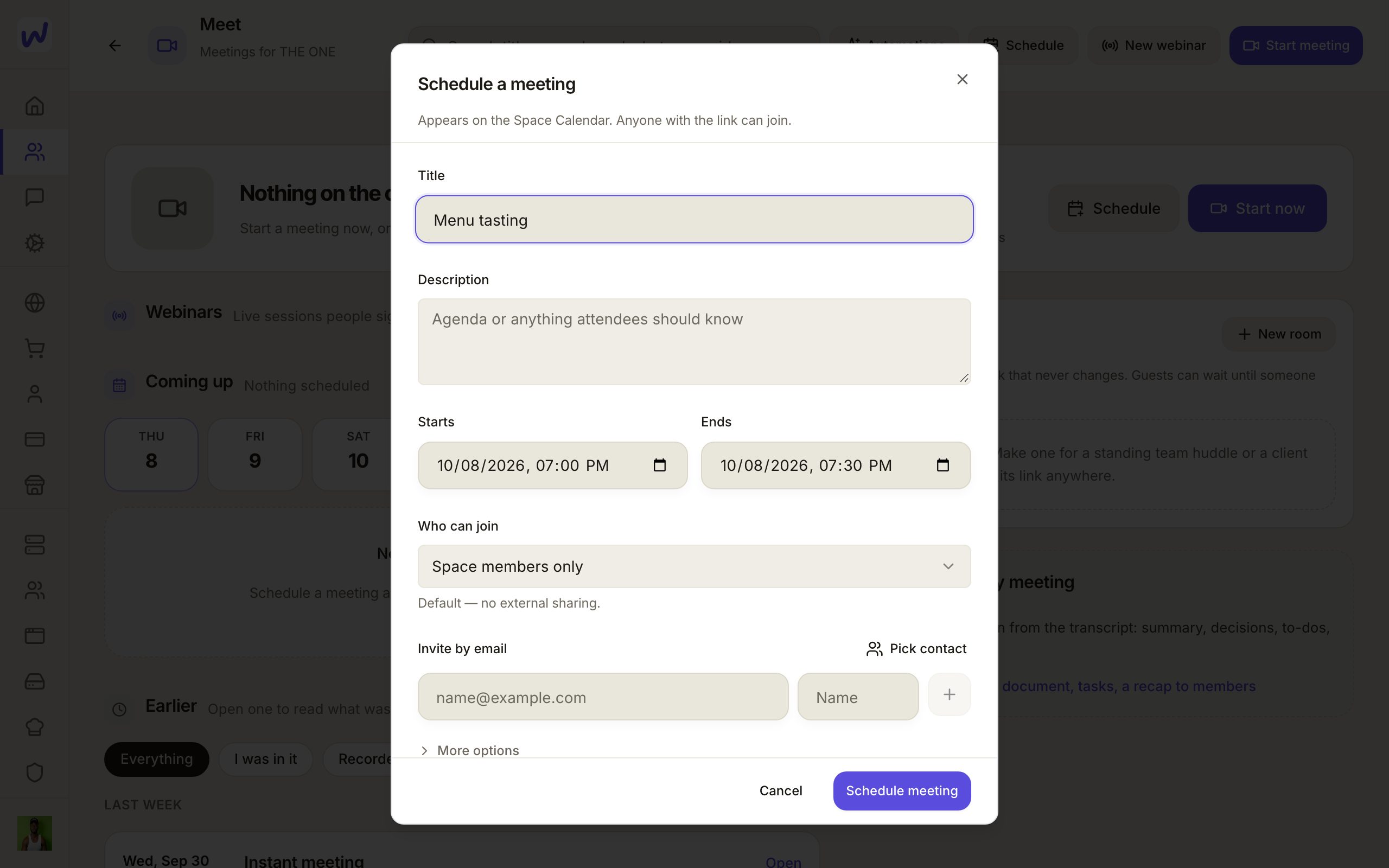
Choose who can join
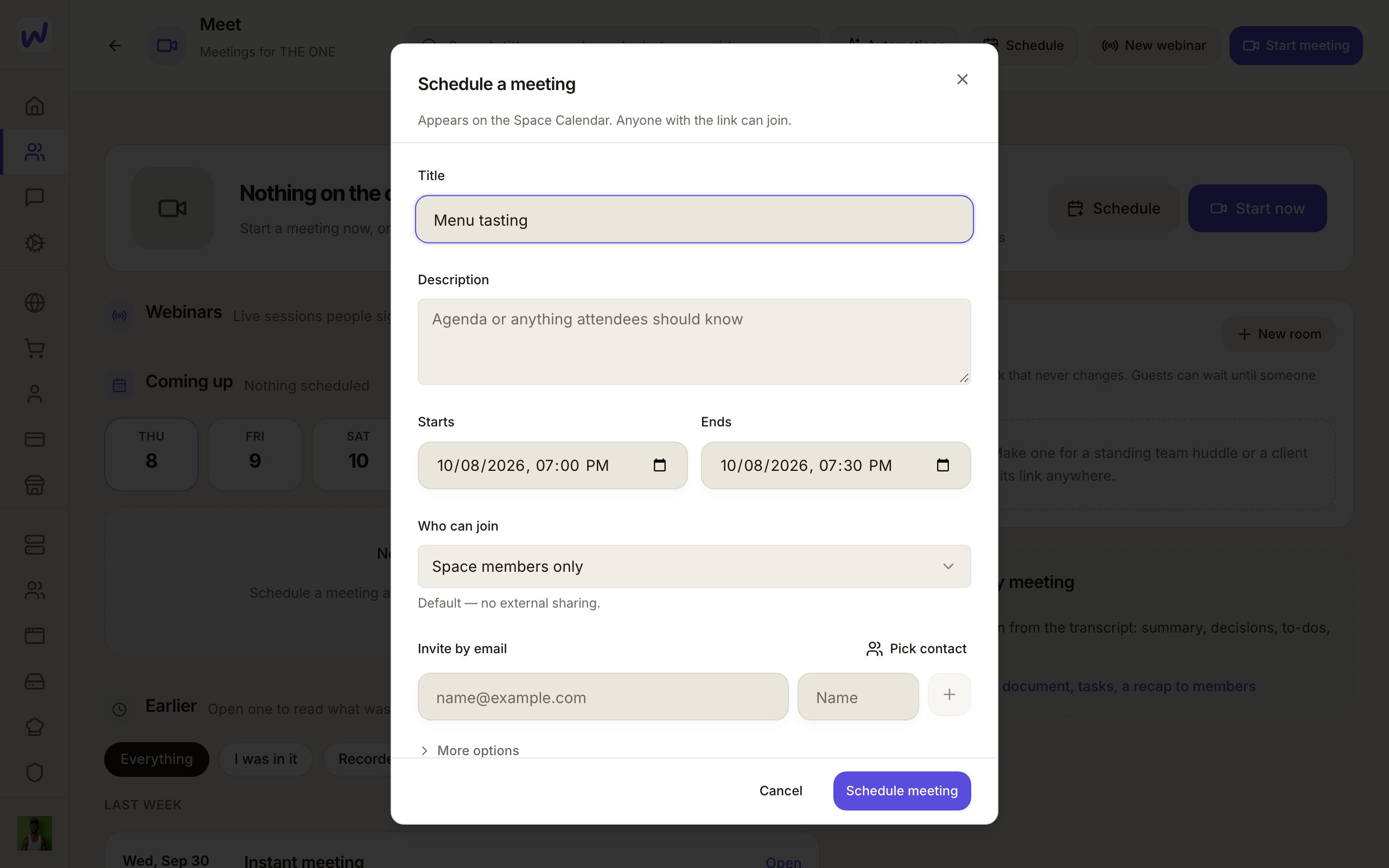
Invite people
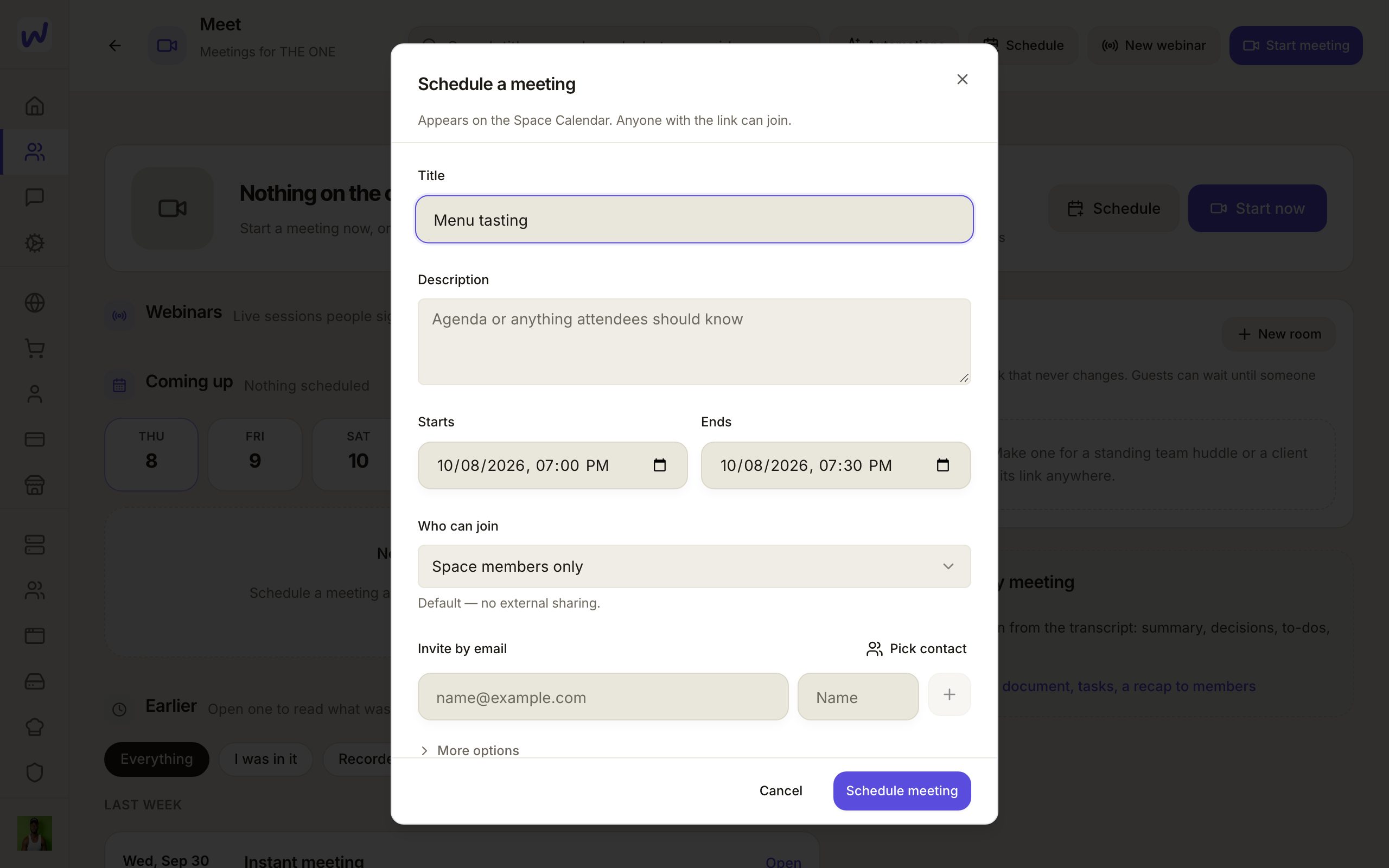
Schedule it
Moving a meeting tells people
If you reschedule or cancel a meeting, the people invited are told by email.
What your agents can do here
An agent can schedule meetings with your contacts, invite or uninvite people, reschedule, cancel or end a meeting, manage rooms and the waiting room, and see who is in a call. It can find past meetings by words, person or date and read their recap and transcript, so you can ask it what was agreed last Tuesday. Your assistant can also join a meeting to take notes.
Questions
Related
Calendar and bookings
Each space has a calendar that can show your Google, Outlook and phone calendars beside its own events, and booking pages where people pick a time with you. You choose which calendars close a time on each booking page, and bookings can be copied onto your Google or Outlook calendar.
Tables
Tables are the spreadsheets of a Wakato space, where you keep leads, orders, inventory or any list your team works from. You choose who can use each table and how far, and your agents can read and fill them too. Tables are part of every space.