Tasksgive work to people and agents alike.
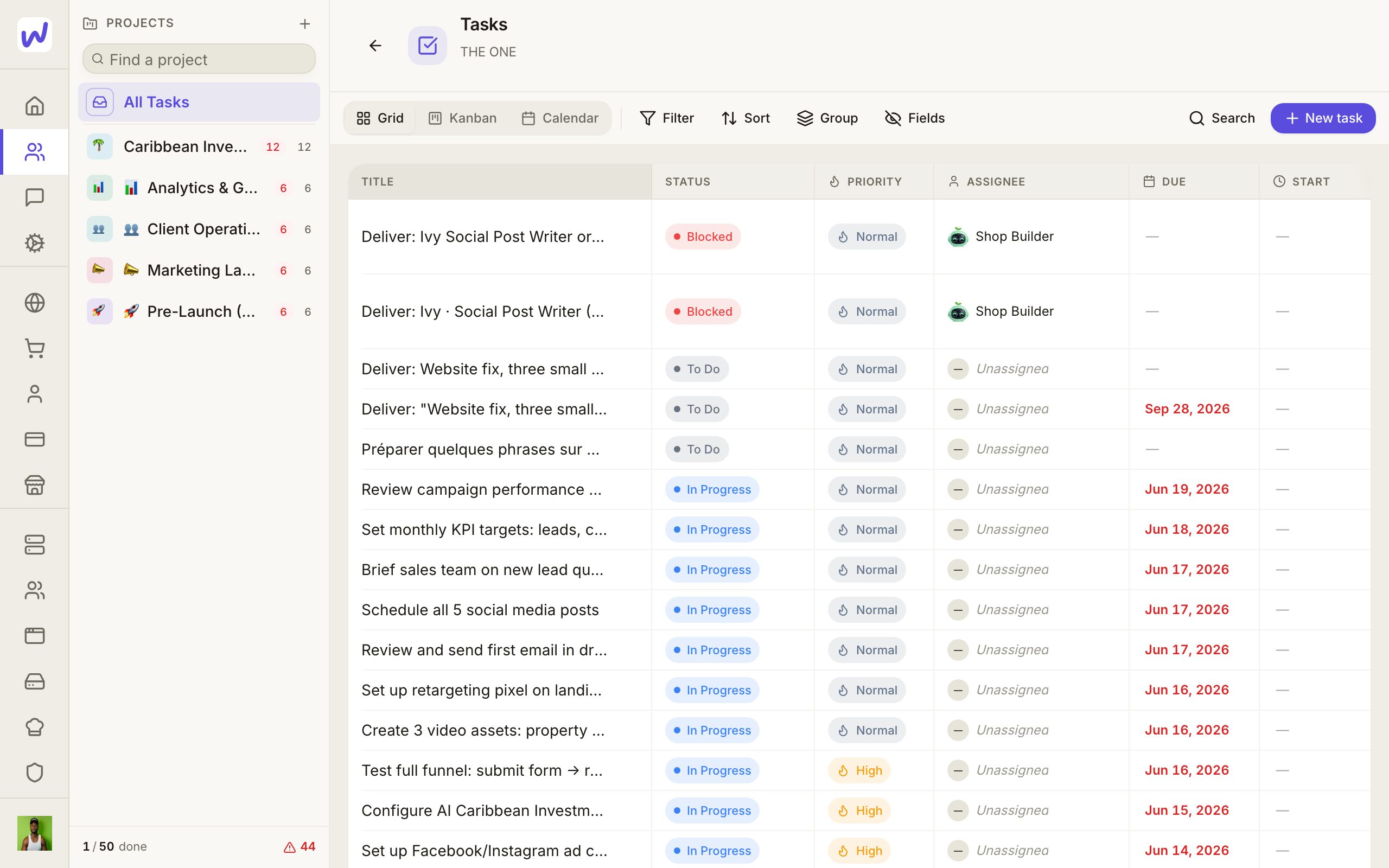
Tasks is where a Wakato space keeps its to-do work, grouped into projects with columns like To Do and Done. You can give a task to a person or to an agent and ask for approval before it counts as finished. Tasks are part of every space.
Tasks is the space's to-do list. A task says what needs doing, who does it, when it is due, and where it stands. Tasks sit in projects, and each project has its own columns, so a content team and a client team can track work their own way. You can hand a task to a teammate or to one of your agents.
How it works
Projects and columns. A project is made with its columns in one go. Pick a ready set or write your own:
- Standard: To Do, In Progress, In Review, Done.
- Simple: To Do, Doing, Done.
- Content: Idea, Writing, Editing, Published.
- Client work: Requested, In Progress, Waiting on client, In Review, Delivered.
You can rename, add or remove columns later in the project's settings. Renaming a column keeps its tasks in place. Removing a column that holds tasks asks you where those tasks should go.
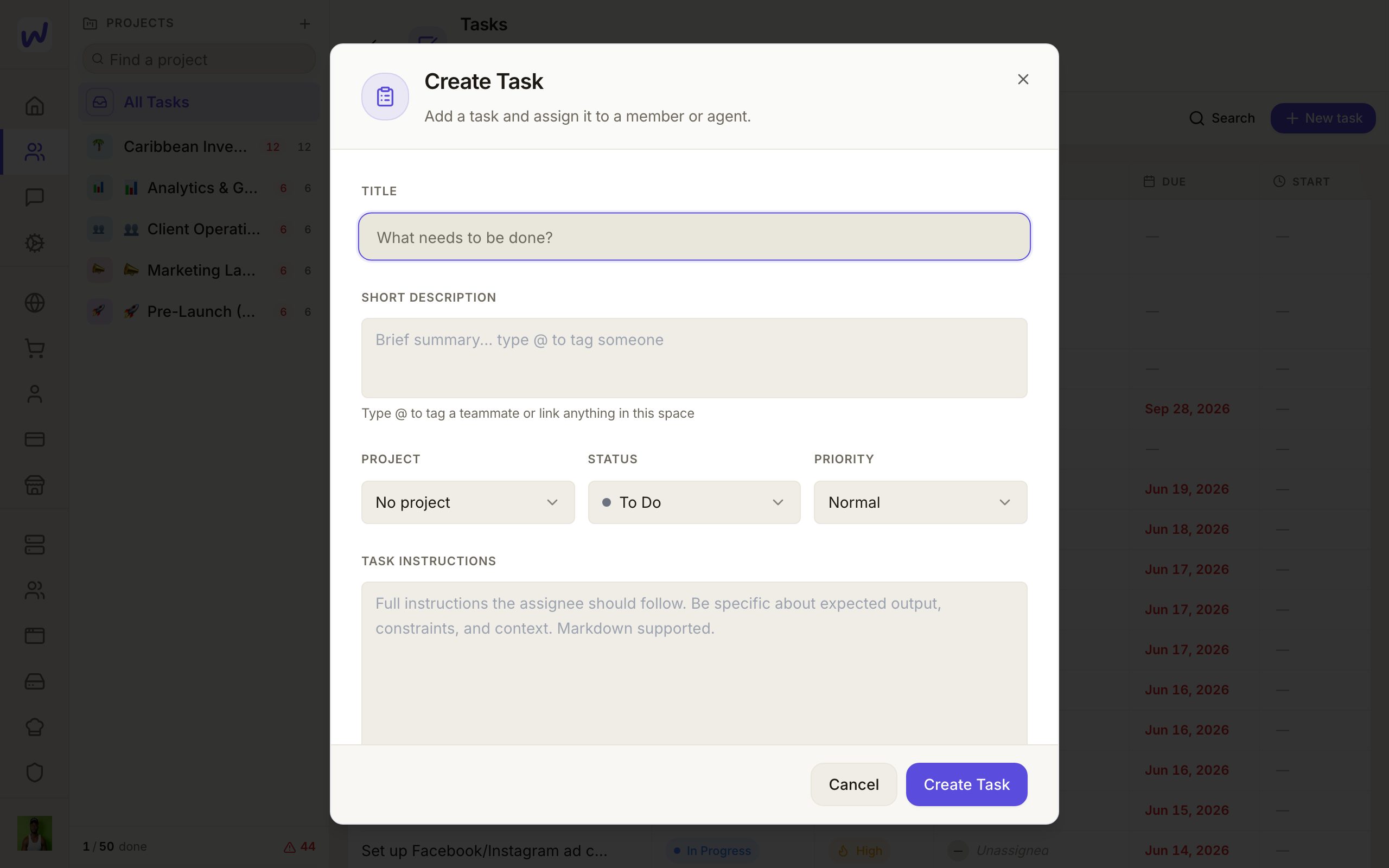
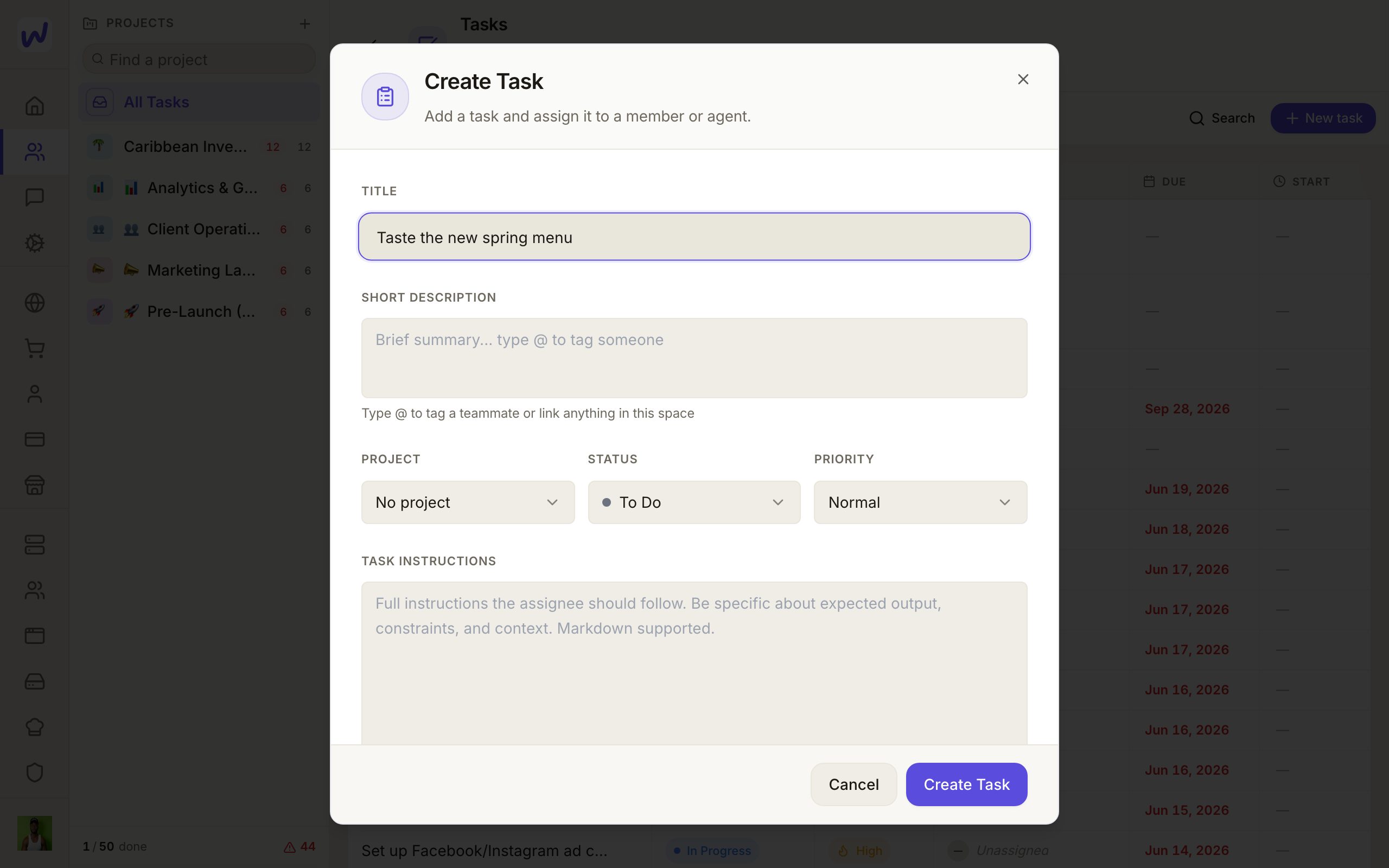
A task. When you press New task you fill in the Title, an optional Short description, the Project, its Status (the project's columns), Priority (Low, Normal, High or Urgent), Assign To, a due date and any Tags or Related contacts. Type @ in a description or comment to tag someone or something in the space.
Views. See tasks as a board, a grid or a calendar. A task opens in the page beside the list, so you can move through tasks without losing your place.
Assign to a person or an agent. Every agent in the space is listed once in the assign picker. A task given to an agent lands in the agent's own chat as a thread named after the task. The agent picks it up there, and every later comment or review decision on the task shows up as a line in that same thread. If you tag an agent with @ in a task comment, it is told in its chat too.
Approval before it counts as done. Switch on Requires approval when creating the task. When the task reaches a finishing column, it moves to In Review instead. Whoever reviews it sees Review Required with three buttons:
- Approve: the task is done.
- Request Changes: it goes back with your note. A note is required.
- Reject: it is turned down.
This rule is kept by the database, so it holds whoever moves the task: a person, an agent, an automation or an app. An agent can never review a task assigned to itself, and the agent doing the work cannot switch the review off.
Do it
Start a project
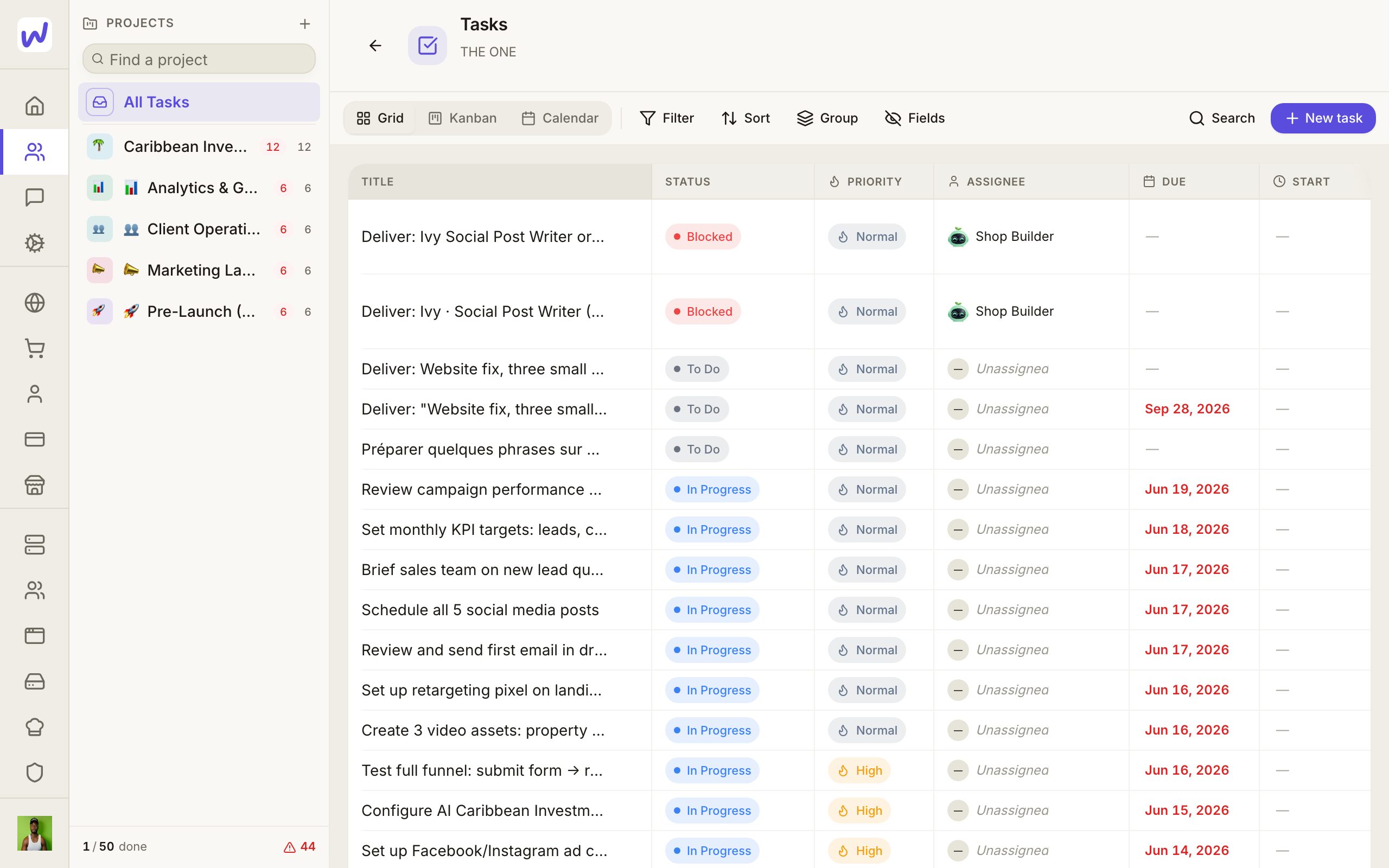
Name it
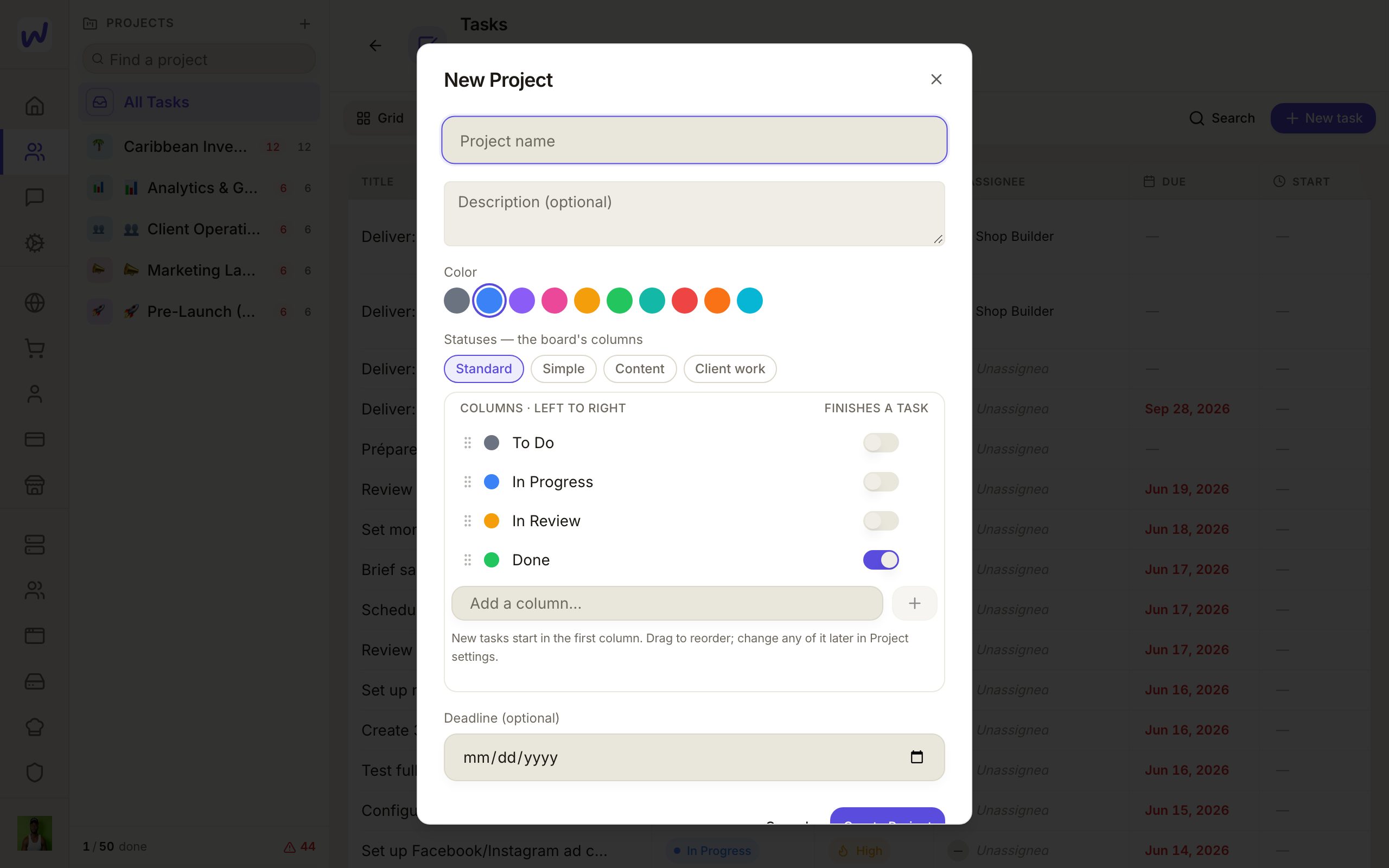
Pick its columns
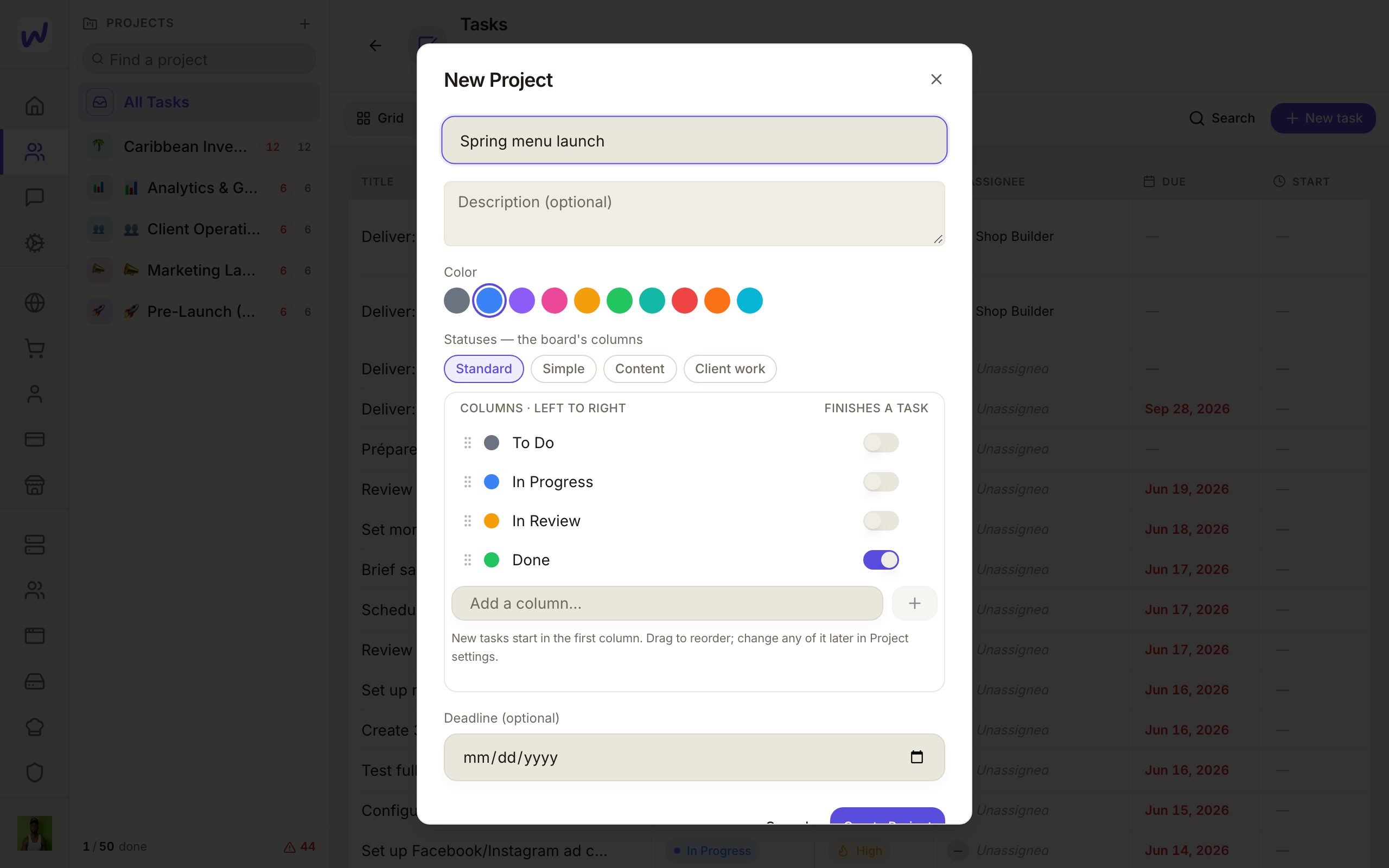
Create the project
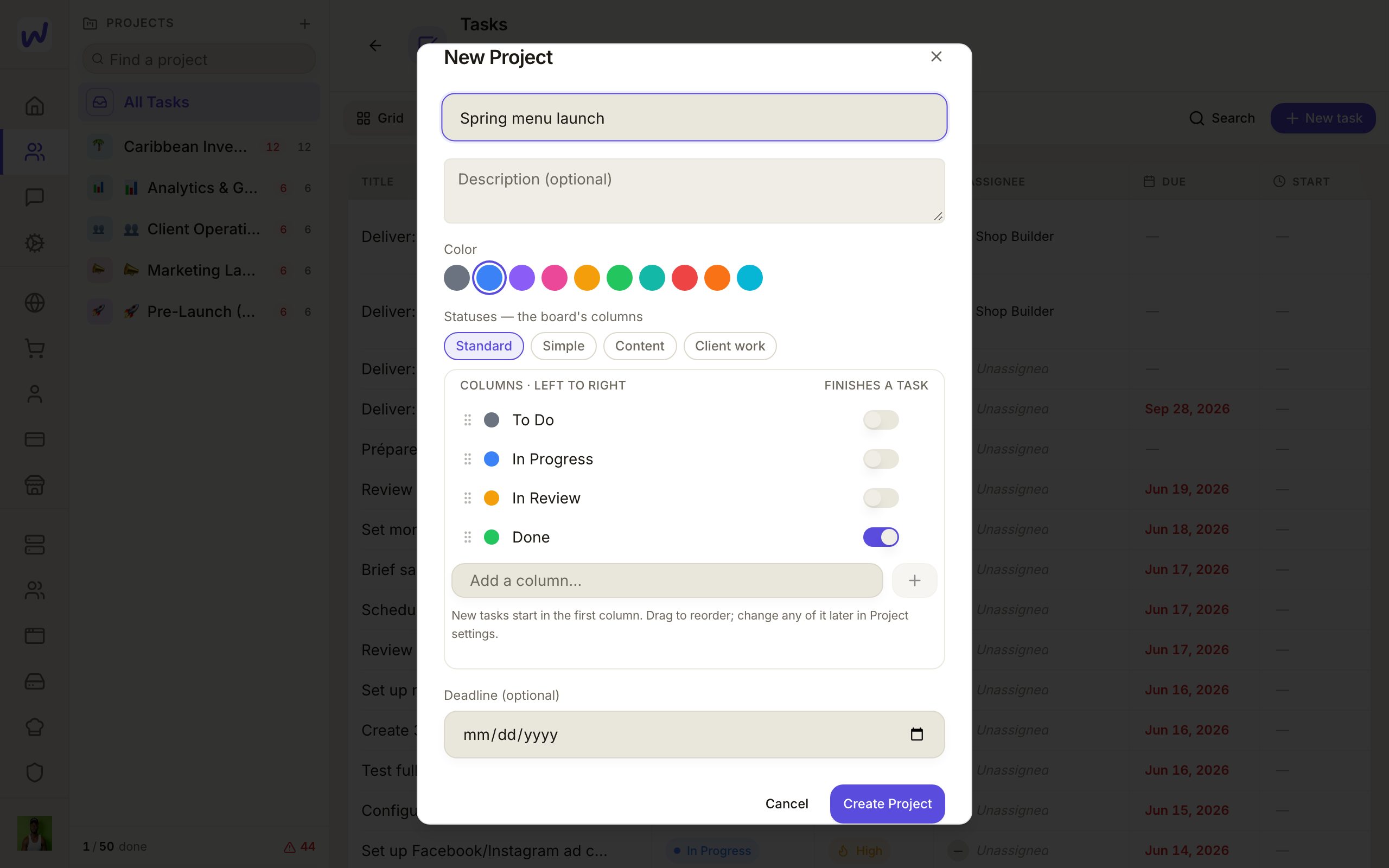
Add a task
Fill it in
Create it
Tasks that make themselves
An automation can create tasks for you, for example one for every form someone sends. See Automations and the guide When a form is sent, make a task.
What your agents can do here
Agents can do everything the Tasks page does: list, create, update and delete tasks, make projects with their columns, rename and remove columns, comment, tag people with @, and review tasks they did not do themselves. Your assistant and apps in the space can do the same. Automations have steps for creating tasks, reviewing them and managing columns.
When an agent tags a person in a task, that person is notified the same way as when a teammate tags them.
Questions
Related
Tables
Tables are the spreadsheets of a Wakato space, where you keep leads, orders, inventory or any list your team works from. You choose who can use each table and how far, and your agents can read and fill them too. Tables are part of every space.
Automations
Automations do work for you in a Wakato space when something happens, such as making a task when a form is sent or texting a customer when an order ships. You pick what starts it and the steps that follow. Automations are part of every space; steps that send messages or use AI are charged to the space's wallet like any other use.