Connectorssign in once, use it in any space.
Connectors is where you sign in to the outside accounts your business uses (Gmail, Outlook, Google Calendar, social accounts including WhatsApp and Telegram, ad accounts and your bank) and choose which spaces can use each one. Your agents can ask you to connect something with a card in their chat.
Connectors is where your Wakato account meets the other accounts your business already has: your email, your calendar, your social pages, your ad accounts and your bank. You sign in once, then add the account to the spaces that should use it. Your team and your agents in that space can then work with it.
What you can connect
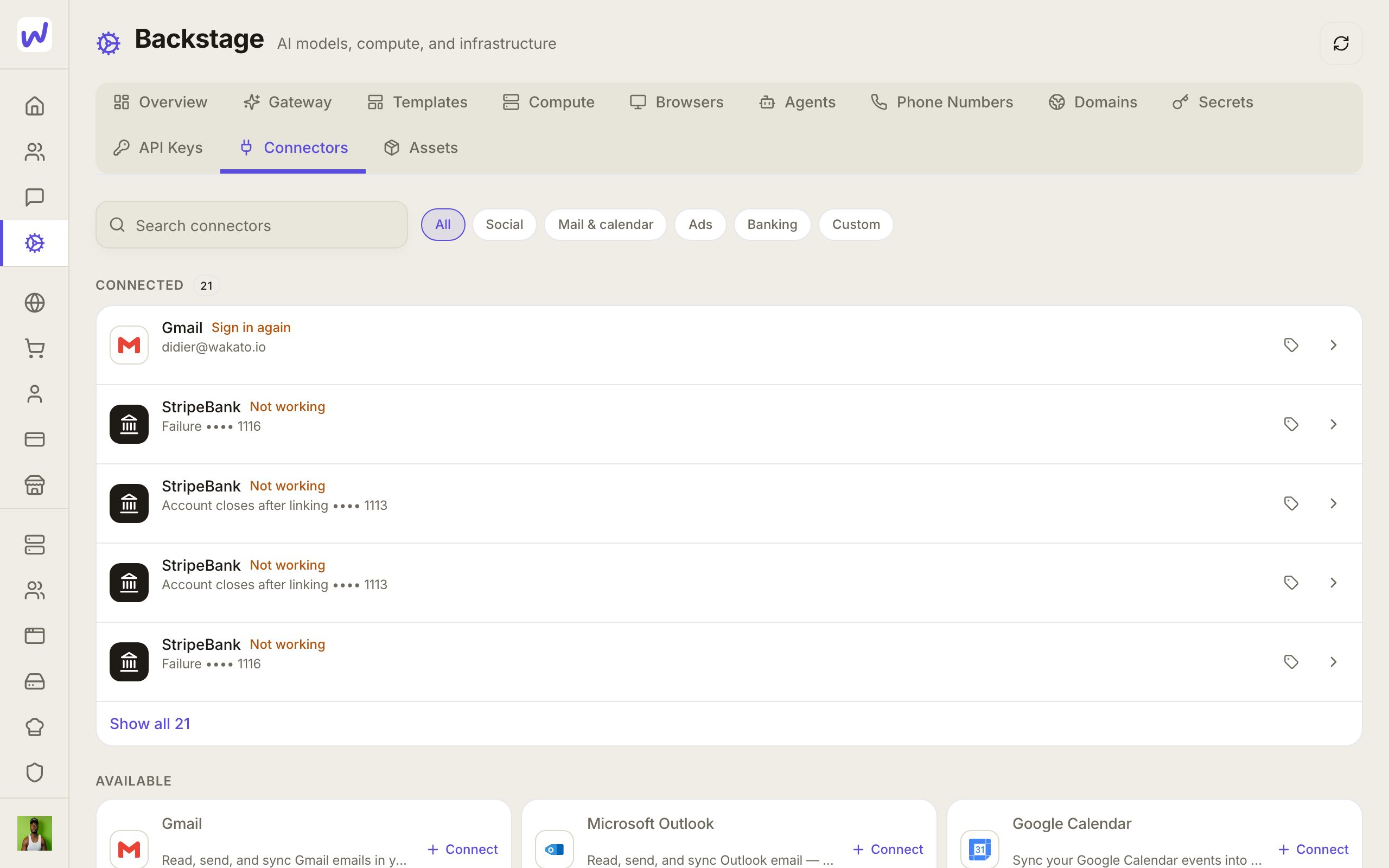
In Backstage → Connectors, the chips filter the list:
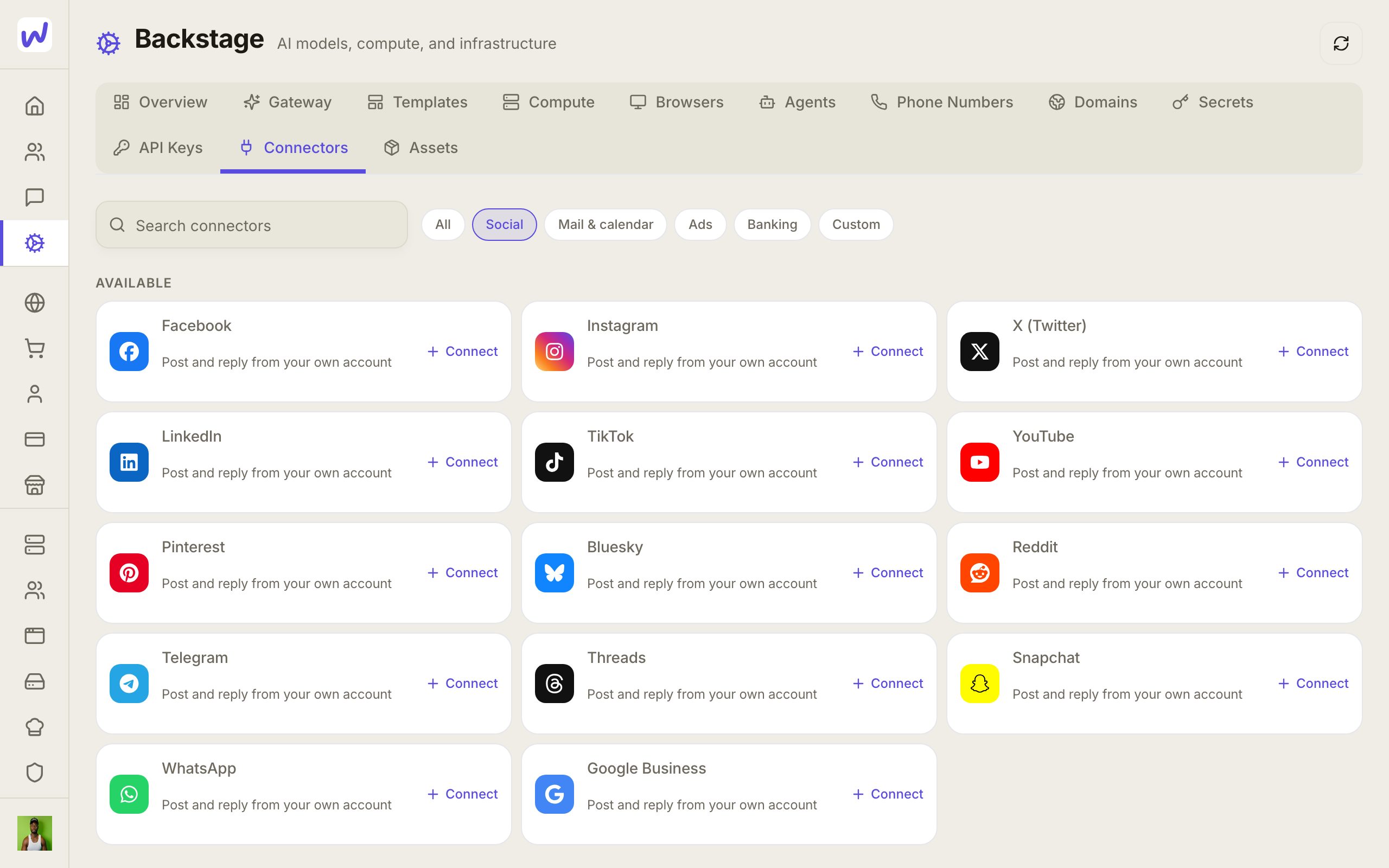
- Social: Facebook, Instagram, X (Twitter), LinkedIn, TikTok, YouTube, Pinterest, Bluesky, Reddit, Telegram, Threads, Snapchat, WhatsApp and Google Business.
- Mail & calendar: Gmail, Microsoft Outlook and Google Calendar.
- Ads: Meta Ads, Google Ads, LinkedIn Ads, TikTok Ads, Pinterest Ads, X Ads and ChatGPT Ads. ChatGPT Ads is connected with an API key in a pop-up.
- Banking: your bank account, for Space Finance.
- Custom: any other service that works with an API key.
Wakato does not sign in to tools such as Slack or Notion directly today. You can still connect a service like that as a custom integration with its API key.
How it works
Sign in, then add to a space. Each account is yours and is signed in once, on the service's own page. A space then uses it once it is added there. Each space has its own Connectors page listing what is on in that space, with Add here for accounts you already have.
Calendars sync when you add them. Adding a Google or Outlook calendar to a space is what syncs it. Its events show in the space's calendar beside the space's own, and booking pages can count them so nobody books you when you are busy. Events that come from Google or Outlook are read-only in Wakato; you change them where they live. In the phone app you can also share your phone's calendar with a space. See Calendar and bookings.
WhatsApp and Telegram are accounts. Connect them under Social like Instagram. Messages to them arrive in the space, and an agent with an External Reach can answer there. See External Reach.
Your bank. Choose Banking, press Bank account and sign in with your bank in its own window. Wakato reads balances and transactions. It never sees your bank password.
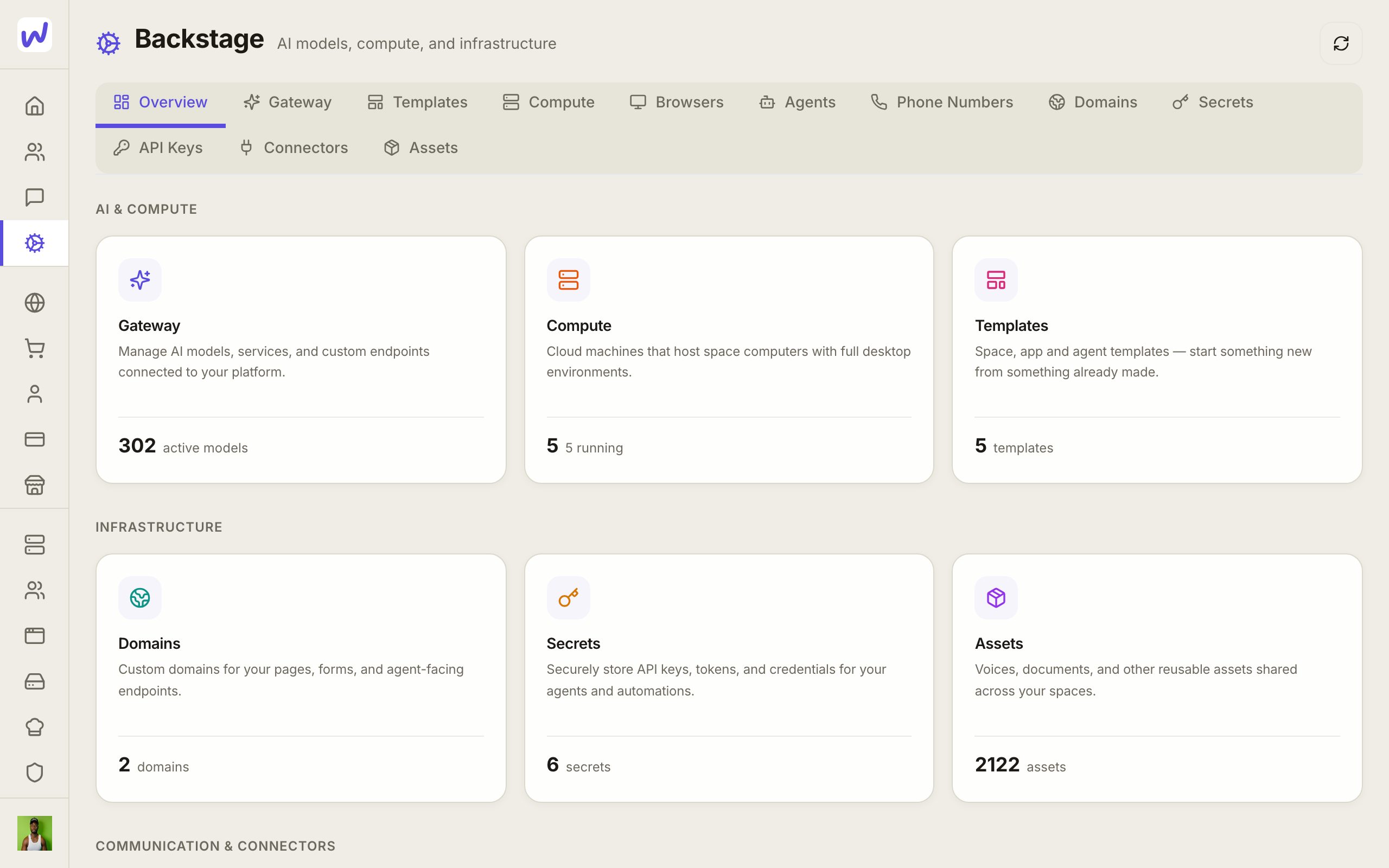
Do it: connect Instagram or TikTok
Open Connectors
Choose Social
Sign in
When an agent needs something connected
You do not have to go looking for the right page. When an agent needs an account it does not have, it asks in its chat with a card:
- For an account Wakato signs in to, the card says what the agent will be able to do with it. If you already have that account, pick it and turn it on in the space. If not, press the sign-in button on the card (for example Sign in with Google or Connect a bank) and sign in in the small window that opens.
- For any other service, the agent asks for an API key. The card shows a box for each value with help on where to find it. Paste keys only into the card, never into the chat.
An agent can also ask for an AI model or a service the space does not allow yet. Only the space's owner and admins can approve that.
Keys go in the card, not the chat
If you need to give an agent an API key, use the card it shows. A message in the chat is seen by everyone in it and stays in the chat's history.
What your agents can do here
Agents can see what is connected in their space, what you have elsewhere (as counts only) and every service Wakato signs in to. They ask for new connections with a card, as above. They never sign in for you: the sign-in is always yours, on the service's own page.