Websites and pagesbuilt by agents, yours to edit.
Build landing pages, full websites and a blog inside your Wakato space, publish them on a Wakato link or your own domain, and let your agents design and update them for you.
Every space has Web pages. A page can be a single landing page or part of a website with shared navigation, and it can carry a blog. Your agents usually build the page, and you look at the draft, change what you want and press Publish. A published page lives on a Wakato link, or on your own domain once you connect one.
How it works
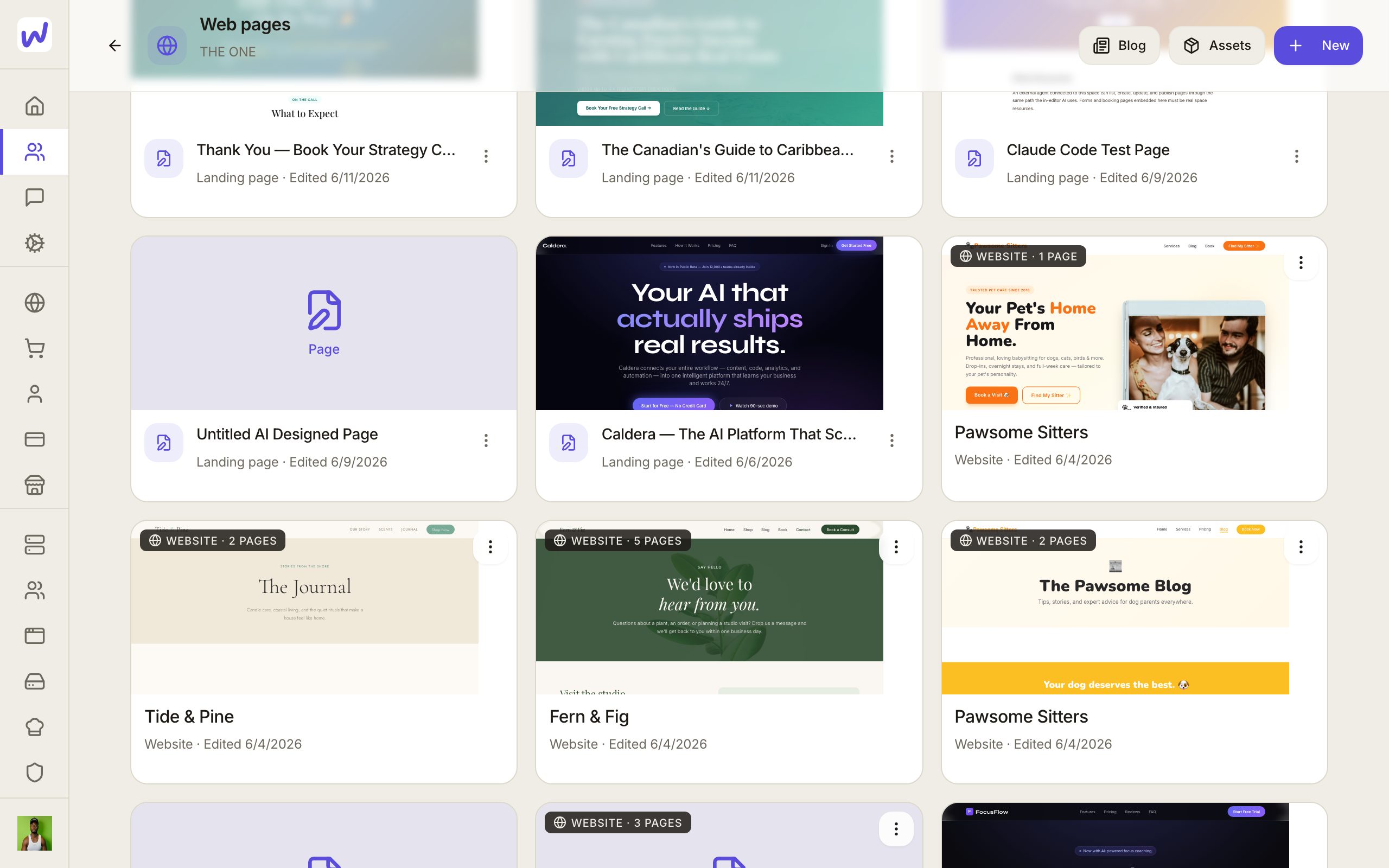
Open Web pages in your space. Press New and pick New website (pages with shared navigation) or New landing page (one goal, with optional steps to make a funnel). Whiteboards are kept in their own list.
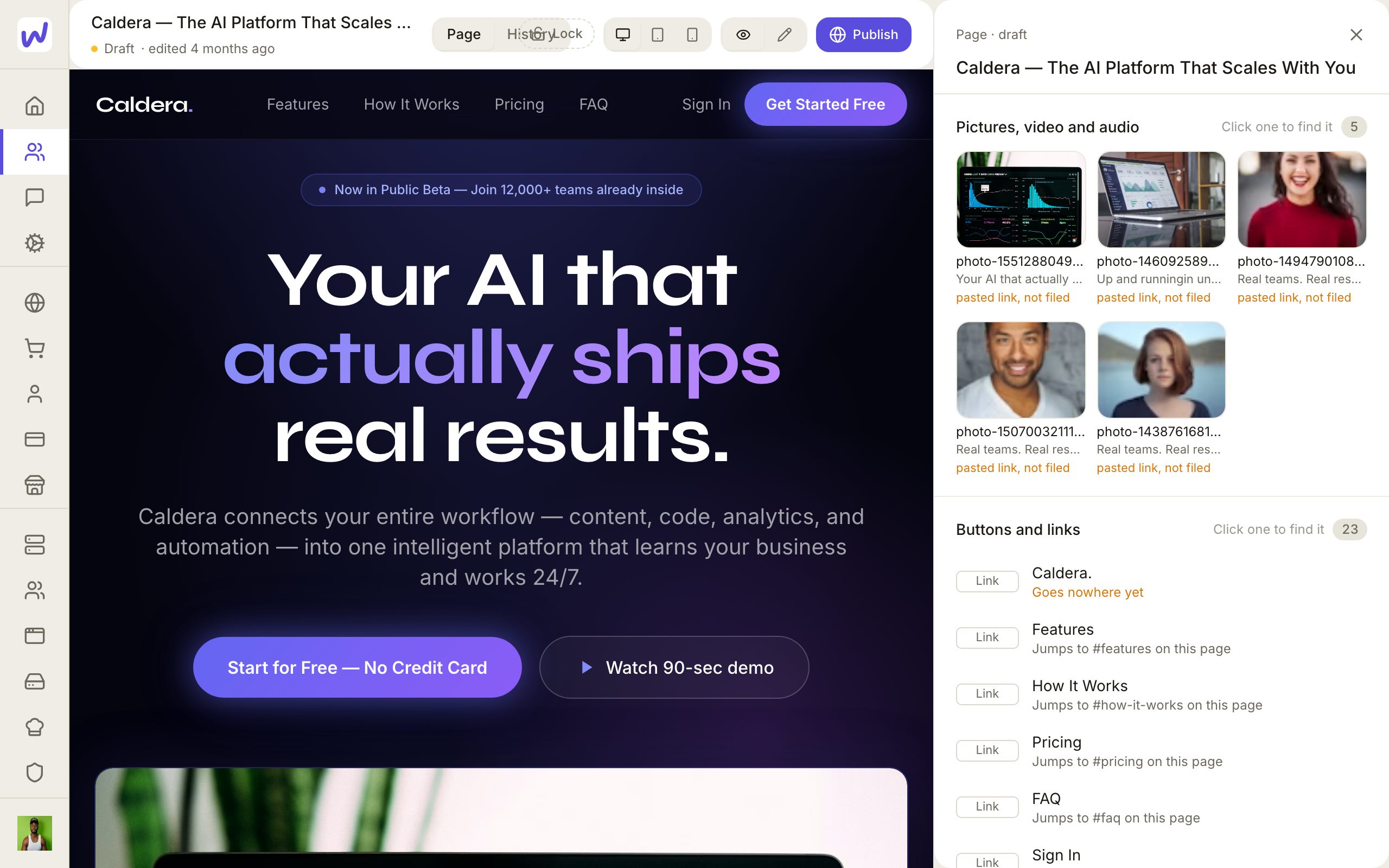
Each page opens in the editor with three views at the top:
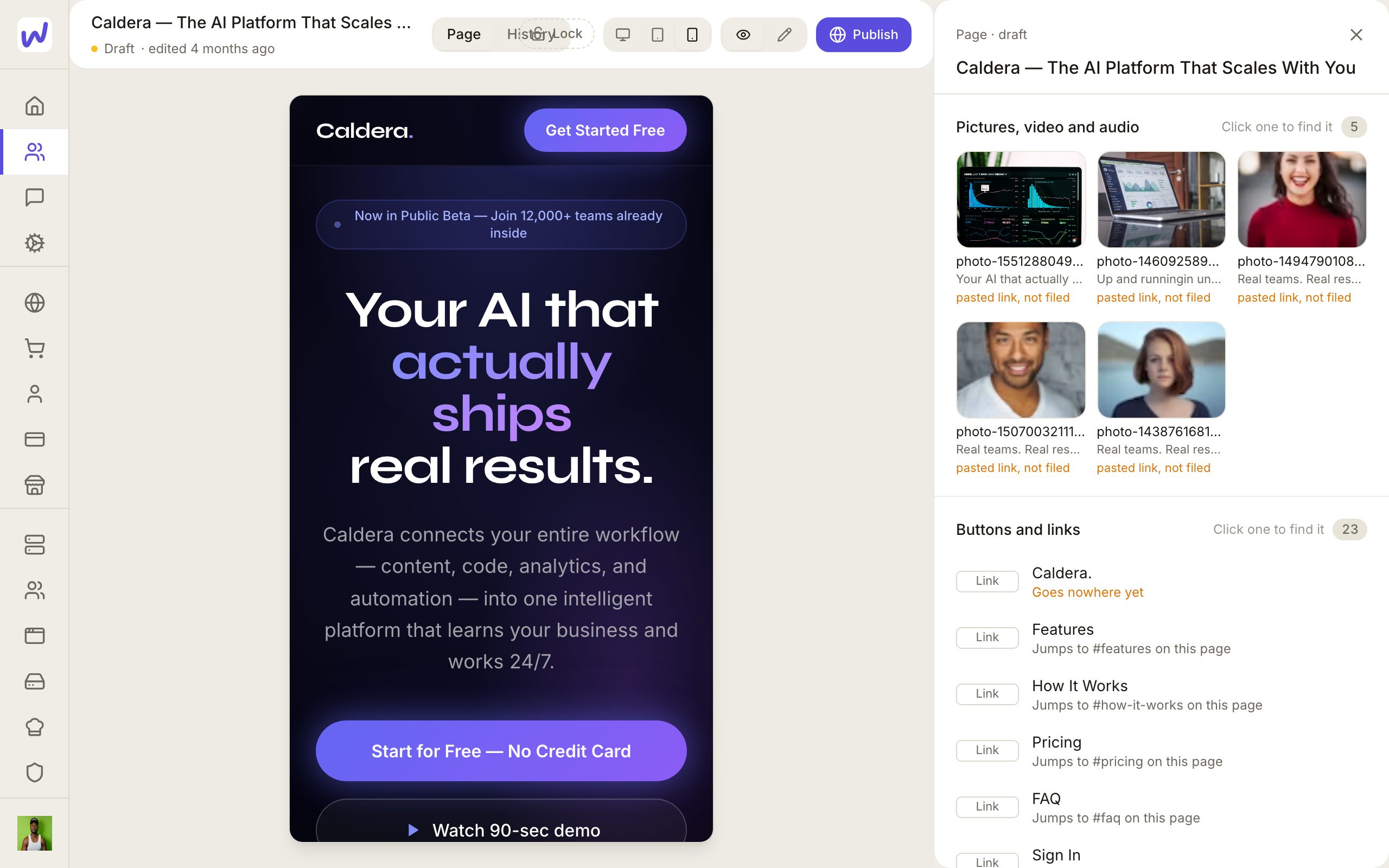
- Page: the page itself, with Computer, Tablet and Phone previews.
- History: every change, by a person, an agent or an automation, kept as versions. Pick one to see it on the canvas and put it back. Putting an old version back adds a new version, so nothing is lost.
- Analytics: shown once the page is published. It counts real visits from browsers only, with devices and pages ranked.
A page is a Draft until you publish it, then Live.
Things a page can show live
The right-hand rail lists what the page uses, so you can see and change it in one place:
- Pictures, video and audio: a picture or video can point at its file in your Assets. Replace the file in Assets and every page using it updates, published pages included. Use Swap this file to change it on every spot it appears.
- Tables: a page can show rows from one of your tables, kept up to date. Nothing shows to visitors until you switch on Show on your webpages for that table and pick the columns visitors can see.
- Documents: a page can show a document's current text. It appears only after you switch on Show this document on webpages for it.
- Products: your shop's products, with buy buttons that open the checkout over the page.
- Blog posts: a blog shows on the page that holds its index. New posts appear there by themselves.
A page that shows nothing to visitors
If a page looks fine to you but empty to visitors, check the Tables and Documents rows in the rail. A table or document that is not switched on for webpages shows nothing on the live page.
Your own domain
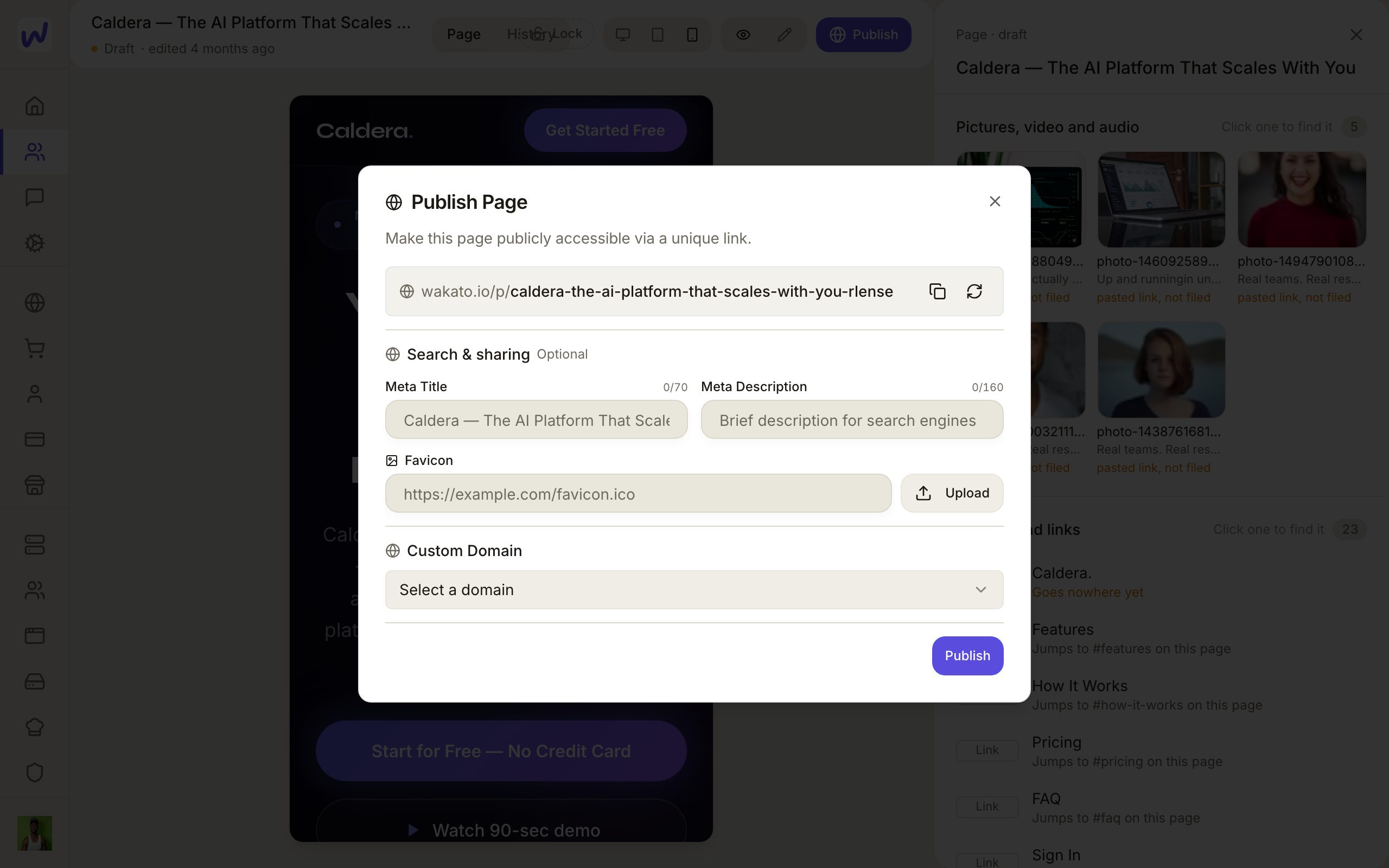
Domains live in Backstage → Domains. You can search for and buy a domain there, or connect one you already own by adding the DNS record it shows you. Once the domain is verified and assigned to the space, pick it under Custom Domain when you publish.
The blog
The Blog button at the top of Web pages opens your blog: posts with drafts and publishing, and bylines that can be a member, your business or a typed name. Removing a byline archives it, so published posts keep their author.
Do it: put a page online
Open the page
Check it on a phone
Press Publish
Add a description
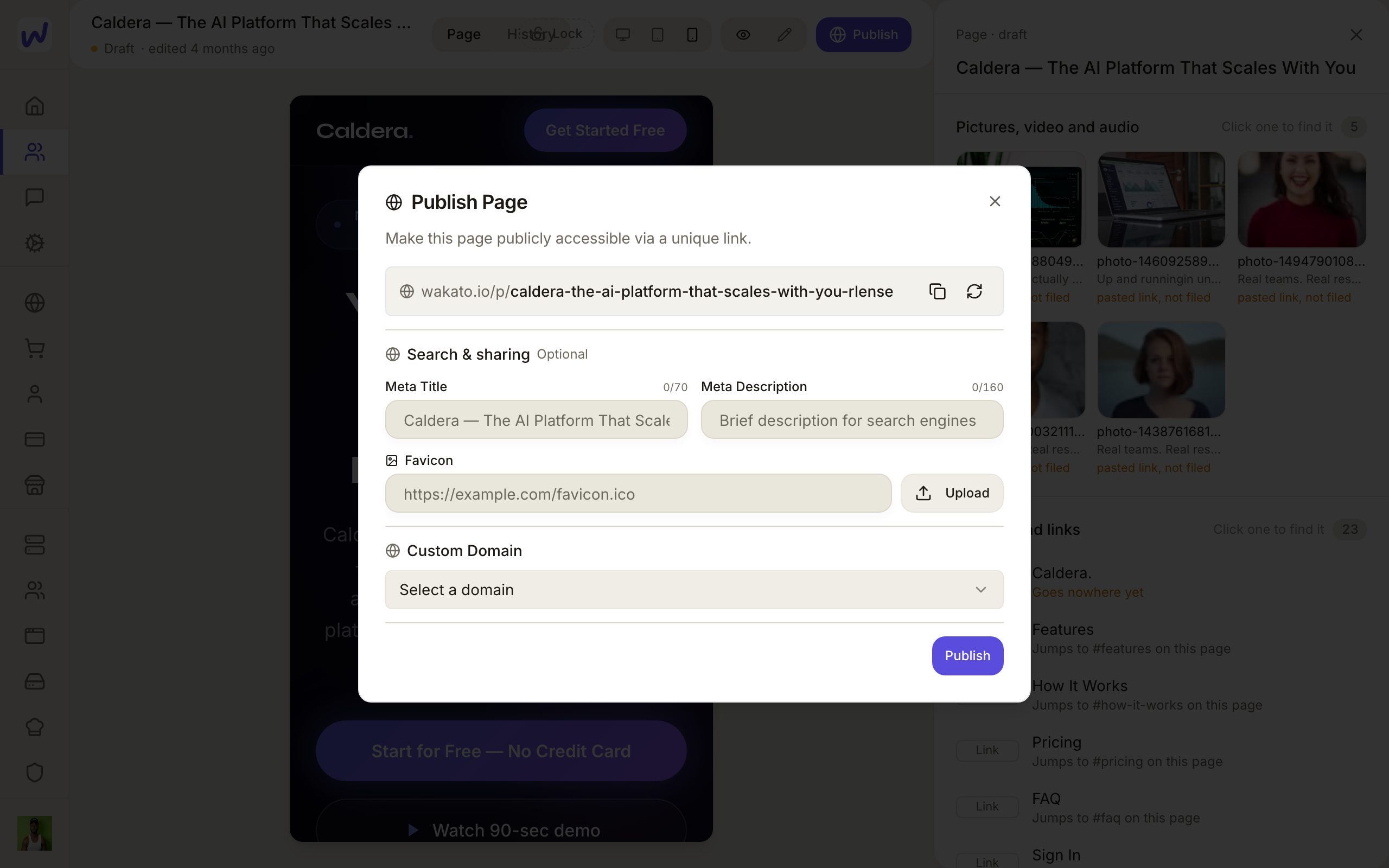
Publish it
What your agents can do here
Ask an agent in Messages to build or change a page. Every agent works from the same page guide Wakato writes, which tells it to:
- Follow your brand record and your instructions first.
- Ask you about the look before deciding it, and show you a direction.
- Build a draft, look at the draft itself, and publish only when you say so.
Agents can also write and publish blog posts, swap pictures and videos, add or remove products on a page, place video and audio and set how they play, and read a page's visits. What an agent may change on a given page depends on what you allow it in What it may do. You can let an agent change a page's content but not its layout or its publishing.
Questions
Related
Costs and limits
An agent's thinking and paid tools are charged to its home space's wallet as it works, and its computer on Wakato's cloud is billed only while it is awake. You can cap what each agent spends per day, week or month, and pause it at any time.
Forms
Make forms in your Wakato space to collect leads, signups, requests and survey answers. Every person who sends one becomes a contact automatically, and you can share the form by link, embed it on any website, or put it on your Wakato pages.