Socialwrite first, connect when you are ready.
Social Manager is where a space writes, schedules and publishes posts to its social accounts, answers messages, comments and reviews, and sets auto-replies. You can write drafts before any account is connected.
Social Manager keeps your business's social media in one place inside your space. You write a post once, choose where it goes, and publish it now or later. Messages, comments and reviews from your connected accounts come into the same page, and your agents can help with all of it when you let them.
How it works
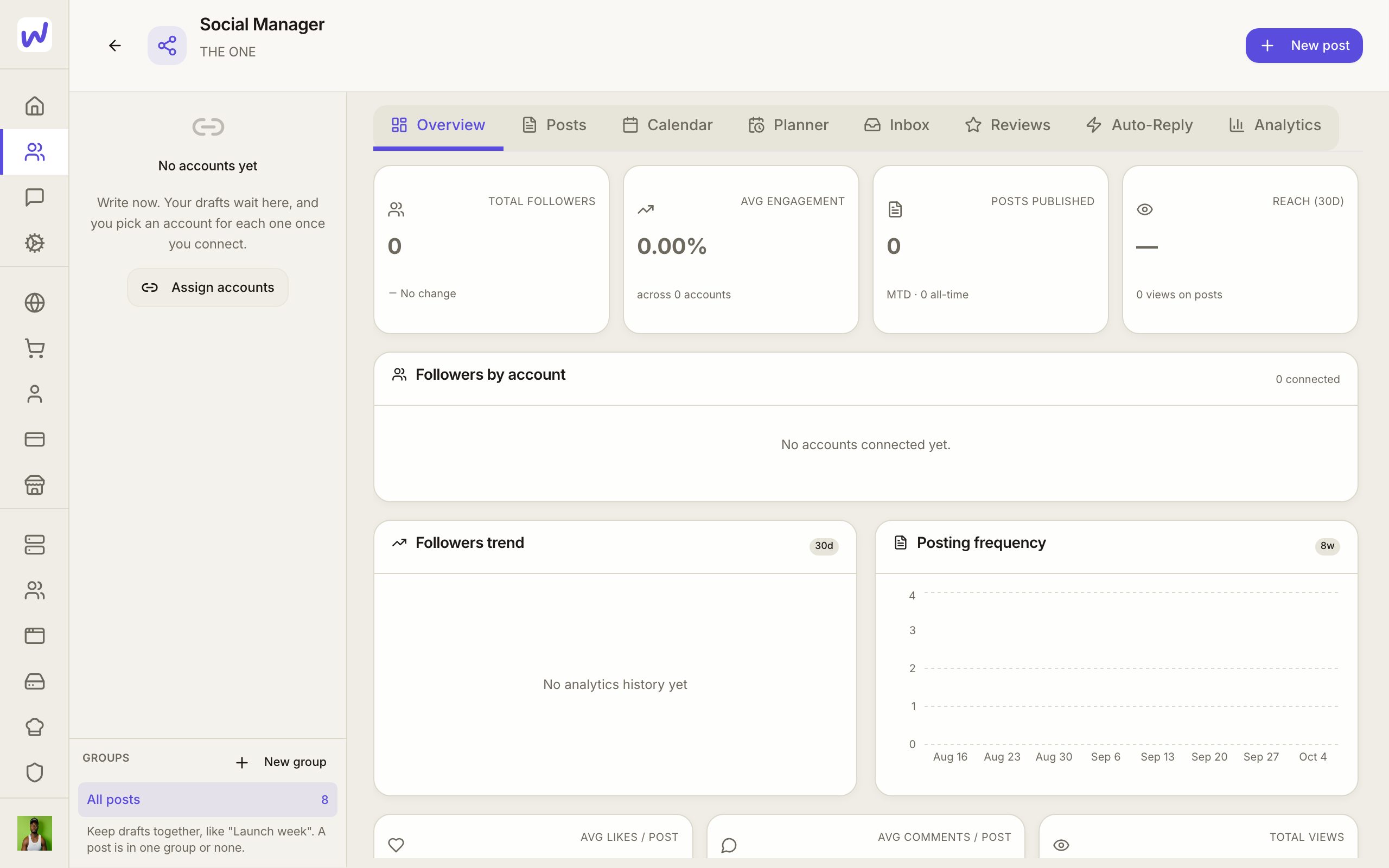
Open Social Manager from your space. The tabs are Overview, Posts, Calendar, Planner, Inbox, Reviews, Auto-Reply and Analytics. Your connected accounts are listed on the side.
Connecting accounts
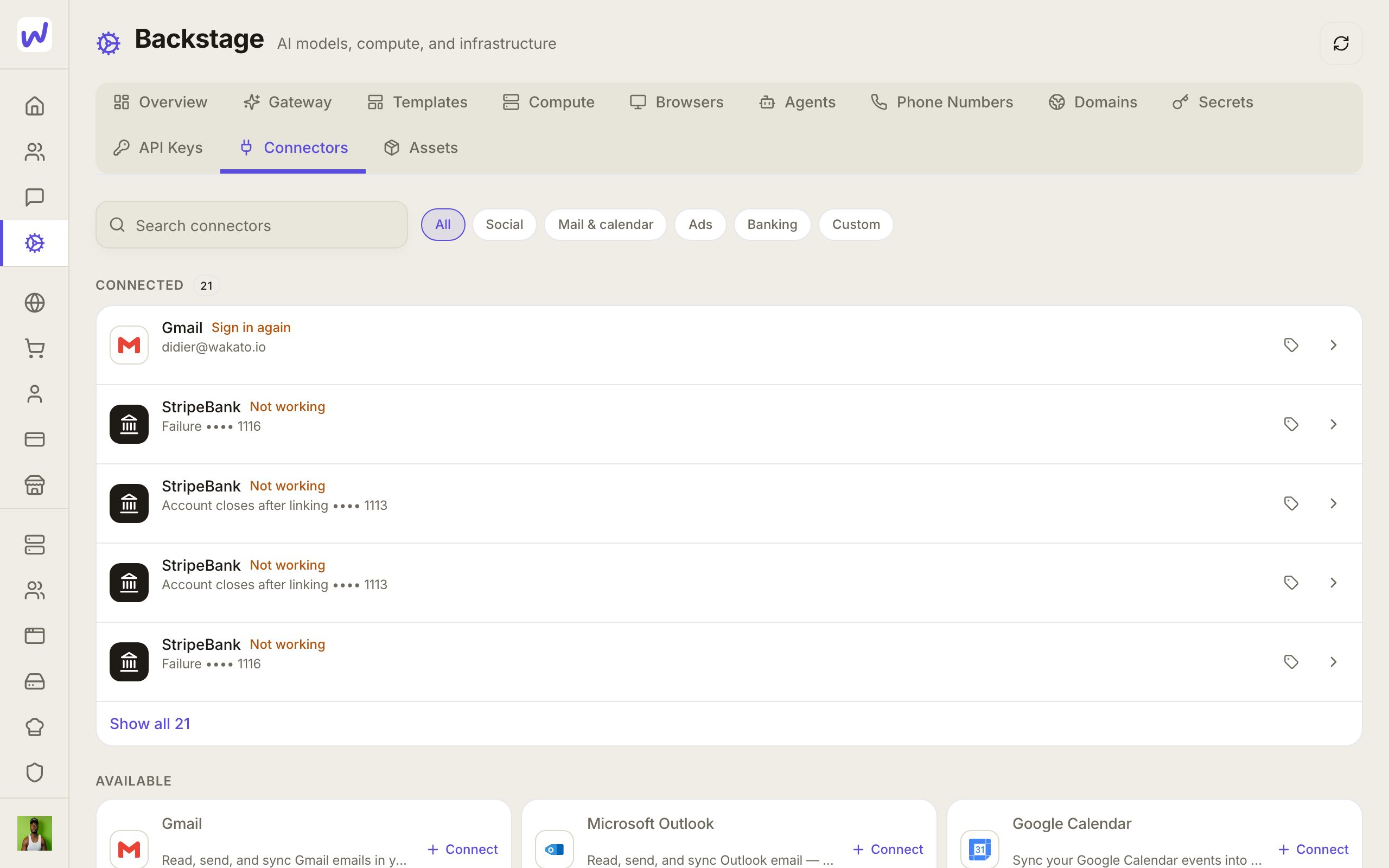
Connect an account from Social Manager with Connect an account (or Add an account once you have one), or from Backstage → Connectors → Social. You sign in on the network's own page. Once connected from inside a space, the account is on in that space right away. If a network logs you out, the account shows Needs reconnect.
Drafts come before accounts
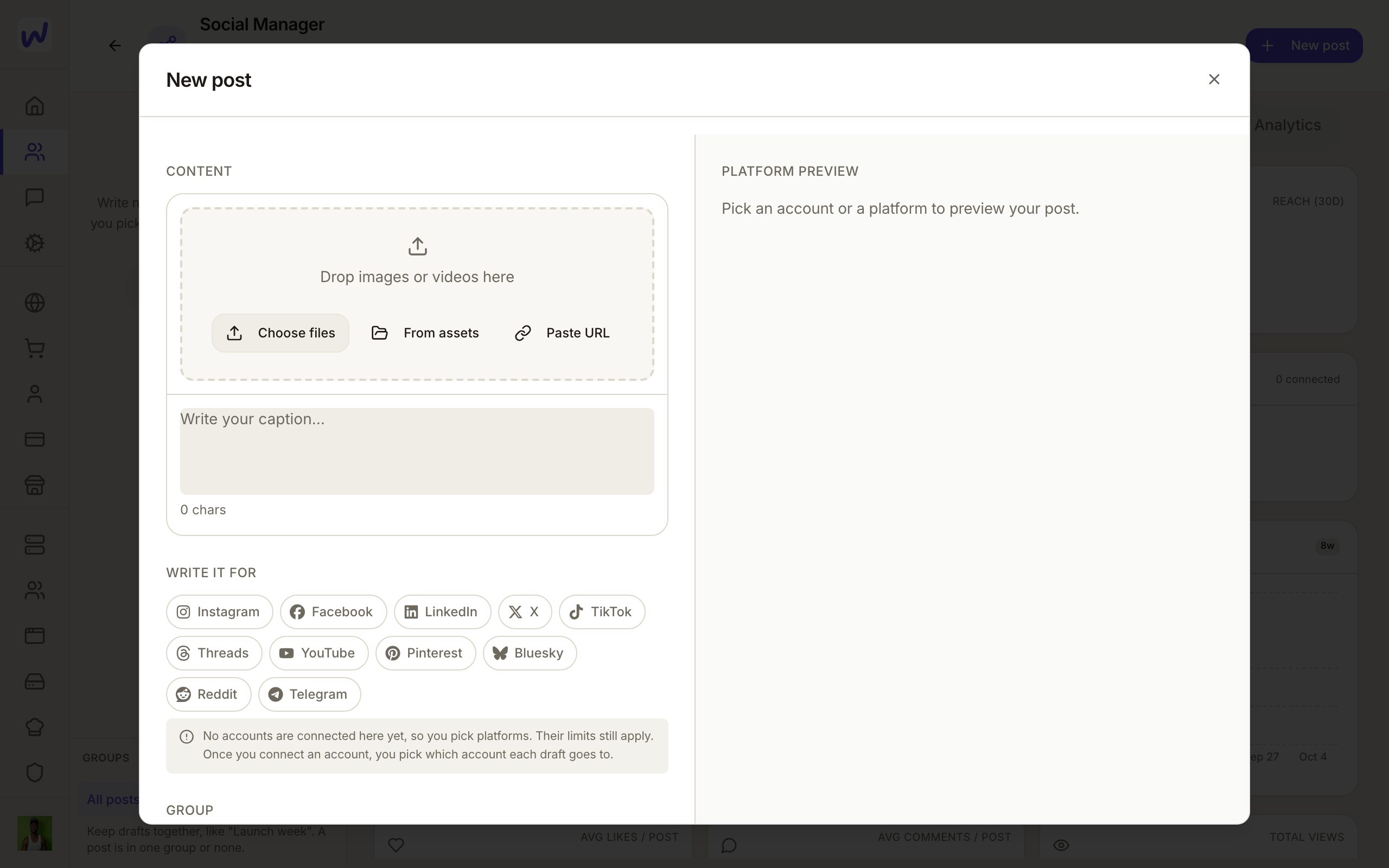
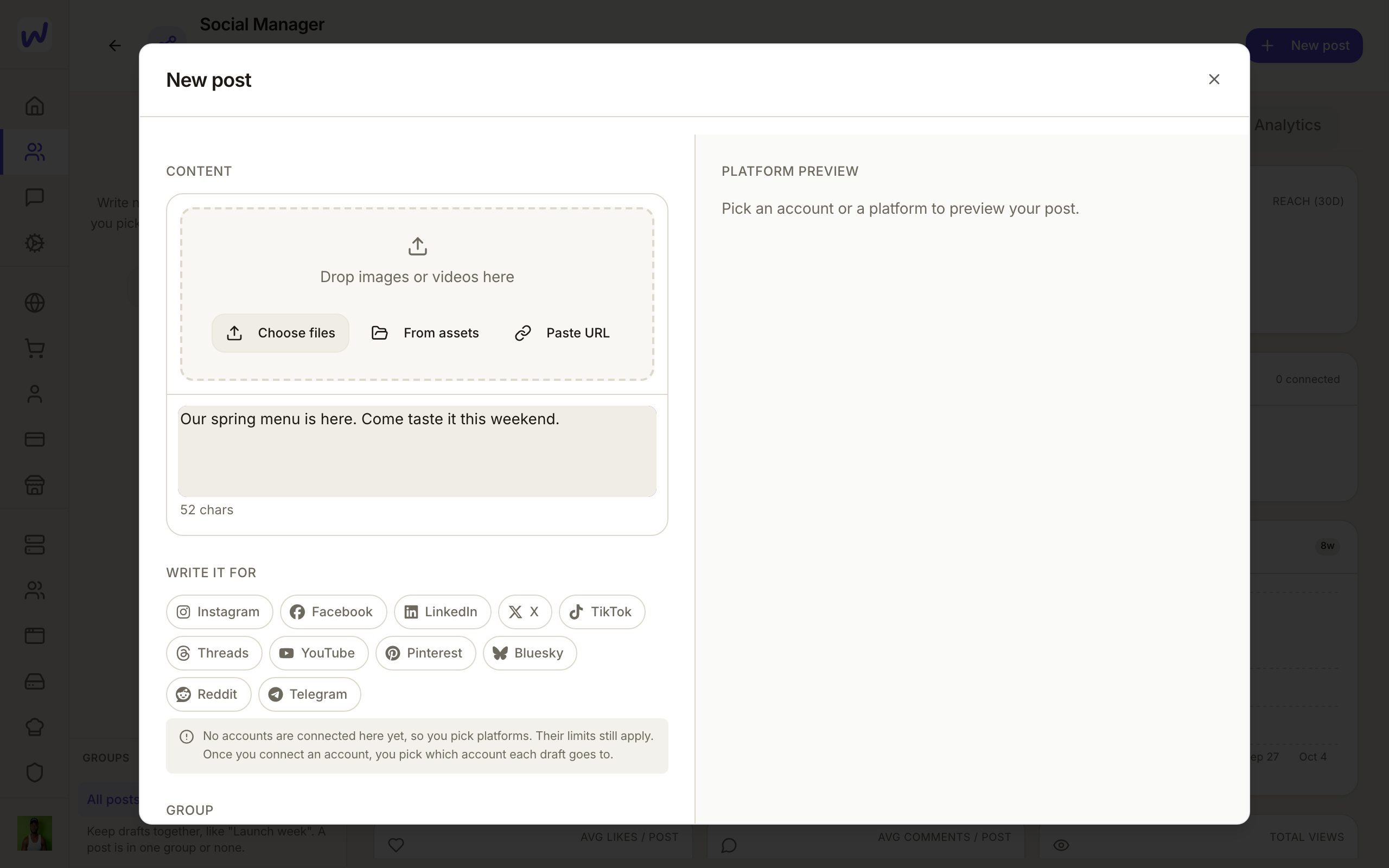
A draft does not need a connected account. Under Write it for you pick the platforms it is meant for, like Instagram or TikTok. You can also give a draft a planned date and put it in a group (for example "Launch week").
A planned date is a note to yourself. It shows dashed on the calendar and nothing is posted at that time. A post goes out only when you publish or schedule it.
When you publish from drafts, each draft goes out on the account you picked for it, or the space's only account on that platform. A platform with no account yet stays behind as a draft, so nothing is lost.
Scheduling and the Planner
Schedule sends a post at a time you choose. The Planner holds posting schedules (for example, weekdays at 9:00), so you can put a batch of drafts into the next free slots instead of picking each time. Calendar shows what is scheduled and what is planned.
Inbox, comments and reviews
Inbox shows direct messages and comments from your connected accounts, and you can reply from there. Reviews shows reviews from Facebook and Google Business, and you can answer them in place.
Auto-Reply
Auto-Reply holds two kinds of automatic answers: comment automations, which reply to comments that contain words you choose (and can send a direct message too), and welcome messages for people who message you for the first time.
If a comment matches none of your rules, an agent can answer it instead. That happens when the account is assigned to an agent's External Reach and its reply to comments switch for that platform is on.
Do it
Prefer to watch?“Draft a social post”: watch it, or click through the steps yourself.Press New post
Write your caption
Pick where it goes
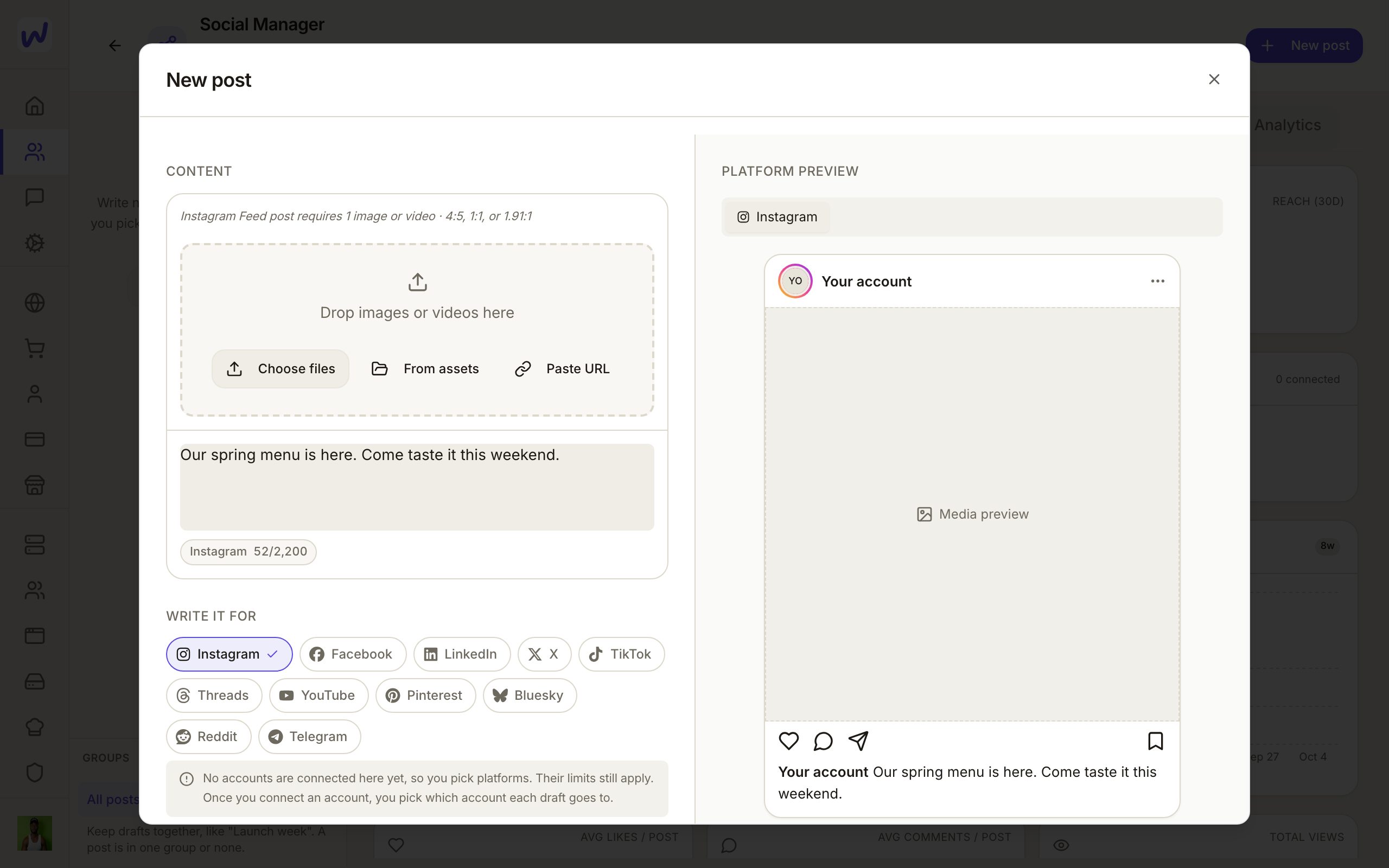
Add a photo or video
Save the draft
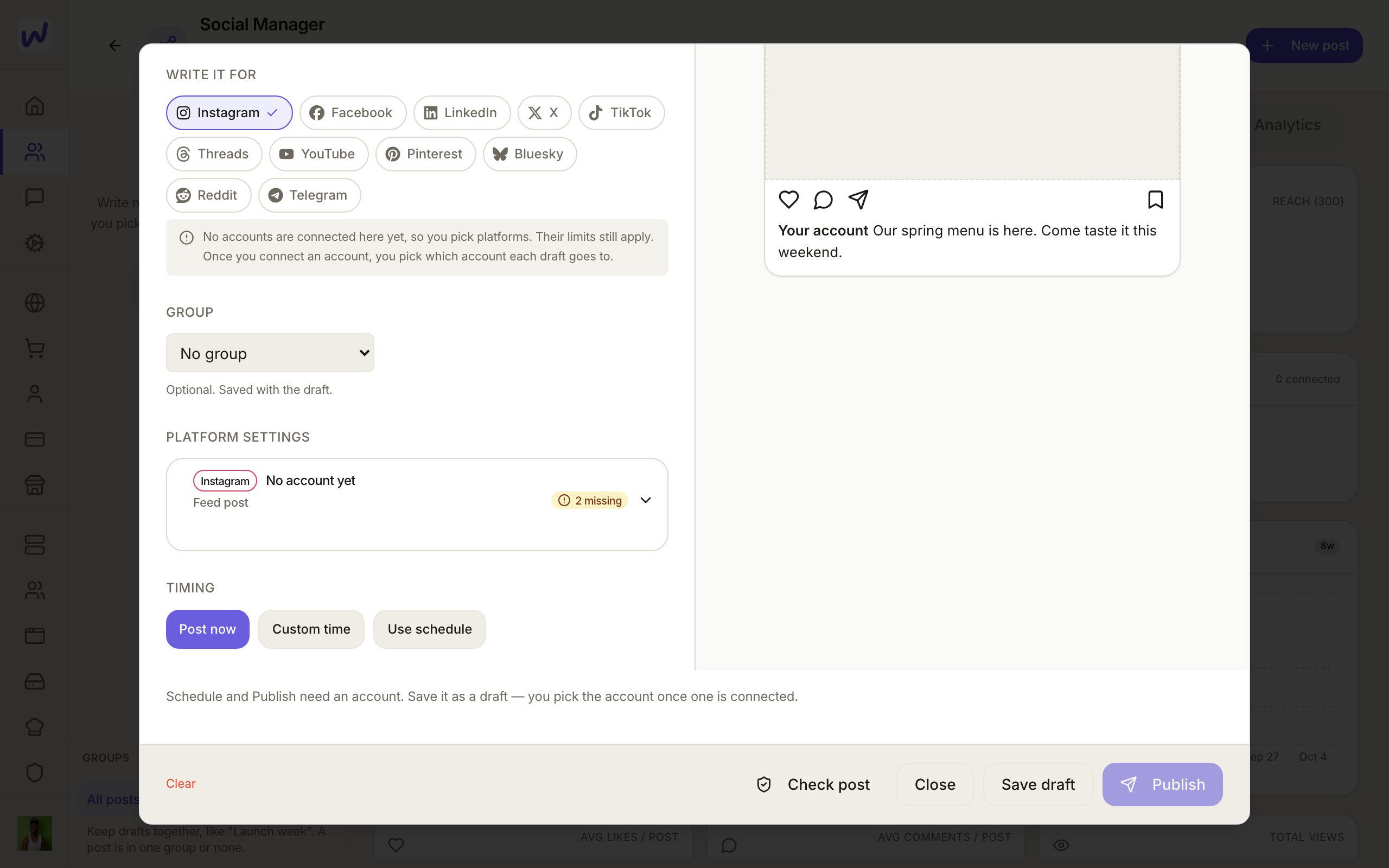
Connect Instagram or TikTok
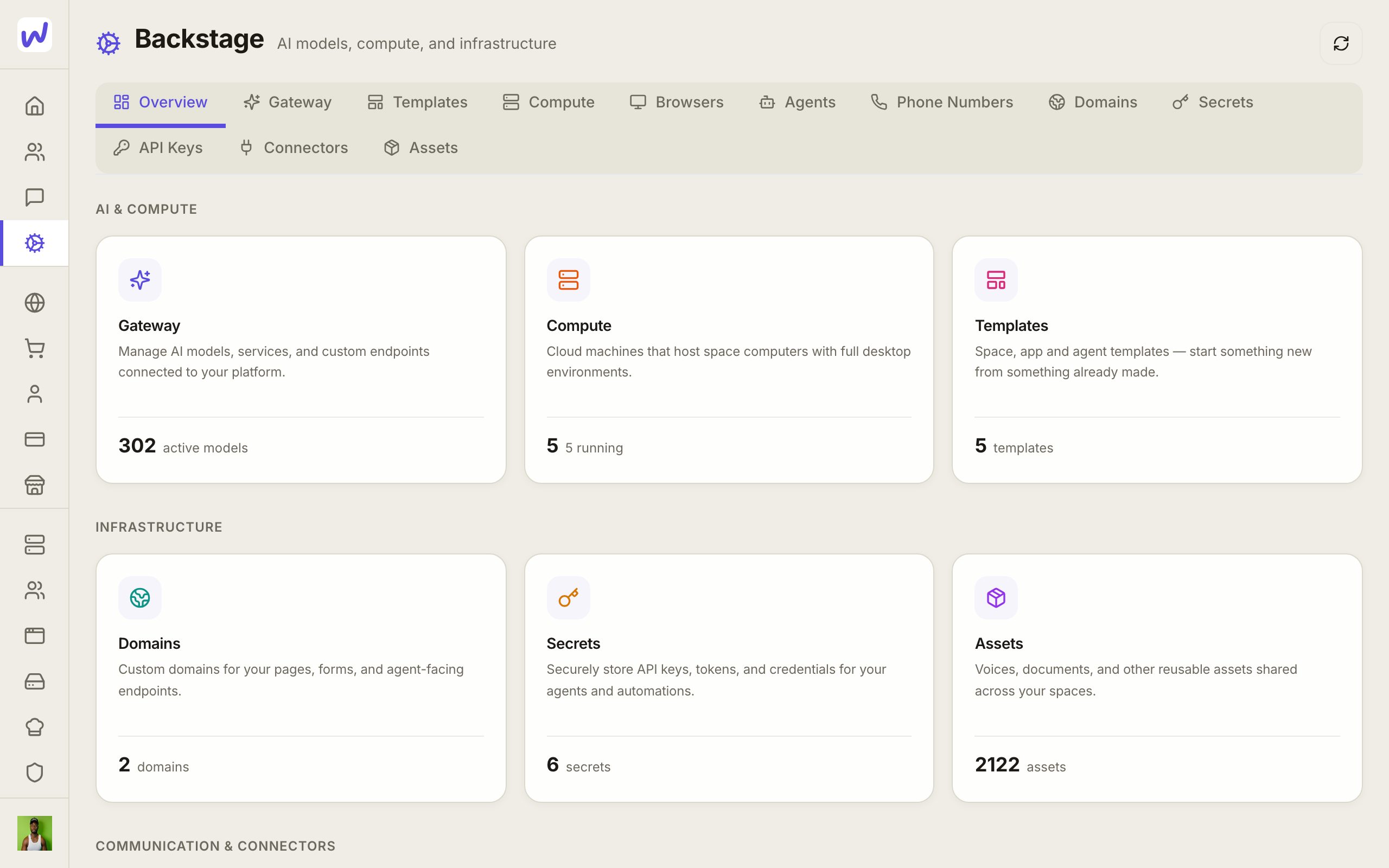
Prefer to watch?“Connect Instagram or TikTok”: watch it, or click through the steps yourself.Open Connectors
Choose Social
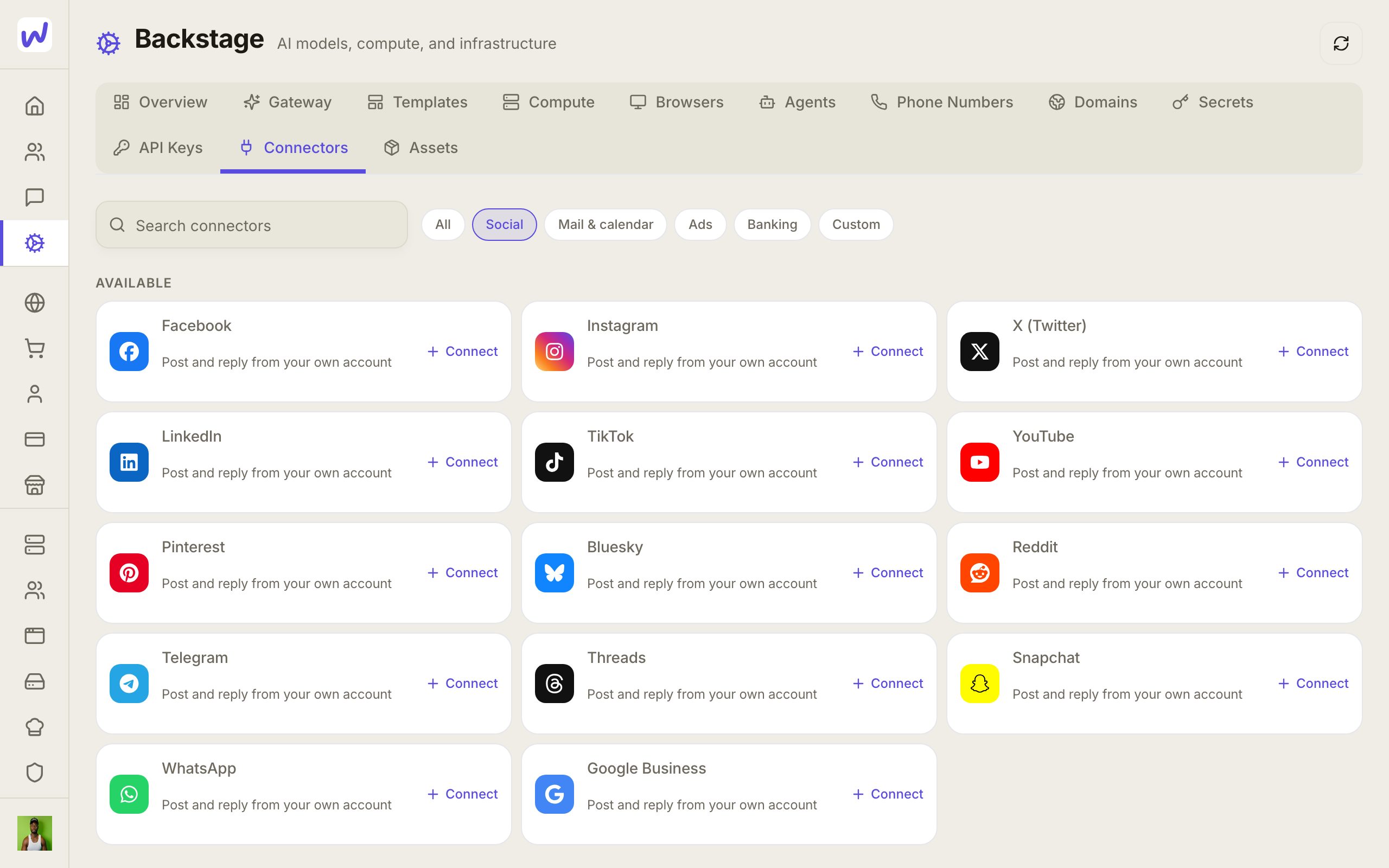
Sign in
An account must be in the space to post from it
An account you connected in Backstage is yours. Add it to the space you want to post from. Connecting it from inside Social Manager does both at once.
What your agents can do here
An agent with social permission can write and edit drafts, group them, pick accounts, schedule and publish, reply to comments, messages and reviews, set up comment automations and welcome messages, and read the numbers in Analytics.
Speaking in your name asks first
Anything that speaks in your business's name or changes something live, like publishing a post or replying to a review, asks you first by default. You approve it in the agent's chat. You can change this in what the agent may do.
Questions
Related
Ads
Ads Manager runs your paid ads on Meta, Google, TikTok, LinkedIn, Pinterest, X and ChatGPT Ads from one place in your space. The ad platform charges your ad account for the ads, not Wakato.
Email campaigns
Mail sends email from your own domain or connected Gmail and Outlook. A campaign is either a newsletter, the same email to everyone subscribed, or a custom series written for each person, with results, an unsubscribe page and safety rules built in.