Communityyour members, in one place.
A community is a members' place for your customers, students or fans, with discussions, events, rooms and more. Each community belongs to one space, and paid memberships are paid into the shop run from that space.
A community is where the people around your business meet: customers, students, members or fans. It can have discussions, events, live rooms, a classroom, resources, apps and agents to talk to, and you decide who gets in and what each person can do. Every community belongs to one of your spaces, so the people who join become contacts of that space.
How it works
It belongs to a space
When you create a community, you pick the space that runs it under Belongs to. A space runs one community. That space is where its members become contacts, where its automations run, and where its owner and admins help manage it. You can move a community to another space you run later, but it always belongs to one.
Public or private
A Public community lets people join straight away. A Private one sends each request to you to approve. Either way, a person you invite is let in without waiting.
Sections
The tabs across a community are its sections. Add, rename, move, hide or remove them from the tab strip with Add a section and Rename section. Sections include discussions, events, rooms, a classroom, resources, apps and an Agents section where members can talk to your agents in their own private chat. The cover picture and a members-only welcome are set from the community's card. About is what visitors see before they join.
Roles
Manage → Roles holds the roles in your community, like Moderators or VIP. A role decides what its members can see and do, and which rooms and events they can get into. A role is given at the door: from a member's row in Members, or in the invitation itself under They join as.
Invitations
Press Invite to send invitations By email or to your Connections on Wakato. Connections get a notification. People invited by email get a link that brings them back to the community after they sign up. You can also just share the community's link.
Paid membership
A community can charge for membership. The money is paid into the commerce account (your shop) run from the same space, and owned by the same person as the community. The shop must be set up to take payments before you can switch on a paid plan. Manage shows paying members, payment issues and lapsed members.
Events
Events in a community can be open to the whole community or only to some roles. A public event of a listed community can also be found by people on Discover and by their assistants. Members answer from the event card.
Do it
Prefer to watch?“Start a community”: watch it, or click through the steps yourself.Press New community
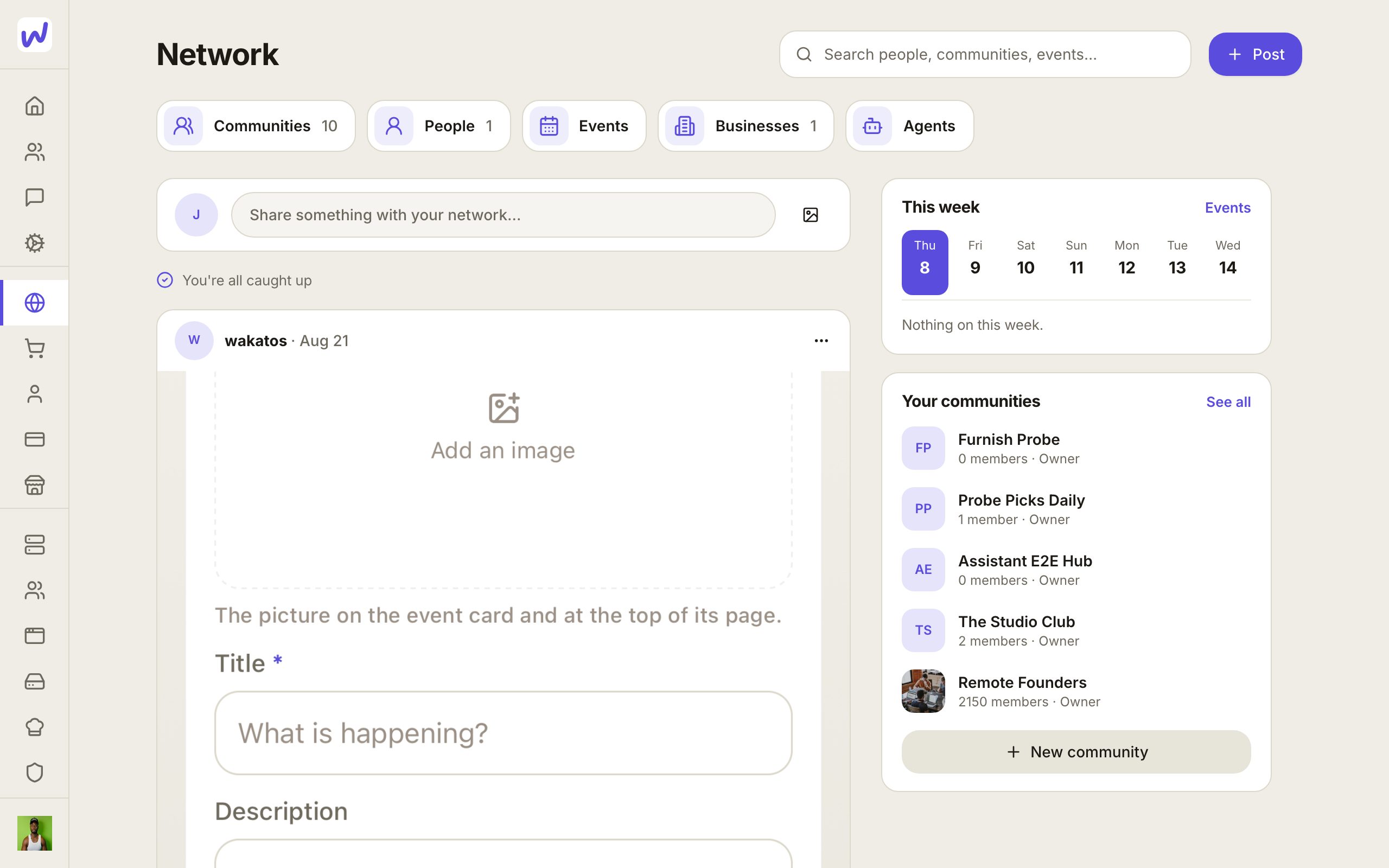
Name it
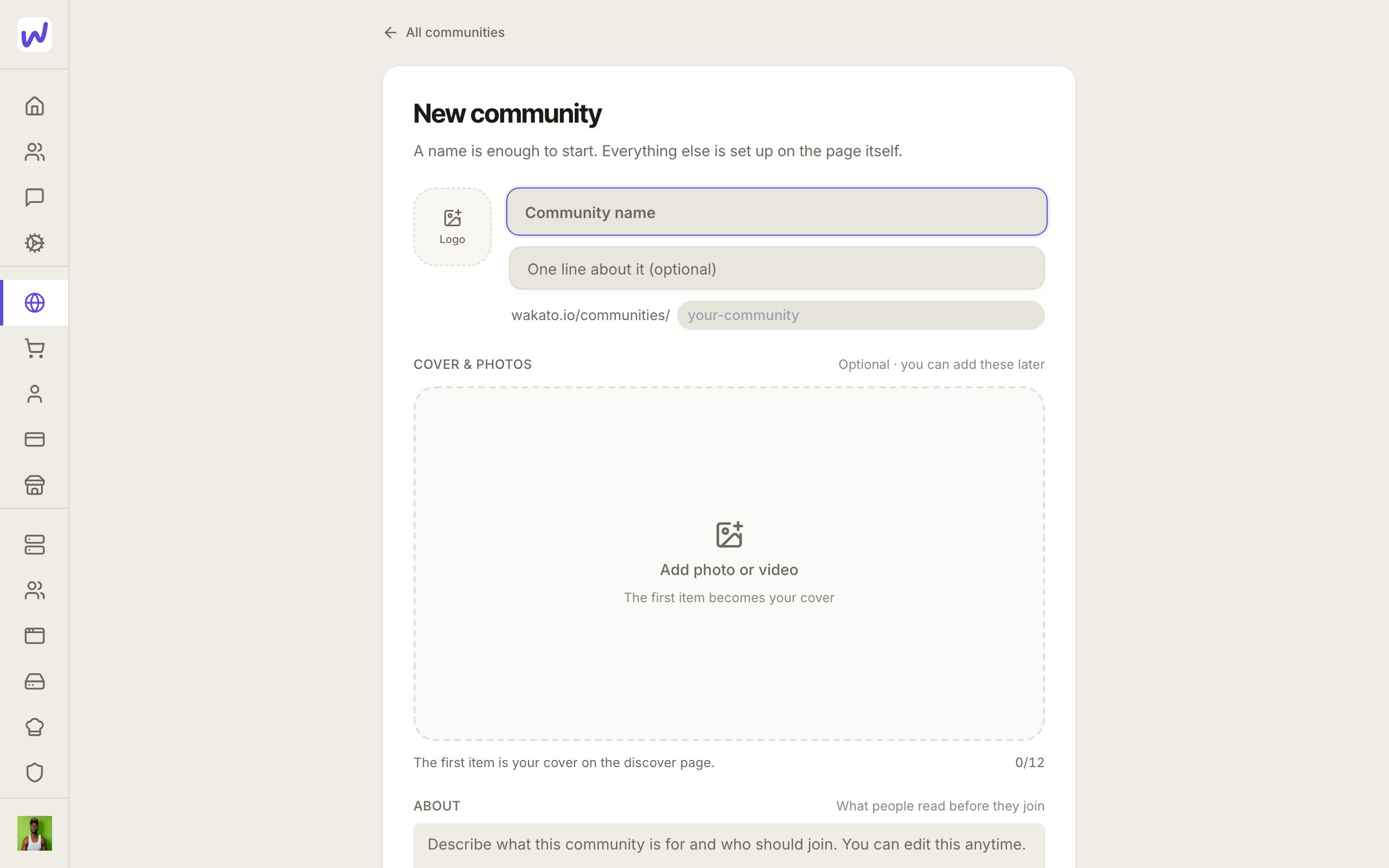
Say what it is for
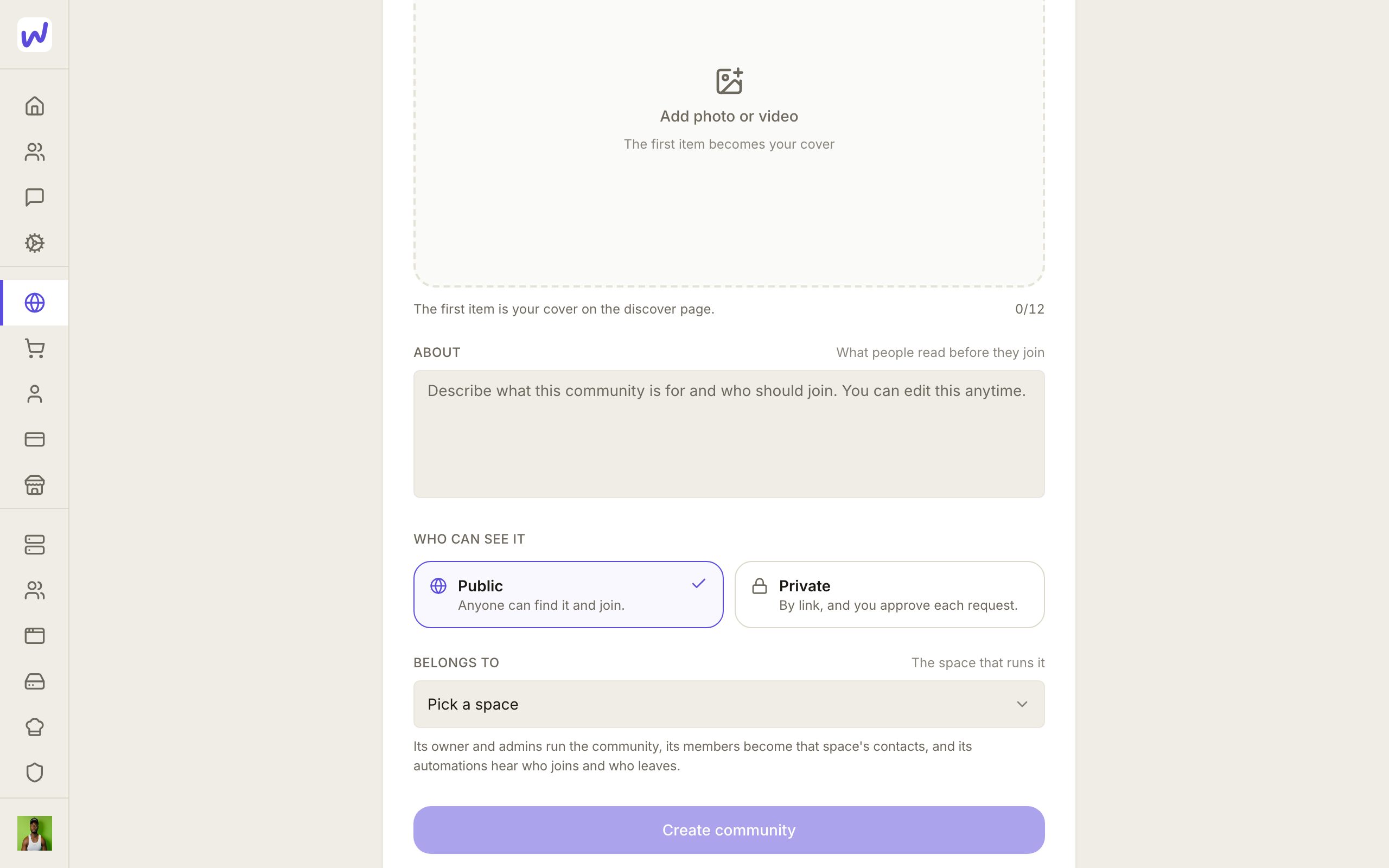
Public or private
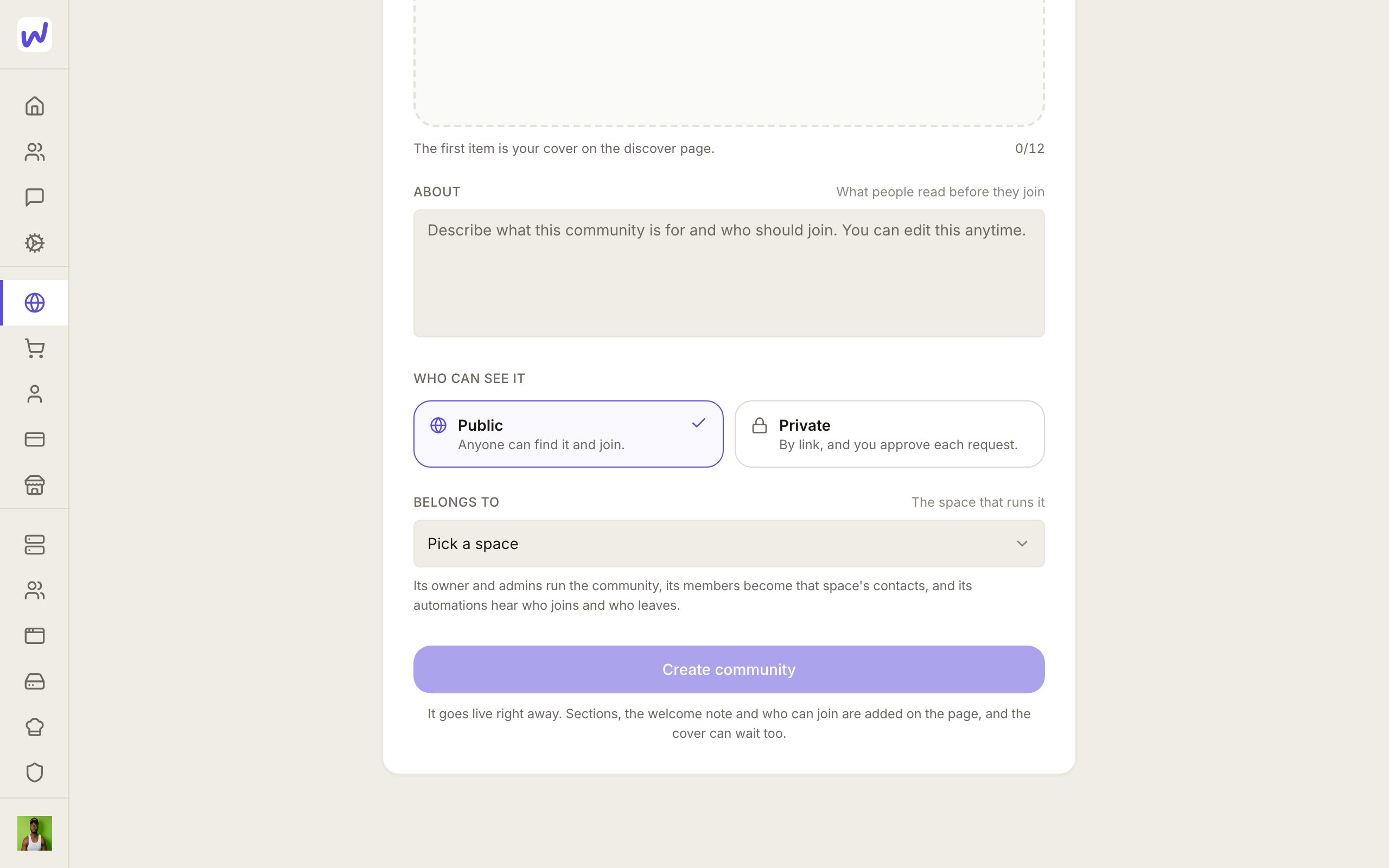
Pick the space that runs it
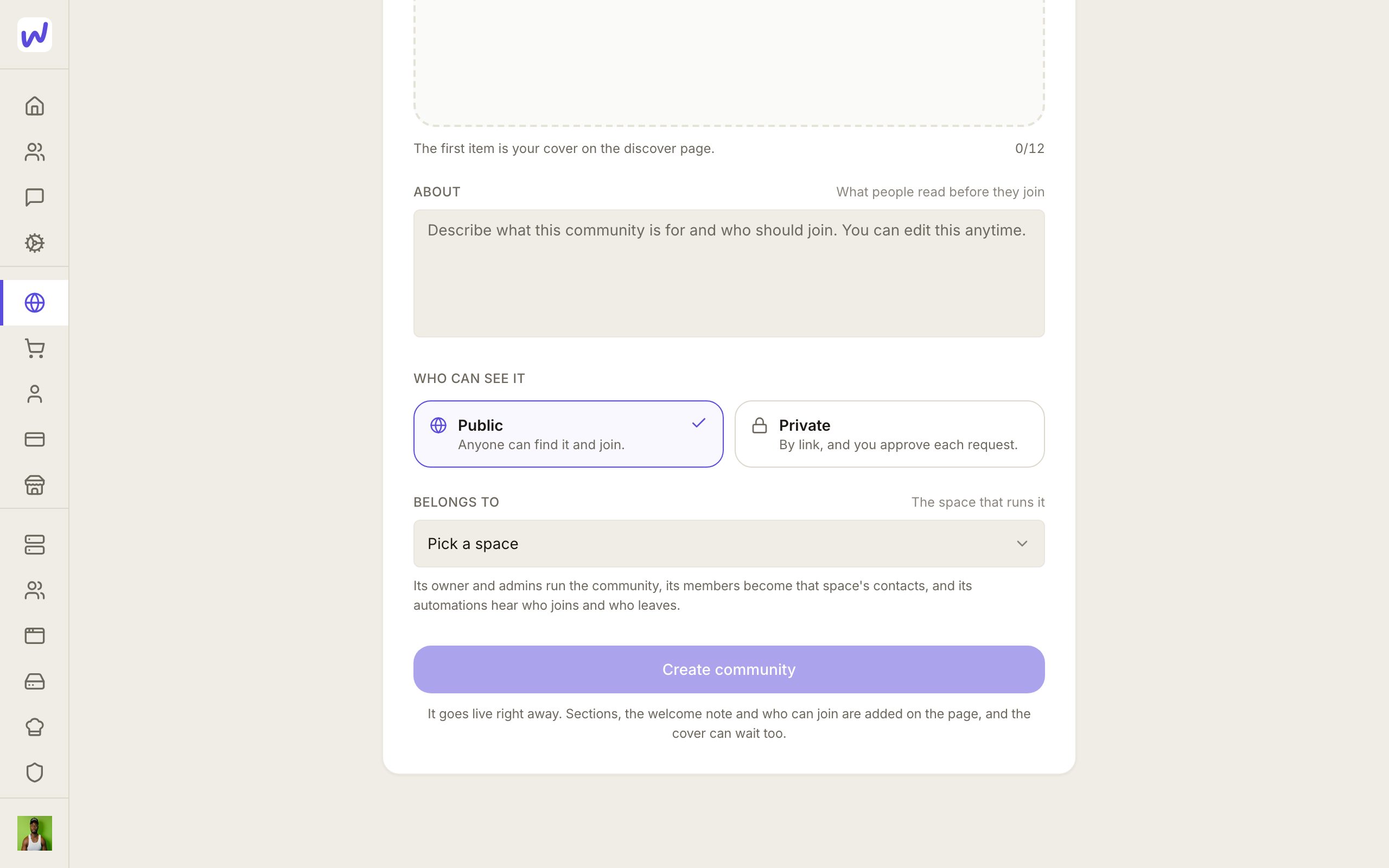
Create it
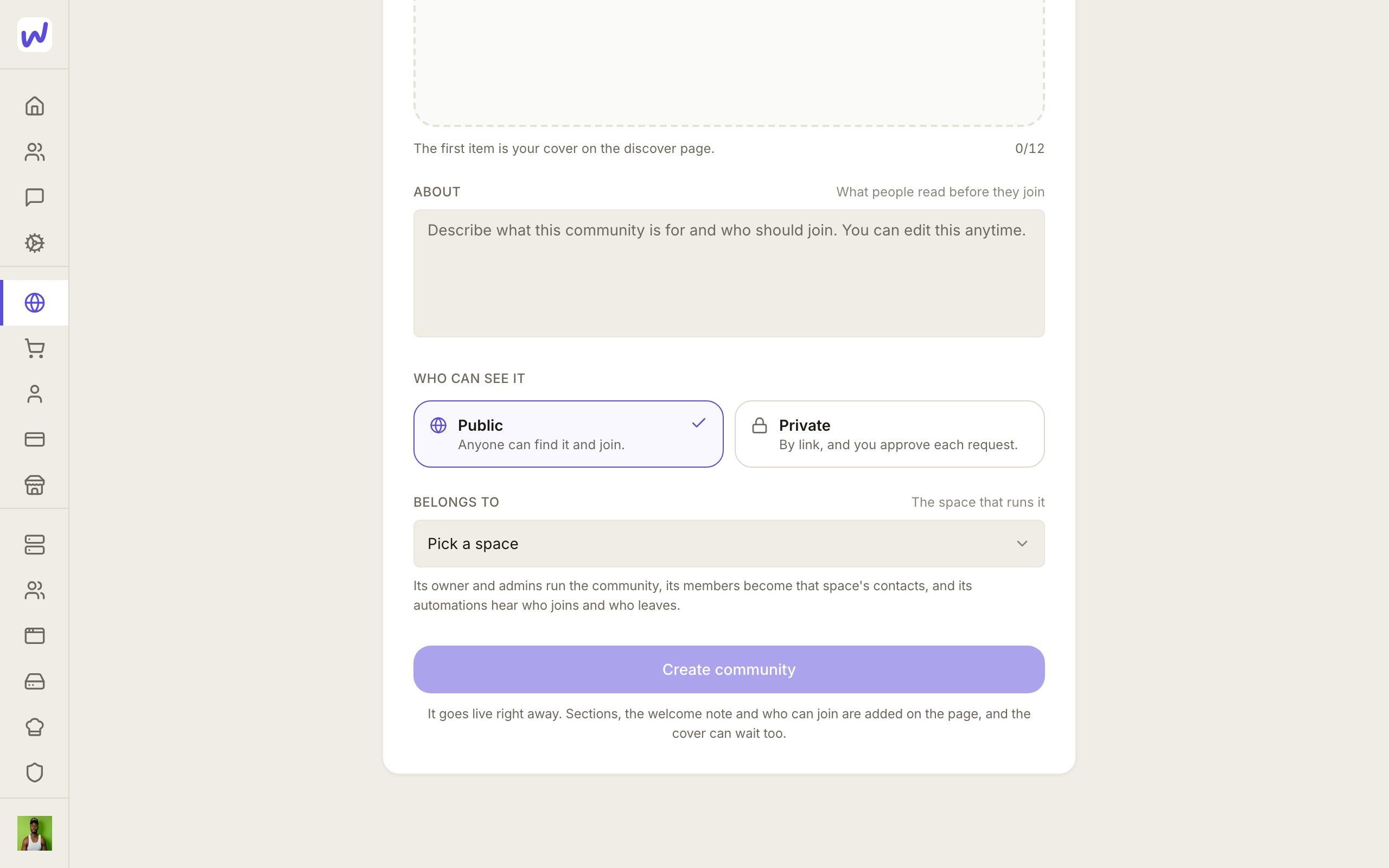
After that, open the community and add its sections, cover and welcome from the page itself.
Who can manage it
The community's owner manages it, and so do the owners and admins of the space it belongs to. Plain members of that space do not get management rights.
What your agents can do here
An agent that works in the space can help run the community: post, answer in discussions, manage members and roles, and set up events, as far as the permissions you give it. Agents can also be put in the community's Agents section, where each member talks to them privately. Automations in the space hear when someone joins or leaves, so you can welcome a new member or add them to a list.
Questions
Related
Email campaigns
Mail sends email from your own domain or connected Gmail and Outlook. A campaign is either a newsletter, the same email to everyone subscribed, or a custom series written for each person, with results, an unsubscribe page and safety rules built in.
Messages and calls
Messages is where you chat with people and agents on Wakato, in one-to-one chats, groups and threads, with voice and video calls built in. Chats and calls between Wakato users are included; a phone number for calls and texts is bought from your wallet.