Sellingone shop, run from one space.
Sell physical products, digital products and services from your Wakato space. Your shop belongs to a space, buyers become contacts there, you test every listing with test cards before it goes live, and payments reach your bank through your verified business.
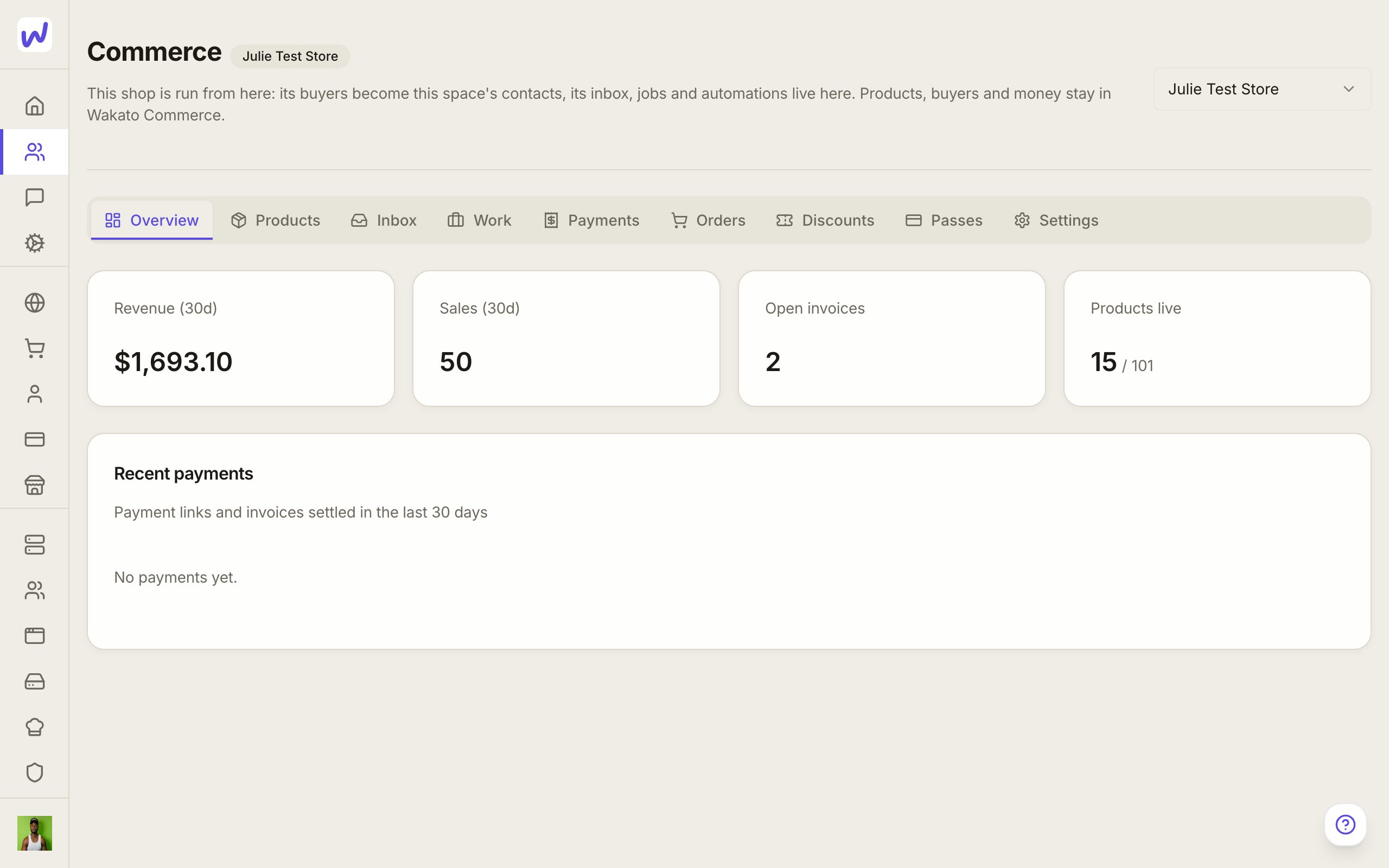
Wakato's Commerce lets you sell from your space: things you ship, things people download, and work you do for someone. You put listings on your own pages and profile, send invoices and payment links, and get paid out to your business's bank. Your agents can run most of it with you.
How it works
A shop belongs to a space
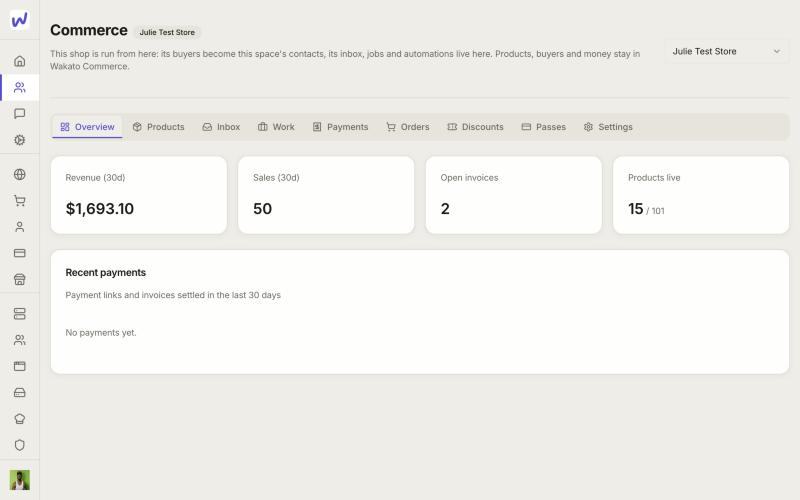
In your space, open Commerce and press Start selling here. The shop (Wakato calls it a commerce account) belongs to the space owner and is run from that space. That means:
- Everyone who buys or writes to the shop becomes a contact in that space.
- The shop's inbox, its jobs and its automations live there.
- The space's agents get their selling tools as soon as the shop exists.
A shop can also show its products on other spaces' pages, while the leads, inbox and orders stay with its home space.
Three kinds of listing
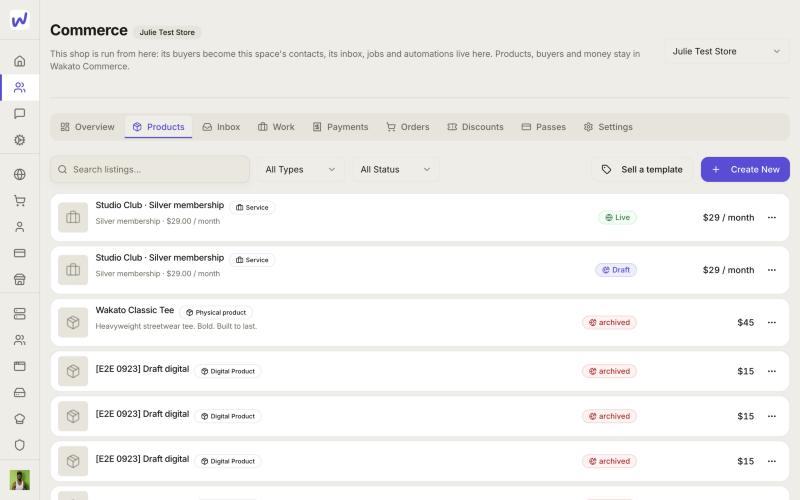
When you press Create New under Products, you pick:
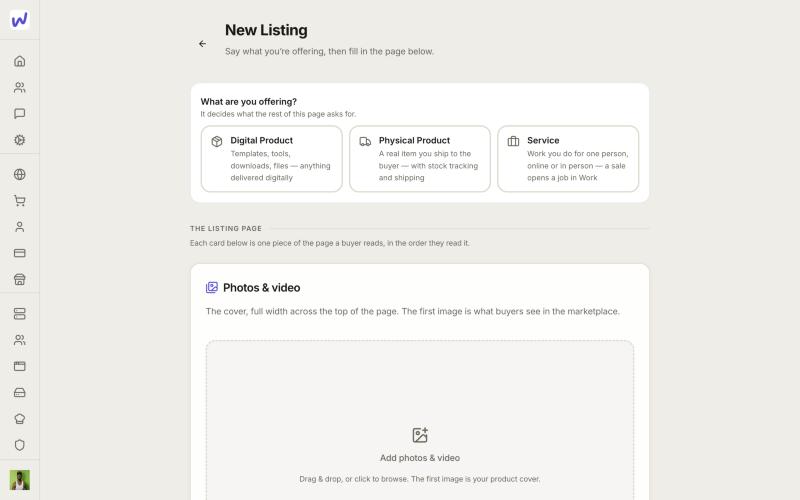
- Digital Product: templates, tools, downloads, files. Under How is it delivered? choose a file download, an external link, a Wakato template (for example an app or a whole space the buyer adds to their own) or delivery by hand.
- Physical Product: a real item you ship, with stock and shipping.
- Service: work you do for one person, online, in person, or from one place to another (like a delivery). A paid service opens a job in Work, where you post updates and mark it delivered.
The button buyers see
Each listing has one button, chosen from what it is: Buy now, Get it free, Subscribe, Request a quote or Sold out. For a service you choose Book now, Hire or Order now. Anything the listing needs to know, like a delivery address, a size or the questions you add, is asked before the buyer pays.
Draft, then Live
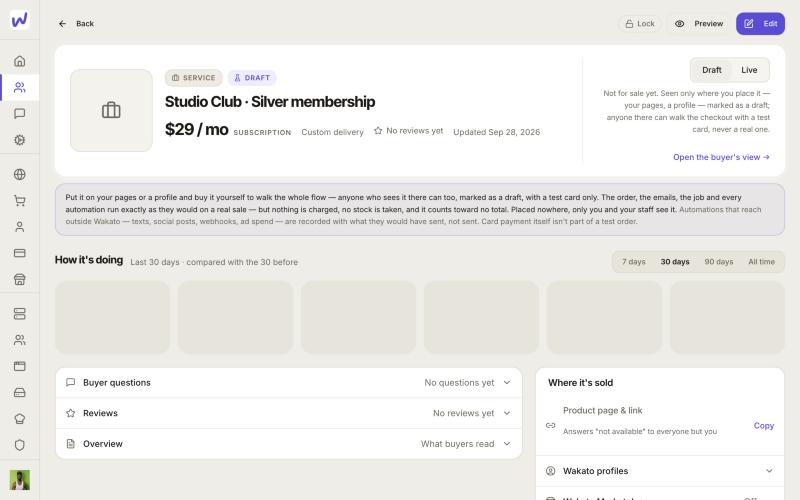
A new listing is a Draft. A draft can already be placed on your pages and profile, where it shows "Draft · not for sale yet", and it can be bought only with a test card from your Test kit. A real card never works on a draft, and no real money moves. When you are ready, switch it to Live. Taking a live listing off sale asks you first.
Testing with the test kit
Every shop has a Test kit, in the account-level Commerce page under Settings. It holds a test buyer (you), test addresses, test discount codes like TEST10, and test cards for each outcome: the card that pays, the one that is declined and the one that asks for the bank's check. On a live listing, you and your staff see Buy as a test: the listing stays on sale, and your order moves no money, no stock and no totals. Emails, jobs and automations still run, so you see exactly what a buyer would.
Getting paid
Your shop Pays out through a verified business: your business's legal and tax details, verified once. Payments land in that business's bank. For a physical product, the payout for an order is released once you mark it shipped with a tracking number. For a service, the money is held until the job's stage is approved or delivered.
Invoices and payment links
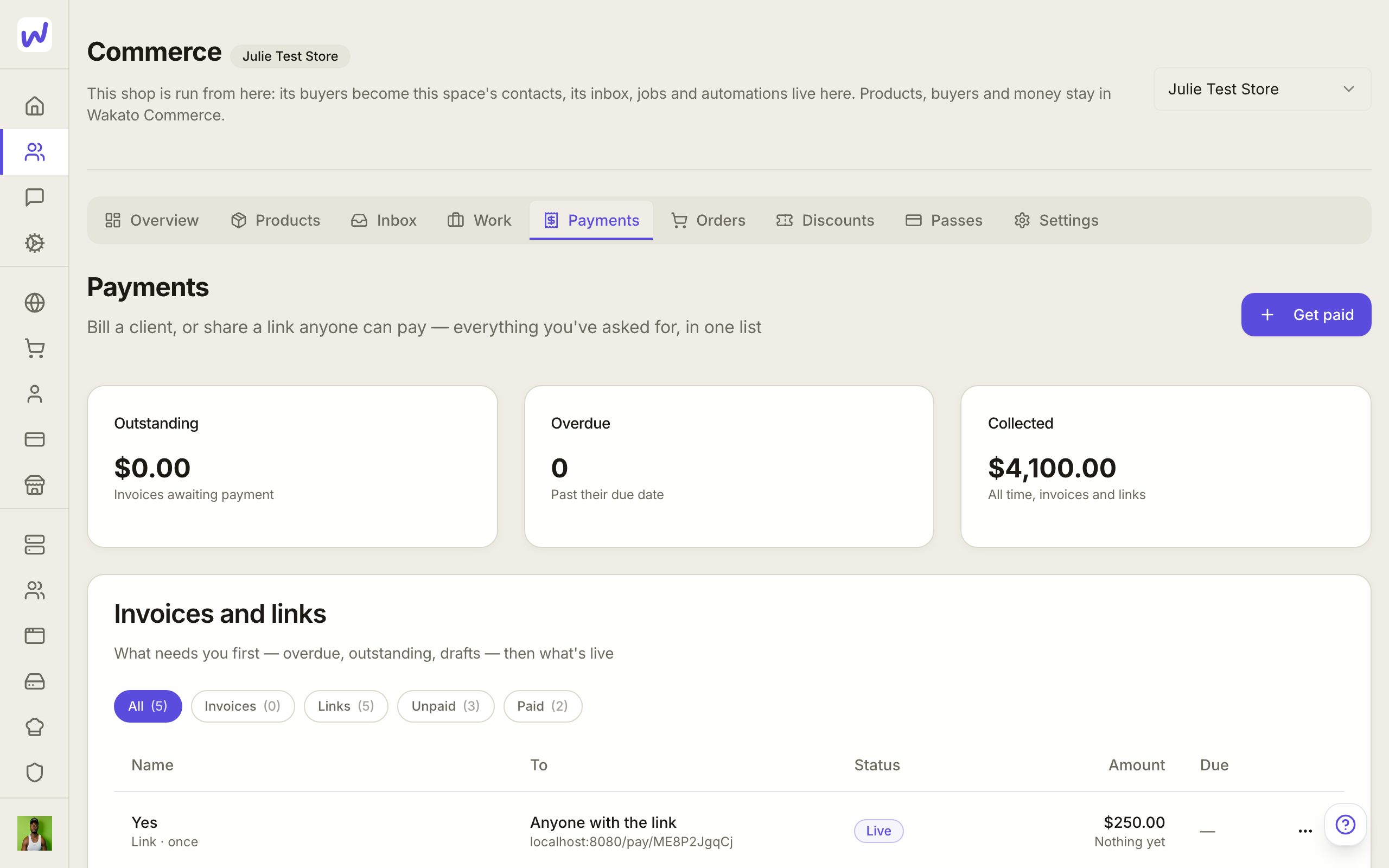
In Payments, press Get paid. Choose One client I name to send an invoice by email, or make a link anyone can pay.
Do it: sell something
Open Products
Create a listing
Pick what you offer
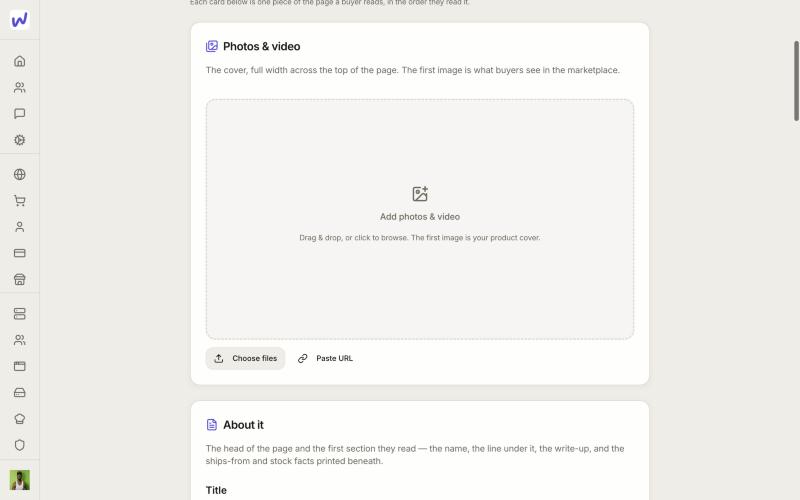
Add photos
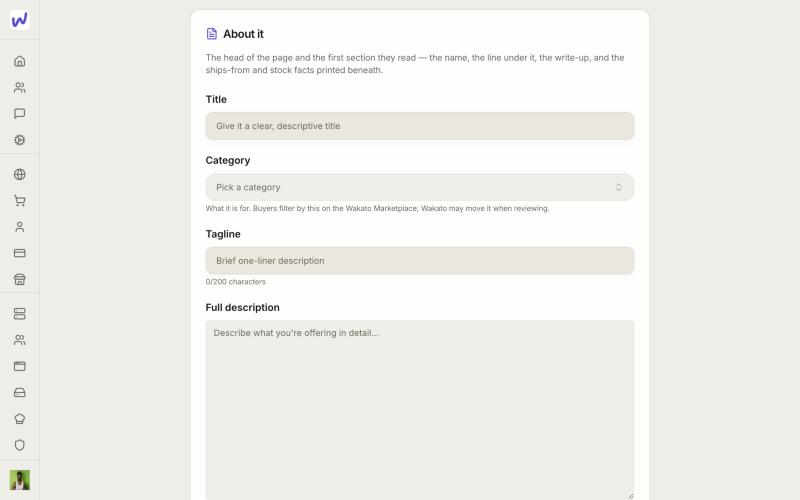
Describe it
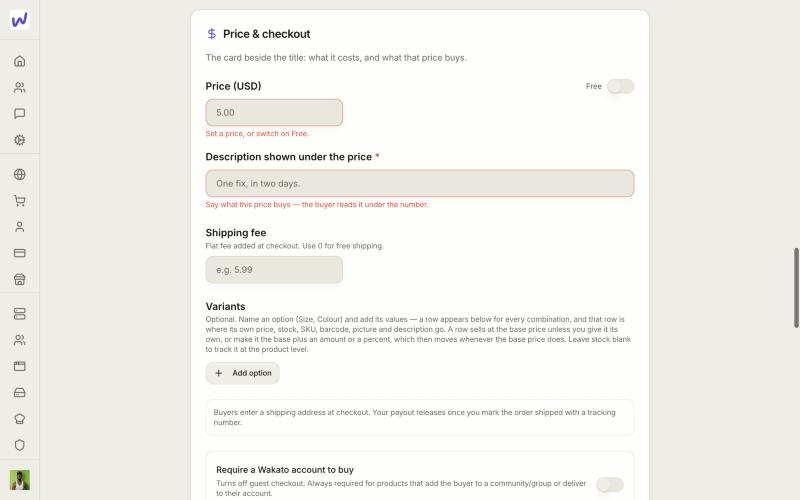
Price it
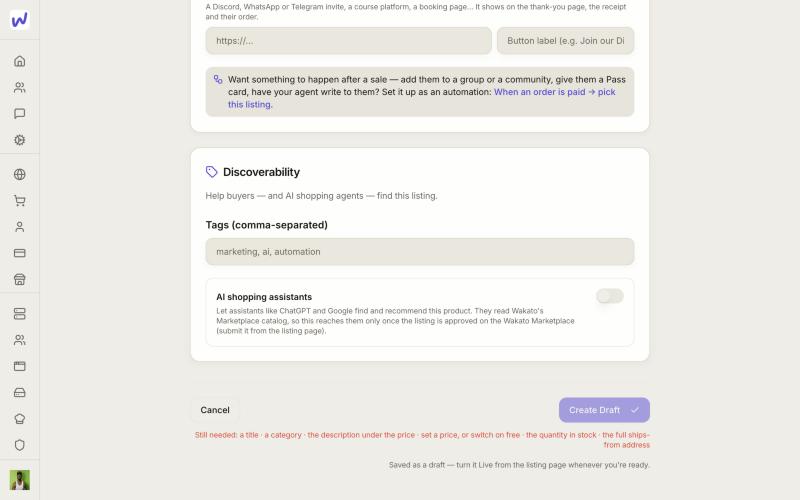
Save the draft
Test, then go live
Do it: send an invoice or a payment link
Open Payments
Press Get paid
Choose who pays
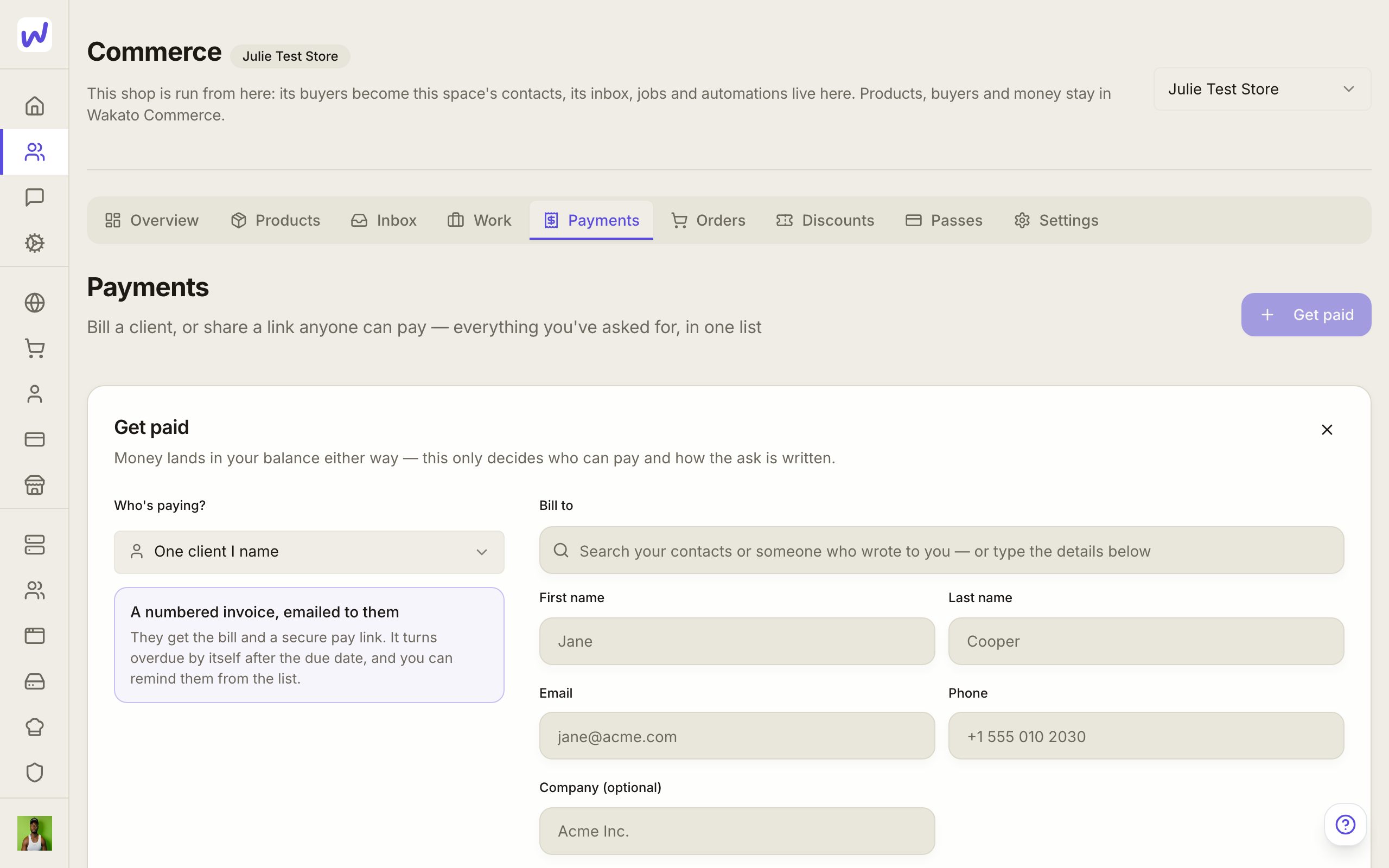
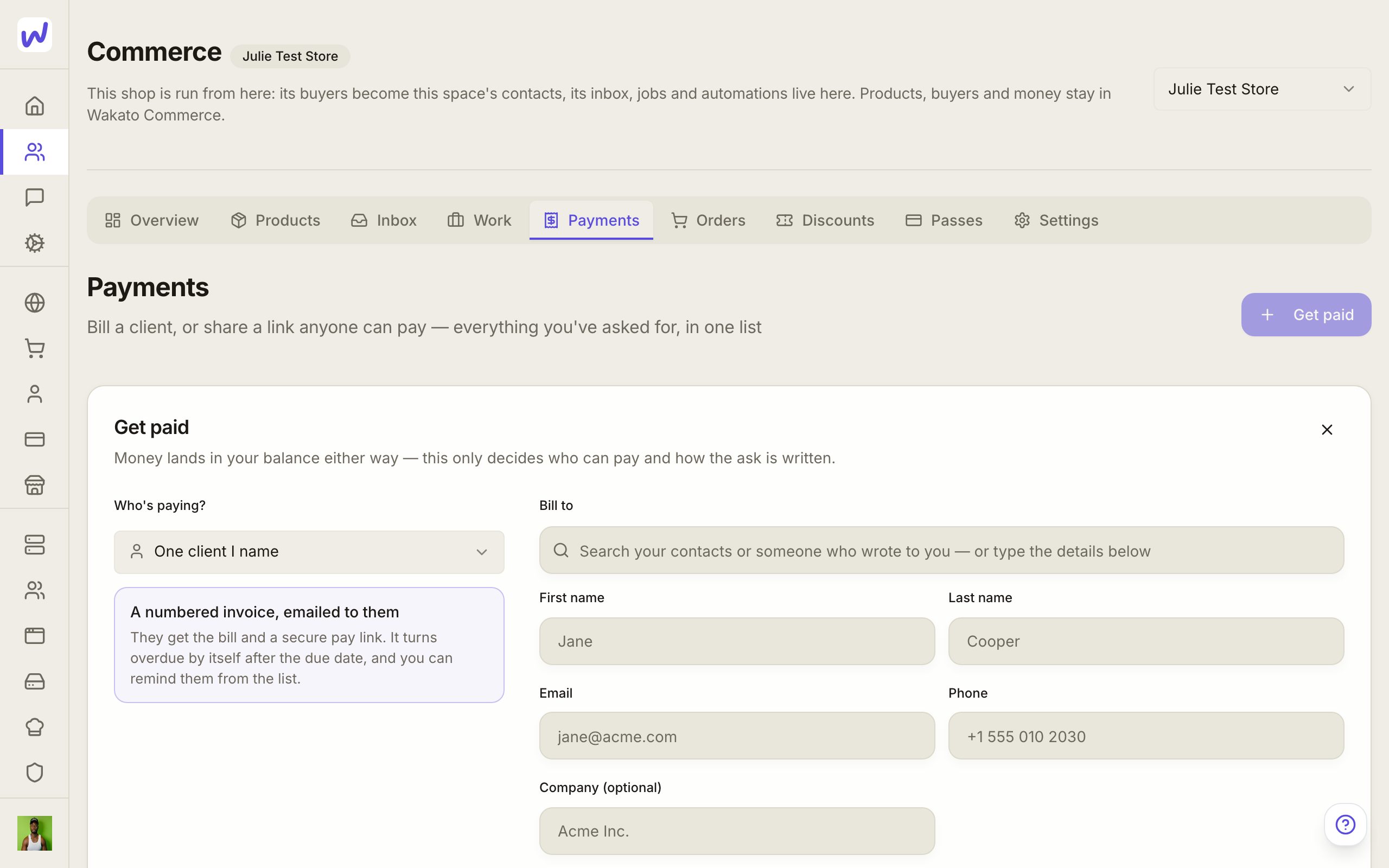
Find the client
Add the items
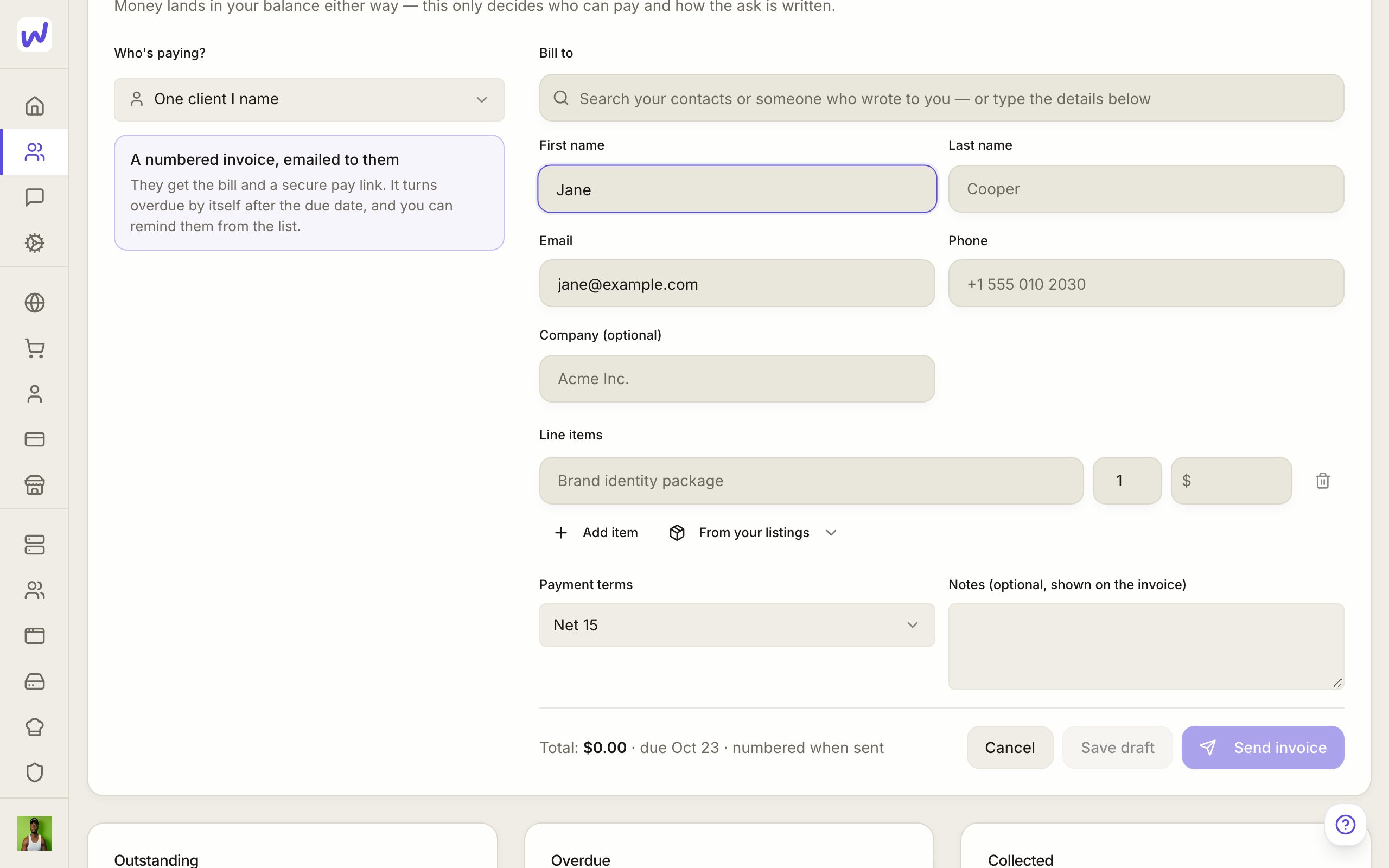
Send it
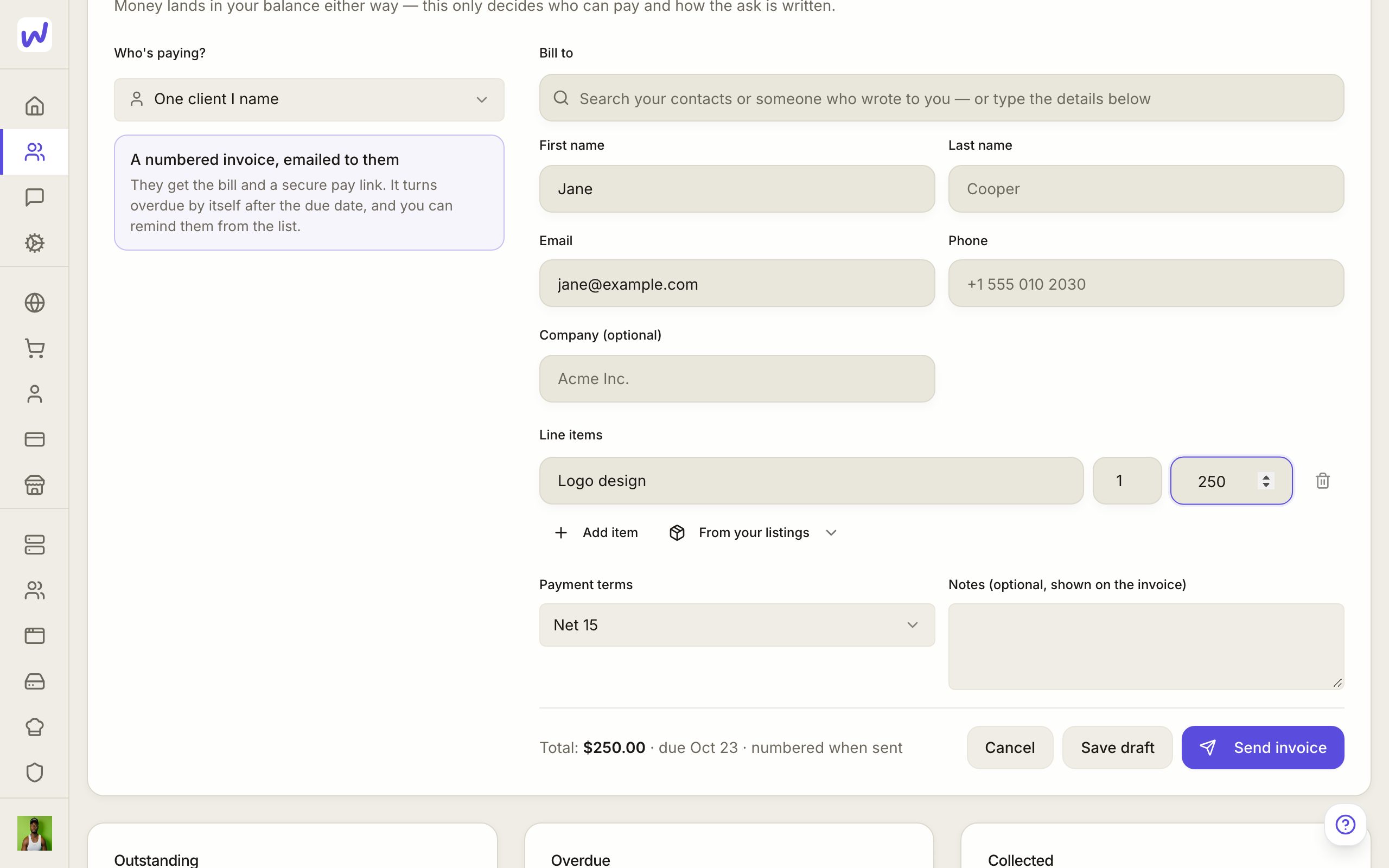
After a sale
What happens after someone buys is an automation in the shop's space, not a setting on the listing. Use the trigger Order paid and pick the listing, then add steps such as Add the buyer to a group, Add the buyer to a community, Give Pass Card or Agent messages the buyer. A listing itself only carries what the buyer gets on their receipt, like a download link.
What your agents can do here
Agents can create and update listings, answer product questions, run jobs to delivery, send invoices and payment links, and place test orders when you allow it. In a chat, an agent can offer one of your listings as a card with a buy button and check whether the person bought it. Agents never buy for real and never take card details: every payment goes through Wakato's checkout.
Questions
Related
Apps
Space Apps are small custom tools that run inside your Wakato space, such as a booking tracker, a check-in screen or a quote calculator. Your agents build them, you add ready-made ones from Wakato's library, and you can share them with people outside the space.
Wakato Marketplace
The Wakato Marketplace is the shopping page at wakato.io/marketplace where buyers browse listings Wakato has reviewed. Any live listing can be submitted for review, and approved listings can also be found and bought through AI shopping assistants like ChatGPT.