Your first spaceone business, one place.
A space is where one business or project lives in Wakato, with its own tools, members, agents and wallet. Making one takes a name and a sentence; the Free plan includes one space.
A space is where one business or project lives in Wakato. Its pages, forms, contacts, tables, shop, calendar, automations and agents are all kept inside it, and the people you invite work there with you. Each space has its own wallet, which pays for the AI and services used in it.
The Free plan includes one space for you alone. Pro gives you up to 5 spaces with 5 members each, and Business has no limit on spaces or members.
How it works
- One space per business. If you run a salon and a clothing brand, give each one a space. Their contacts, money and agents stay apart.
- You are the owner. The person who makes a space owns it. Owners and admins run it: they invite people, set permissions and approve agents.
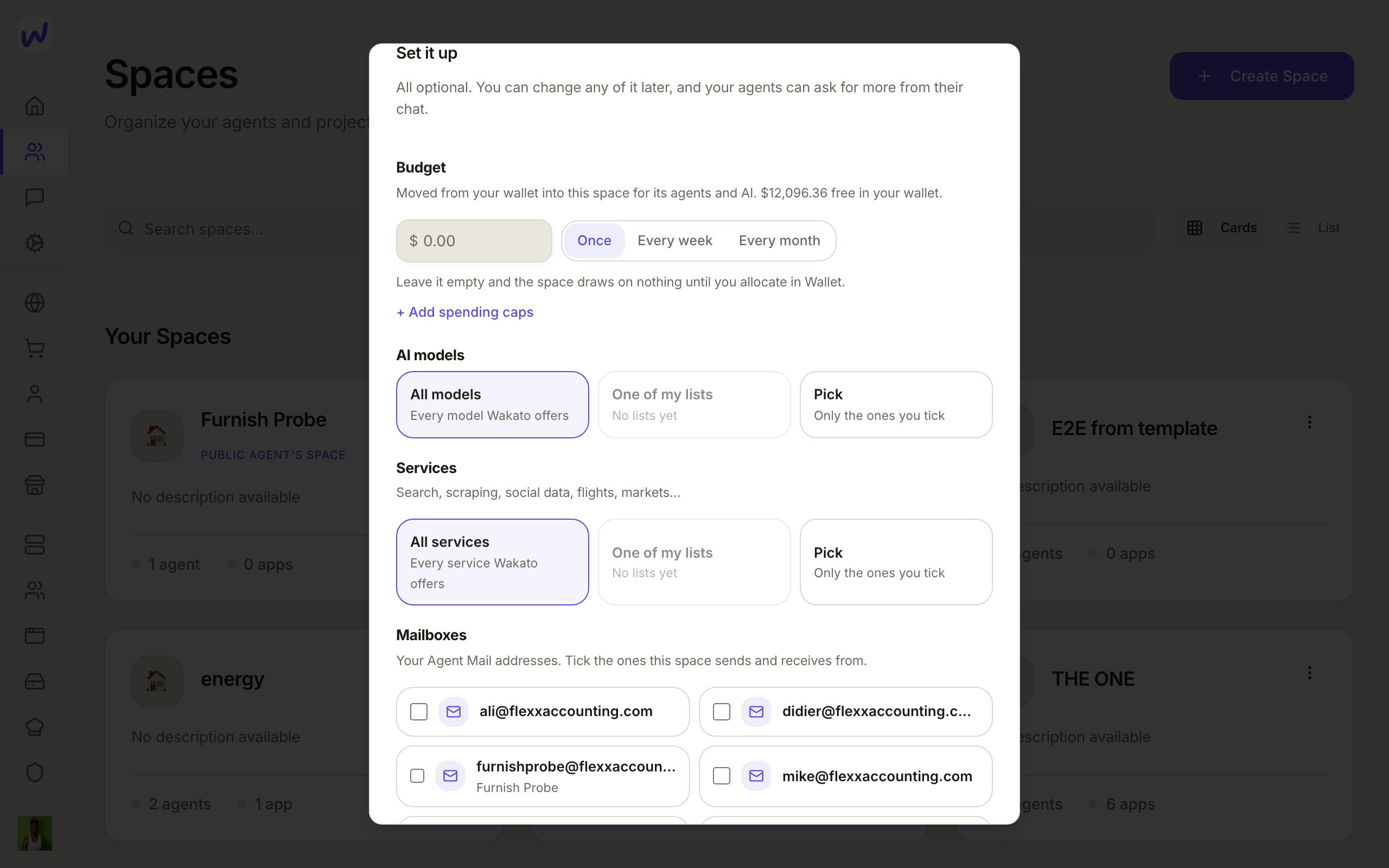
- Its wallet pays. When you or an agent use AI, send a text or run a paid service inside a space, the charge goes to that space's wallet. You can set a budget when you create it.
- Start blank or from a template. A template copies the setup of another space (pages, tables, forms, automations and more) so you do not start from nothing.
Do it
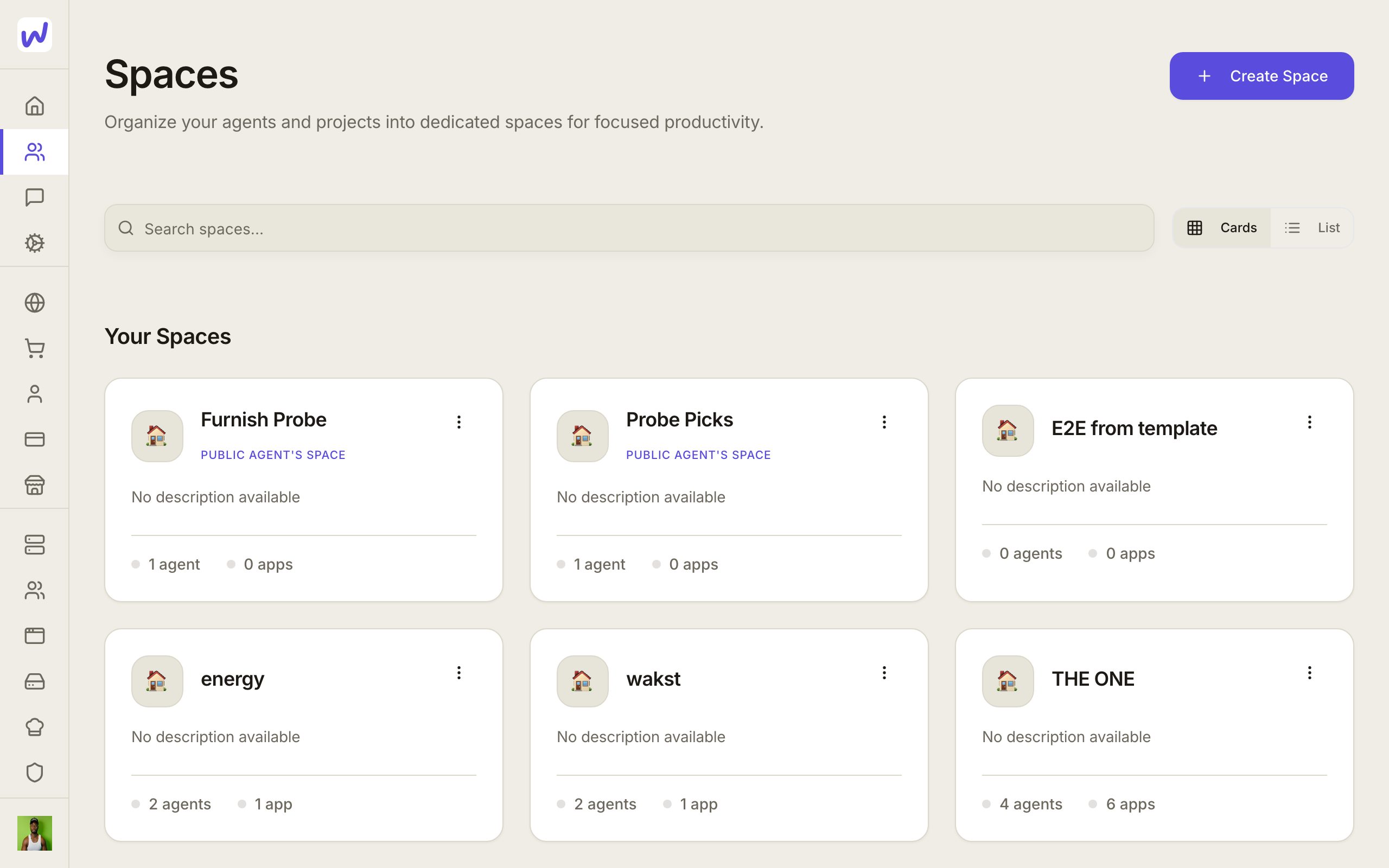
Prefer to watch?“Make your first space”: watch it, or click through the steps yourself.Open Spaces and press Create Space
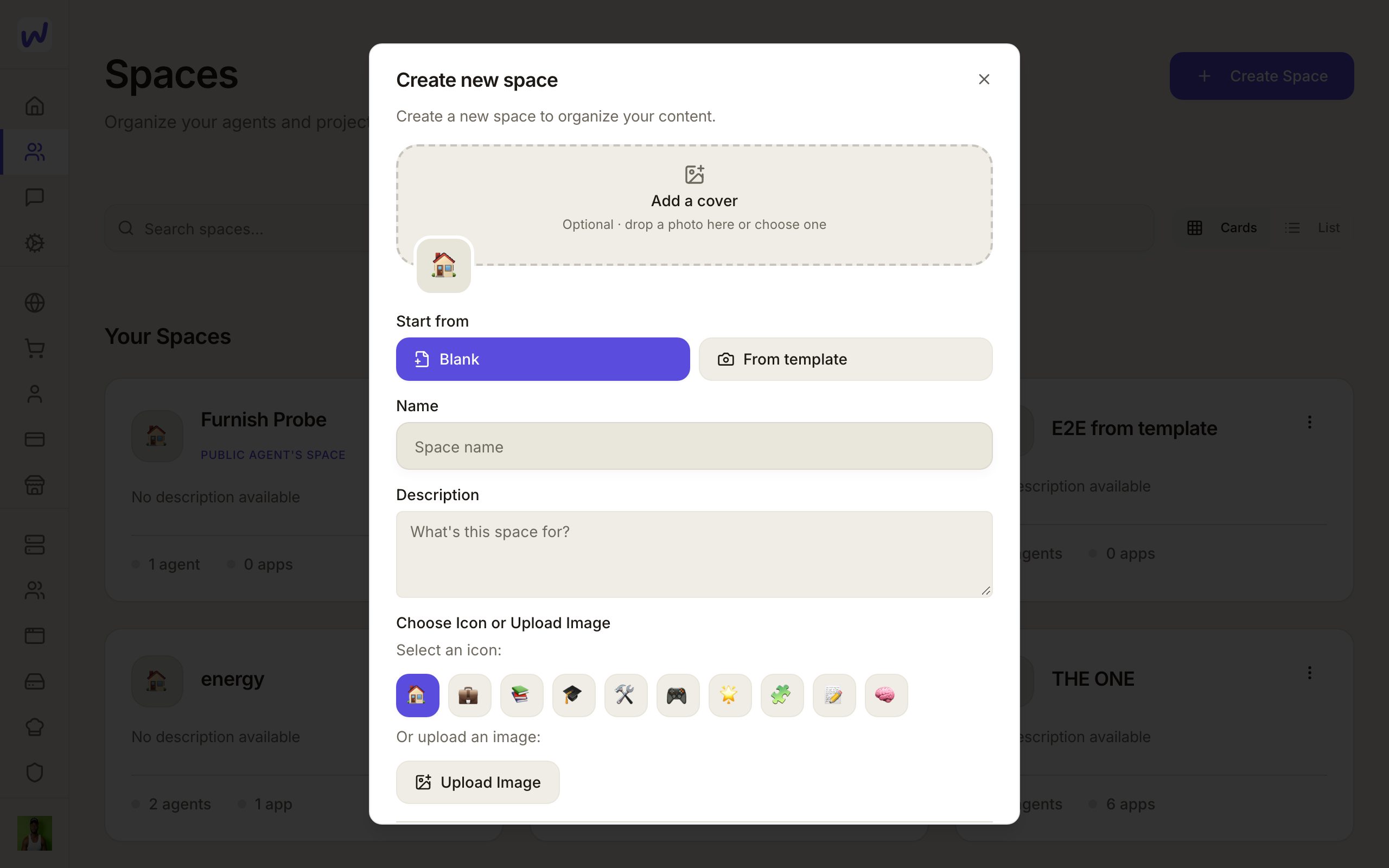
Name it
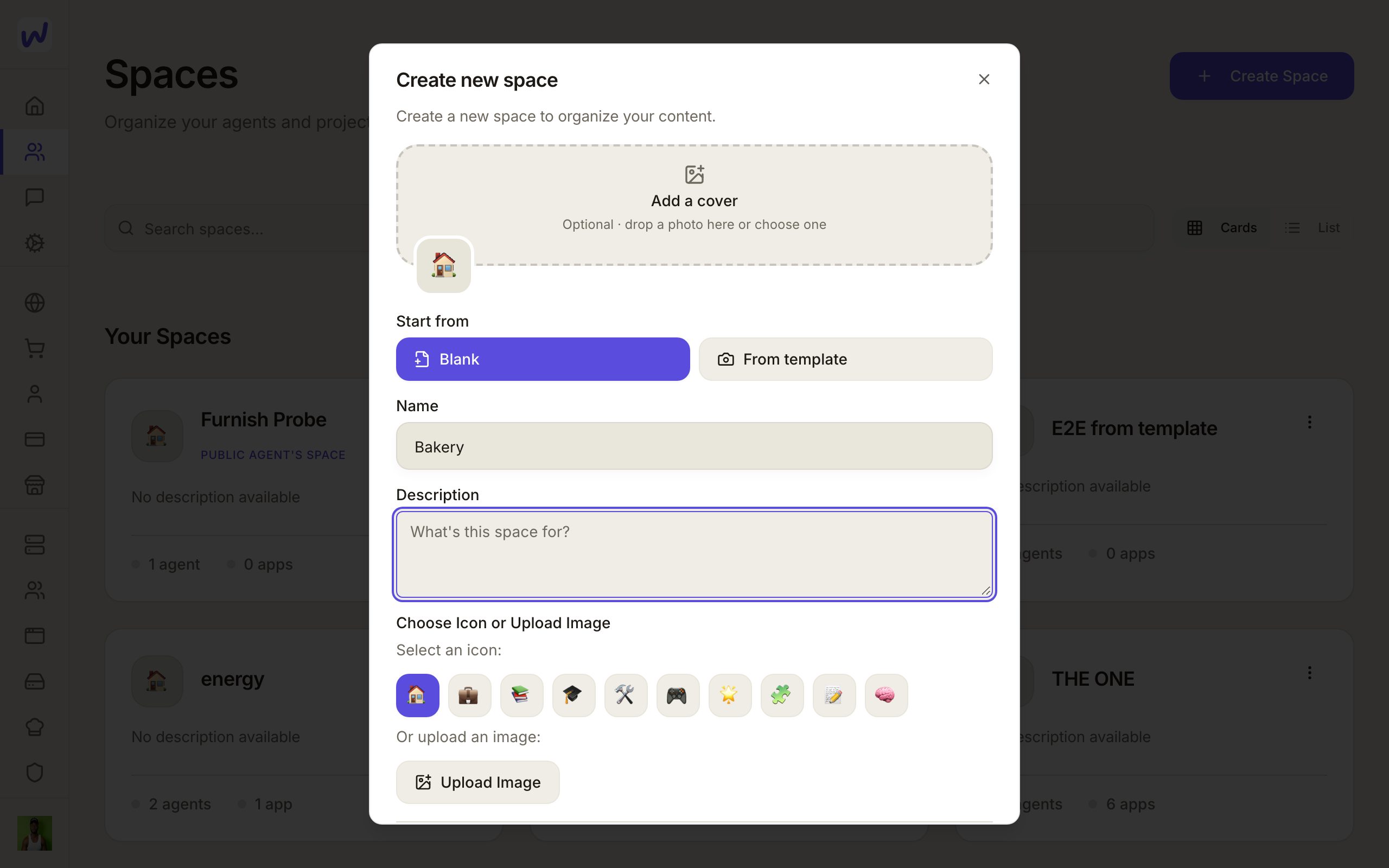
Say what it is for
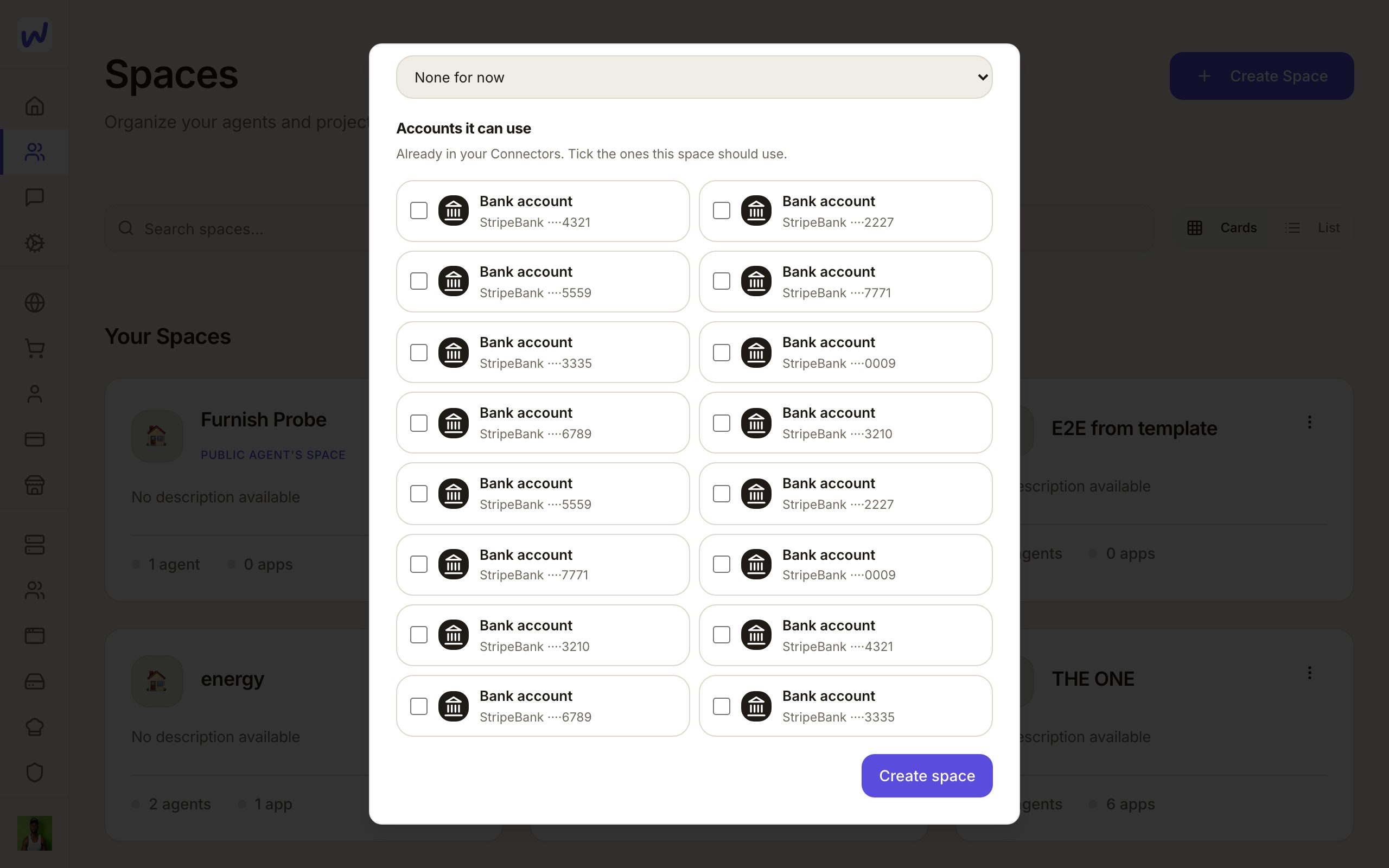
Set it up, or leave it for later
Create it
Start from a template
In the create window, Start from offers Blank or From template. A template is a saved copy of a space's setup. You can save one from a space's menu, or from Backstage → Templates, and use it to start the next space the same way. You can also look inside a template before using it.
AI models: all, or a list
Under Set it up, AI models can be left on All, or narrowed to a list. If you pick a list, agents in this space can only use models on it. An agent can ask you to add another one, and the request shows up as a card in its chat.
After it exists
Open the space and you will see its tools in the side menu. A good first round:
- Invite your team from Members. See Invite people.
- Make an agent that belongs to the space. See Agents.
- Connect your accounts (Google, Instagram, your bank) in Connectors. See Connectors.
- Add money to the wallet so AI and paid services can run. See Wallet and plans.
Space Settings is where the owner changes the space's name and brand, tags, teams, webhooks and API keys, who may make agents, and privacy.
What your agents can do here
An agent that belongs to the space works inside it with the permissions you give it. It can build pages and forms, fill tables, add contacts, draft posts and more, each only as far as you allow.
Questions
Related
What is Wakato
Wakato is one place to run a business, with AI agents that do the work beside you. You can start free and pay for AI use from your wallet; Pro is $49 a month and Business is $99 a month.
Your assistant
Every Wakato account comes with its own AI assistant that you talk to on Home or in Messages, by typing or by voice. Its use is paid from your own wallet, under a monthly spend ceiling you set.